
What is A+ content?
One of the most significant and successful techniques for increasing your marketplace success is to use Amazon’s A+ Content.
One of the most effective methods to build customer trust and conversion rates is to use Amazon A+ Content. It may even assist you in achieving a higher ranking in Amazon Search Engine Results Pages (SERPs).
Brands can use Amazon A+ Content to boost the product description portion of their product listings. They can pick from a range of layouts before adding visually appealing images and graphics.You can only use plain text copy in your product descriptions if you don’t have Amazon A+ Content. As a result, you won’t be able to properly attract customers’ attention.
Comparison chart in A+ content
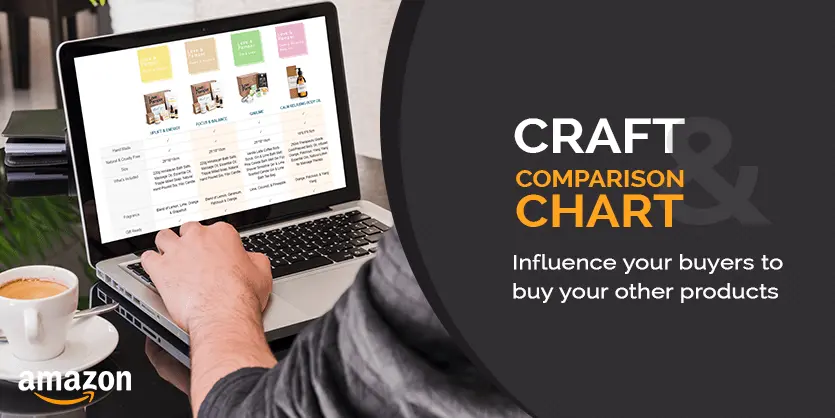
A+ content manager has a module called comparison chart. This module explains the fundamental distinctions between similar products so that the consumer may make an informed decision.
You can develop your own comparison charts using A+ Enhanced Marketing Content to assist educate and inform consumers. Your charts can’t compare your product to the competition, but they’re a great method to show off comparable items and compare them inside a single ASIN.
How Comparison Chart affects your sales
If you sell multiple varieties of the same item, a comparison chart might assist buyers in determining which is best for them. If you have additional items in your brand, the comparison table is really useful. The best feature is that you can link to those product listings directly.
Fighting back with your own
A comparison chart can support to assure a customer that they are making the right choice. Although you can’t directly discuss a competitor’s goods in comparison charts, properly presenting the benefits and features of your own product across your catalogue will assist convert a shopper into a customer.
Showcase other products
This is a great option because it allows you to make tables that compare your product to other products. However, you can only compare your own products in this comparison, not those of competitors. If the current listing isn’t exactly what the buyer is looking for, you can use this module to display alternative products from your range, preventing them from purchasing from another seller.
Effectuate a better understanding of the product
To understand a product, a comparison chart is very important. When a customer visits a product listing page and finds a comparison chart on A+ content, they become curious about other products. In the comparison chart we can show 6 product features together. So customers can understand better which product is best for her. And as in the comparison chart, other product’s many features are highlighted, so customers can have an idea about those products. A comparison chart in A+ content is very effective to make customers into buyers.

In the above image we can show the difference between product 1 and product 2. Product 1 has a lower percentage of sales than product 2 because of the comparison chart.

This is the view of the Love & Pamper brand’s one of bestselling products comparison charts. When a buyer visits this bestselling product, he/she can see this brand’s other bestselling products and if they find any products they want to buy, they get them from there.
And in the comparison chart, there will be other best selling products. By this, a customer can see the brand’s varieties of products and can visit the products to buy from the comparison chart. In this way, we can influence a buyer to buy various products by adding a comparison chart in the A+ content.
How to add Comparison Chart
This is the backend view of A+ content.


Of the 12 module options, you can use up to five (7) modules per page. You can choose to use the same modules every time, or you can mix it up for each listing. In 12 modules, one of the very important modules is a comparison chart. This is the module:

In this comparison chart, we can add a minimum of 2 products and a maximum of 6 products.

Here, in the picture above, you need to create the image in 150:300 Pixels. In the first column, you need to put the title, and in the second column, you need to put an ASIN. By these ASINs, the product link will be attached automatically. If you want, you can highlight your comparison chart’s columns.
Also, in the above picture, you can see a button named “Add metric”. By clicking this button, you can add your product features and show the comparison between your products. You must add a minimum of one metric and can add a maximum of 10 metrics.
We hope that our article on How to influence your buyers to buy your other products has given you the information you need to stand out from the competition.