
Capture your potential buyer’s attention and stand out from your competitors by creating a visually pleasing and informative item presentation that sells! Responsive listings are about using CSS and HTML to resize, hide, shrink, enlarge, or move the content to make it look good on any screen. A good listing always has been influencing visitors buying your item. But, A Cluttered listing with poor description, vague terms, and hostile verbiage make your visitors scared from buying your item. On eBay, A responsive listing template plays a vital role to attract your customers that will help you to generate more sales. It also helps visitors focus on the products that they are looking for.
If you are searching for a free eBay listing template then you are in the right place! Our intuitive and user-friendly web interface along with carefully crafted eBay template builder helps pro sellers like you to sell more. In this article, we will show you the process of how you can create and apply our free eBay description template from “ecomclips dashboard” to eBay“.
Create Free Responsive eBay Description Template
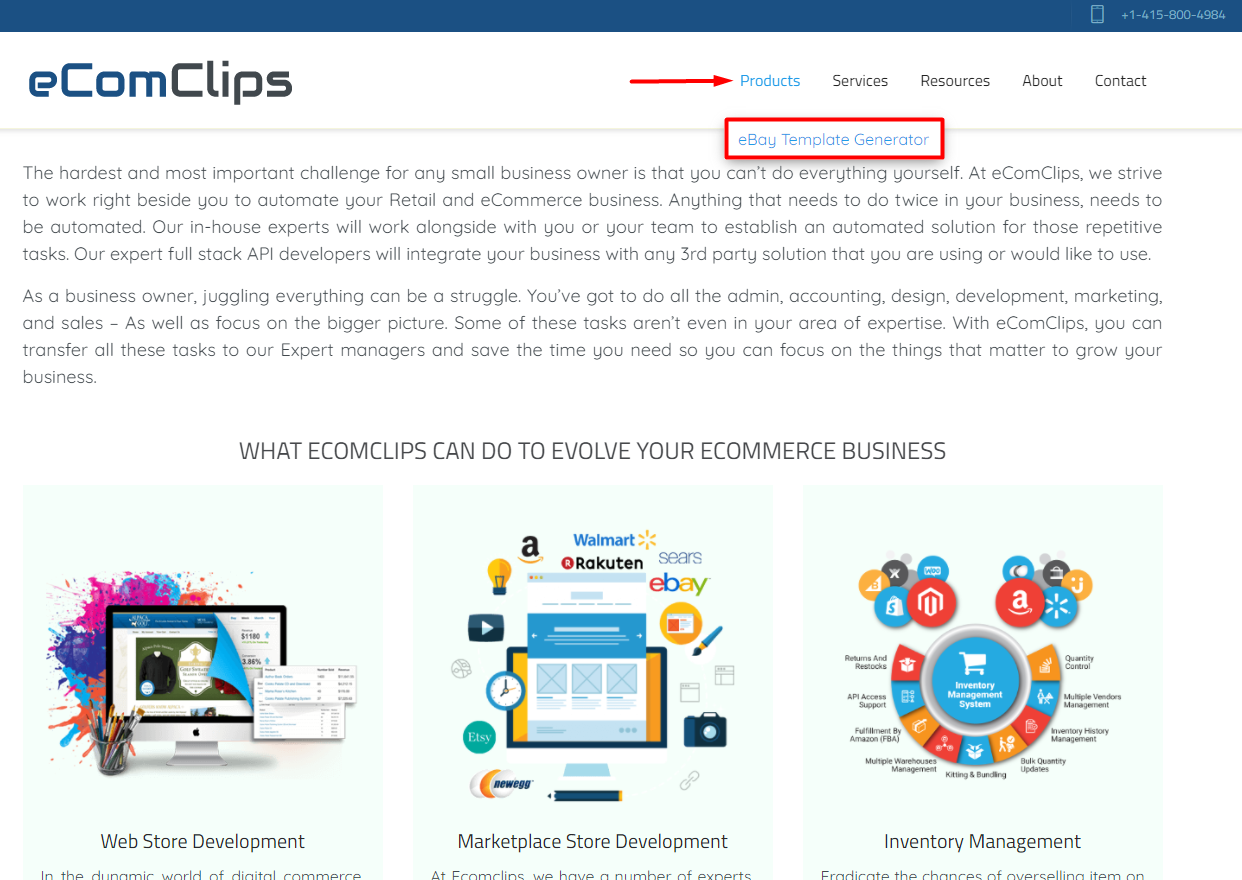
Step 1: Once you are in the ecomclips dashboard, you can see that on the top side of the screen ecomclips features are grouped into categories that we can use. Click on the eBay Template Generator from Products.
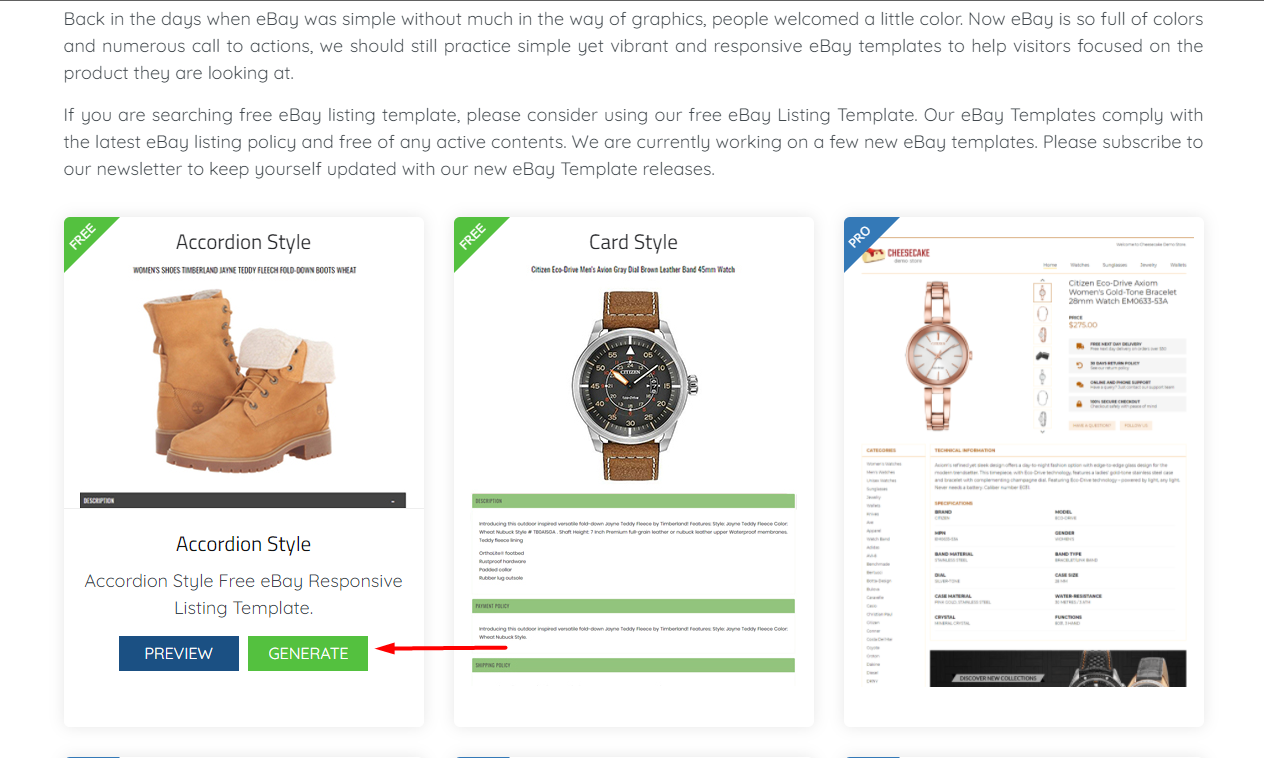
Step 2:There are two free eBay Template Generators available now. One is “Accordion Style” and another one is “Card Style”. You can choose any of them to create your own. Now we are choosing Accordion Style.
Hover over the free eBay Template and then click on GENERATE.
Note: Hover over show and Click on Show Instruction. Here You can see some quick instructions about how to create this template for your own listings.
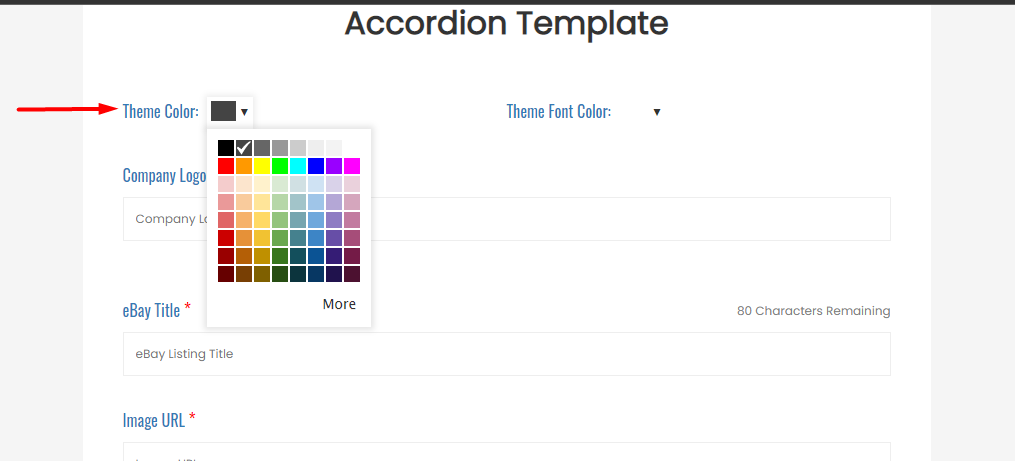
Step 3: Now you have to choose your Theme Colour and Theme Font Colour from the top of the page.
Step 4: Now paste your company logo URL into the Company Logo Image URL section.
Write your listing Title in eBay Title Section and also provide an Image URL in the Image URL Section.
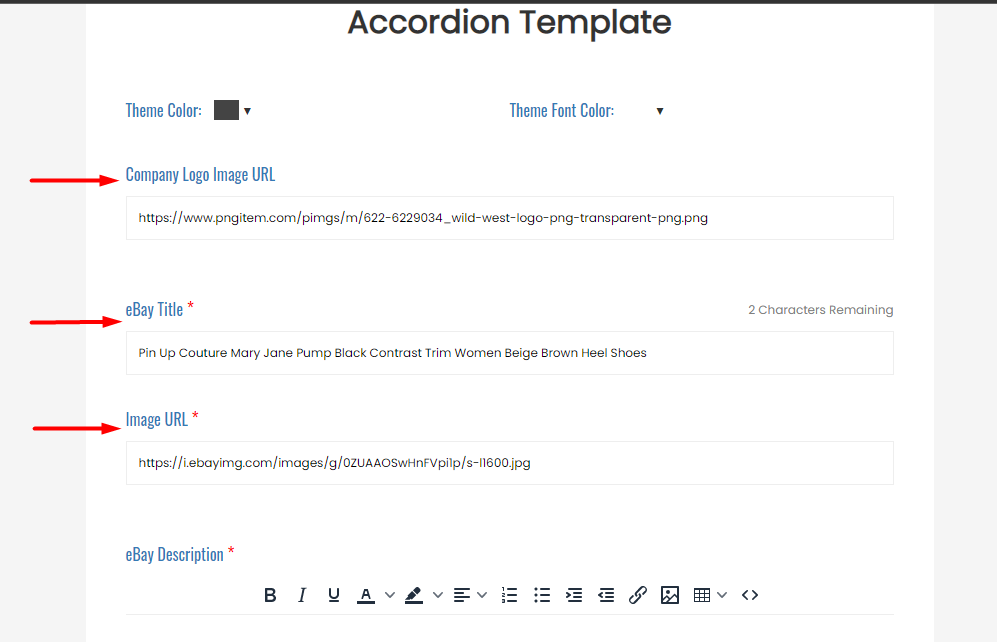
Step 5: Write your eBay Description, Payment Policy, Shipping Policy, Return & Refund Policy, Feedback, International Orders and About Us each their own section.
If you want you can Add more blocks Click on + Add Block and provide a name for it. You can also Delete any section by clicking on the Delete Button right of each Block.
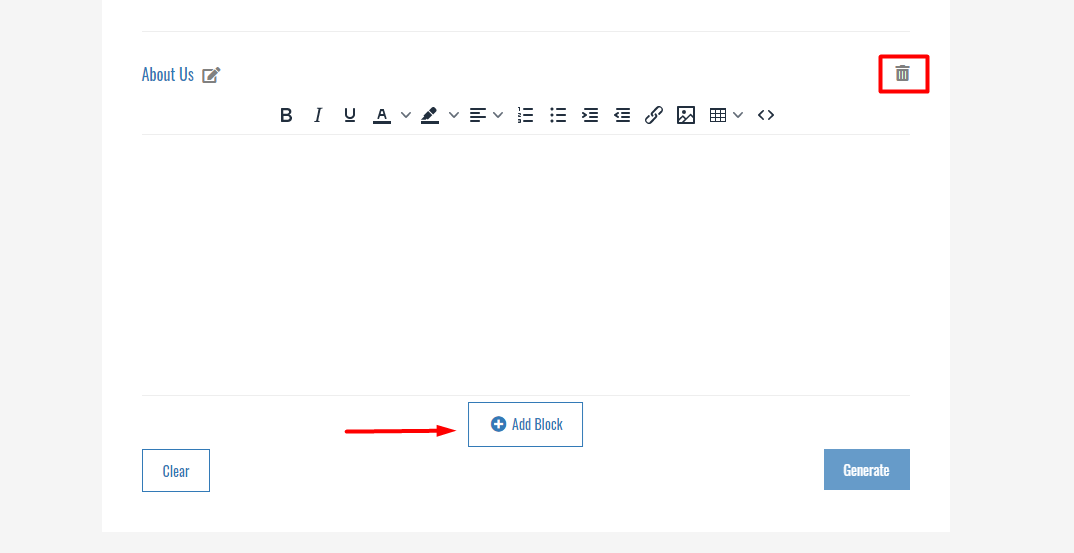
Step 6: Now click on Generate at the bottom right. After finishing this generate operation.
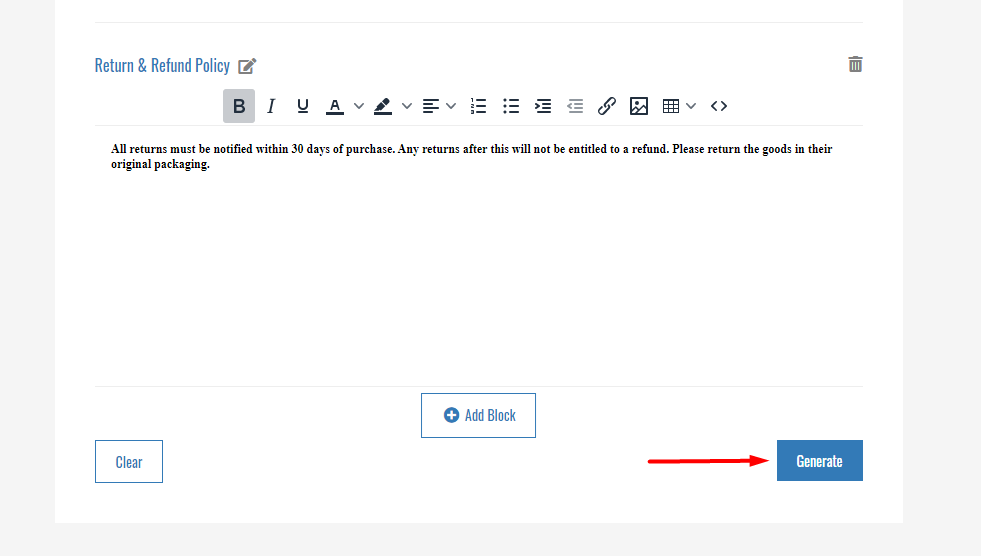
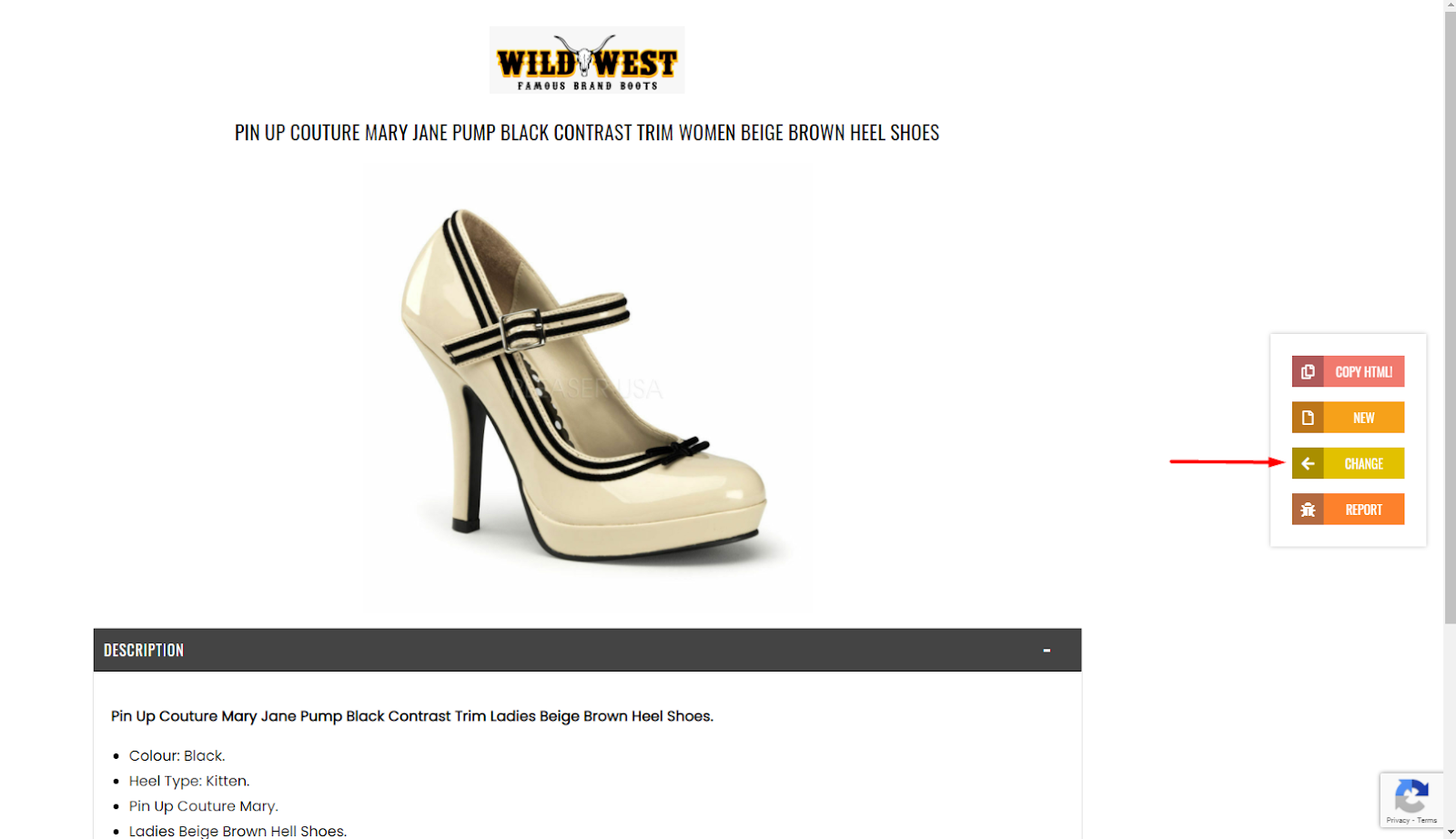
Click on Copy HTML .
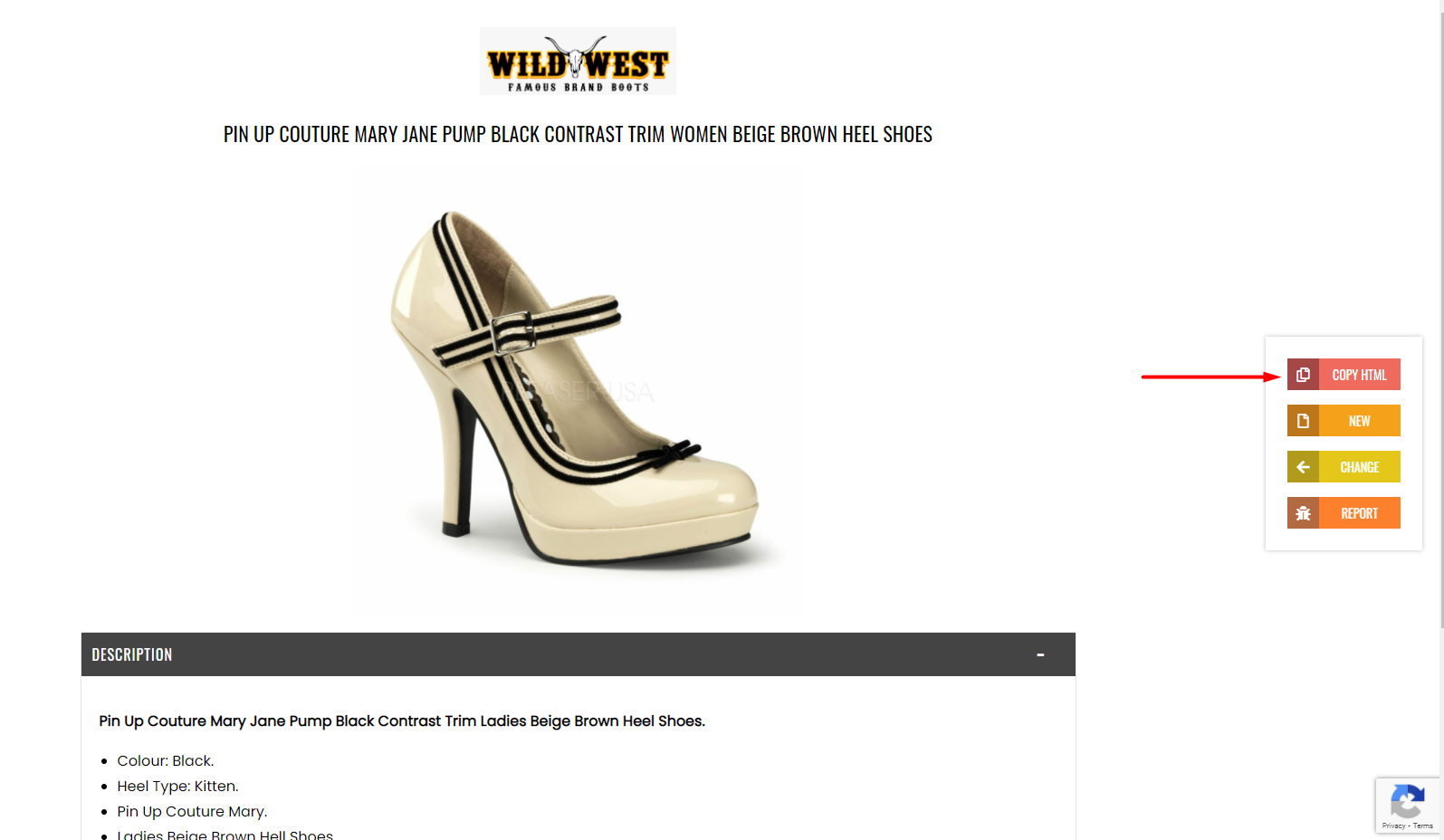
Also, if you want you can change any thing which you prepared. Click on “CHANGE” and this will take you to the previous page.
Step 7: Now go to your eBay account and click “edit” on which listings you want to apply the template. Scroll down to the page and go to Item description and click on HTML. Now delete all the previous HTML code in this section and paste the copied HTML code from the Ecomclips eBay Template Generator.

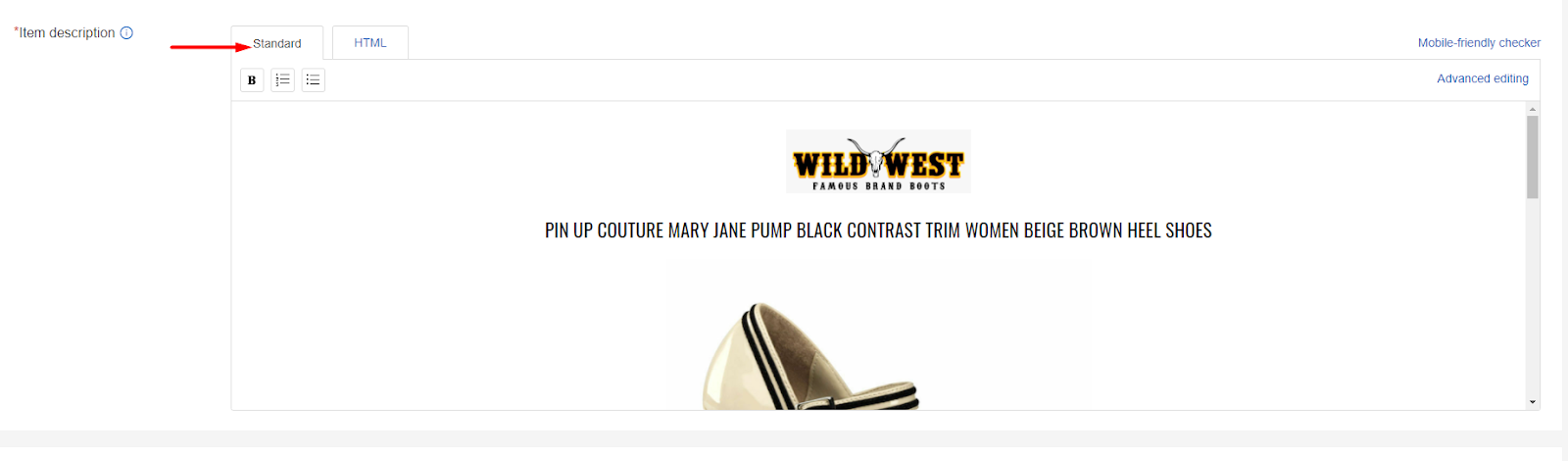
Step 8: Now Click on Standard, You can see the preview of this template here.
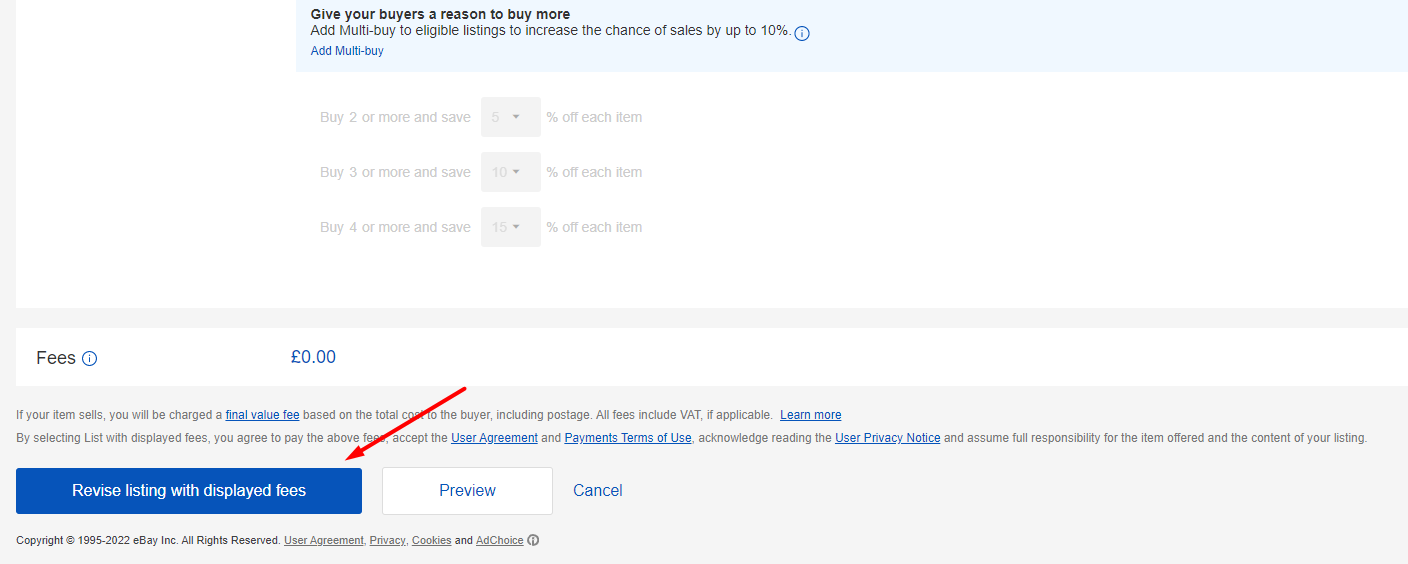
Now Go down again click on Revise listing with displayed fees.
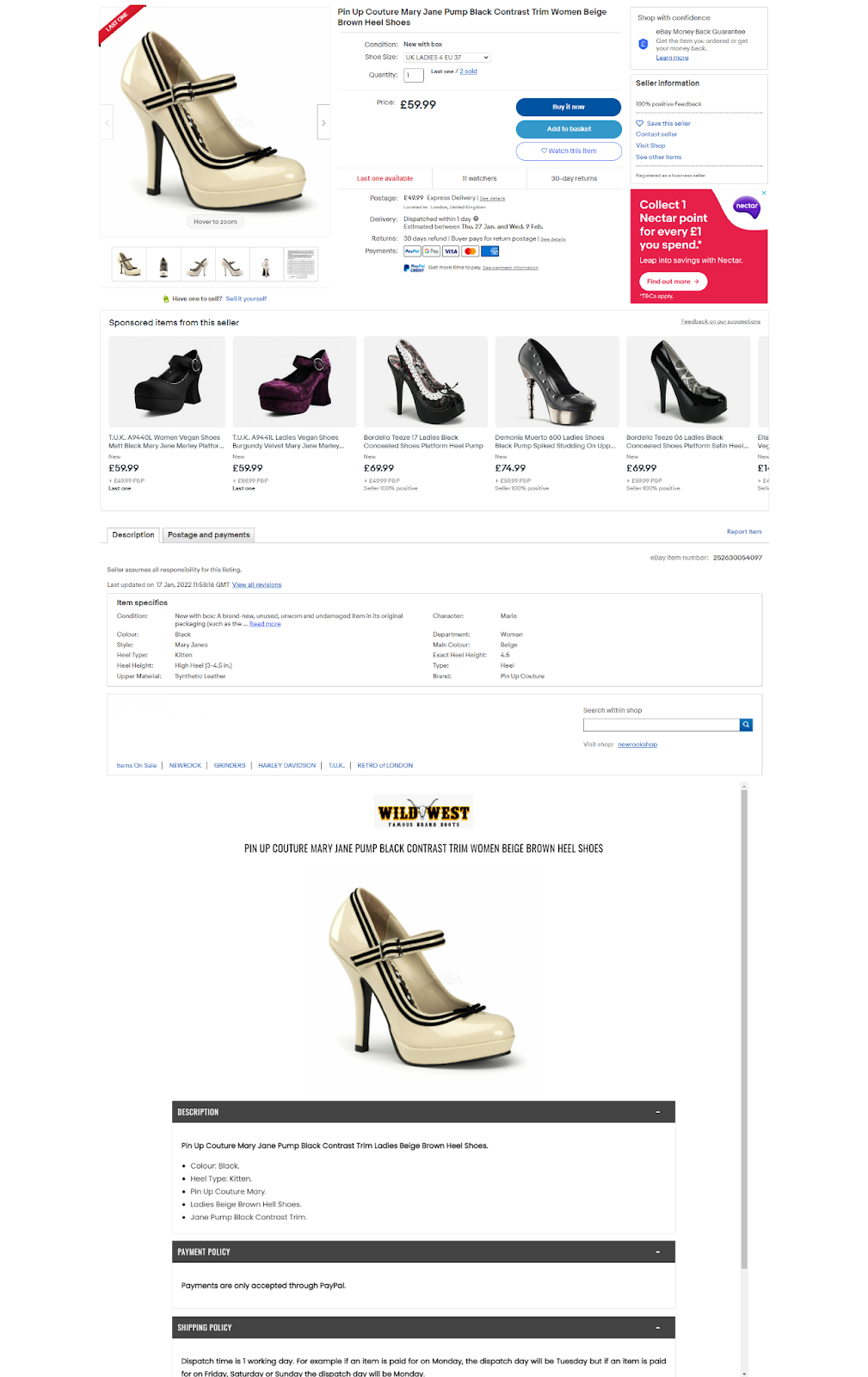
After a few minutes you can see this new description template will be reflected on your eBay listing front page.
That’s all there to Create Free Responsive eBay Description Templates from Ecomclips Dashboard. We hope this article will assist you in creating better eBay listings. You don’t have to worry about HTML coding if you utilise these templates. If you require any additional assistance, please leave a comment in the comment section below.