
You can optimize Performance Max for service businesses in three ways: move proven search traffic into Search campaigns, separate your brand traffic, and test more asset groups. Most advertisers skip these steps. They launch a campaign, watch the conversion count, and leave the rest to Google.
That habit costs money. Performance Max runs across Search, YouTube, Display, Discover, Gmail, and Maps from one campaign, so it can hide a lot of waste.
In this guide, you will learn how to:
- Find out which channels really drive your leads
- Turn winning search terms into new Search ad groups
- Stop your campaign from taking credit for brand searches
- Use audience data to build better asset groups
- Replace weak headlines with proof from your own account
This guide uses one real account as an example. It belongs to a recording studio in Miami, Florida. The same steps work for roofers, plumbers, lawyers, dentists, and any other business that sells a service.
Why should a service business look past the conversion count?
A service business should look past the conversion count because the total does not tell you where your leads come from or what they cost. You need that detail before you change anything.
A campaign can report steady leads while one channel eats most of the budget. A campaign can also collect easy brand searches and make its results look better than they are. The three steps below help you find both problems.
Before you start, confirm that you track real leads, such as calls and form fills. This account optimizes for contact conversions. If you count weak actions, like page views, every step in this guide will point you the wrong way.
Step 1: Check whether you need Search campaigns
This step sounds odd at first. Why would you look for Search campaigns inside a campaign that already runs on Search? The reason is control. If most of your spend already goes to Search, you can get better results by building keywords, ads, and landing pages for your best terms.
Read the channel performance report
The channel performance report shows where your conversions and your budget go. To open it:
- Open your Performance Max campaign.
- Click Insights and reports in the left menu.
- Click Channel performance.
- Open the results drop down and choose Conversions.
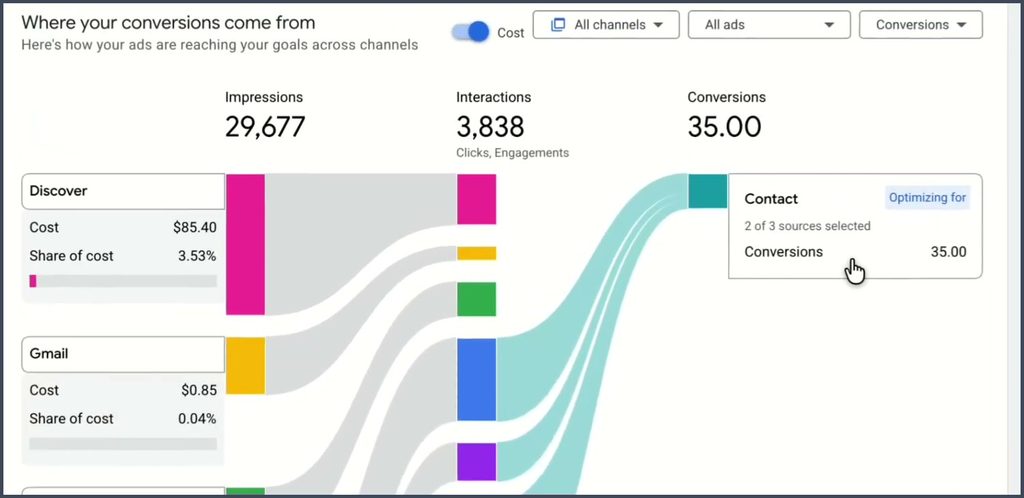
Each color in the chart stands for a channel. Scroll down to the table to see the exact numbers.
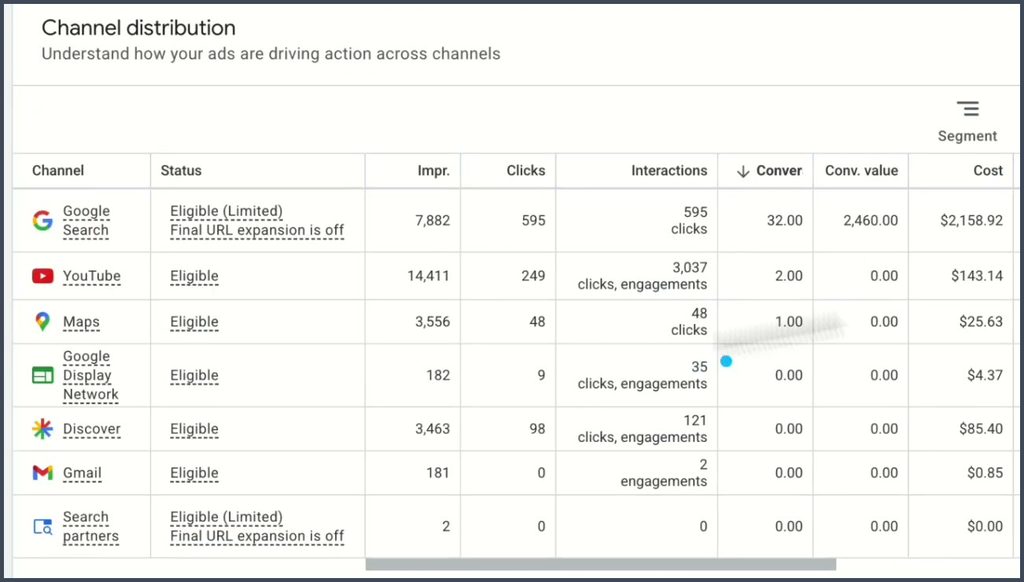
Here is what this account shows over 30 days:
| Channel | Impressions | Conversions | Cost |
|---|---|---|---|
| Google Search | 7,882 | 32 | $2,158.92 |
| YouTube | 14,411 | 2 | $143.14 |
| Maps | 3,556 | 1 | $25.63 |
| Discover | 3,463 | 0 | $85.40 |
| Google Display Network | 182 | 0 | $4.37 |
| Gmail | 181 | 0 | $0.85 |
Search drives 32 of the 35 conversions. It also takes 89.27% of the cost.
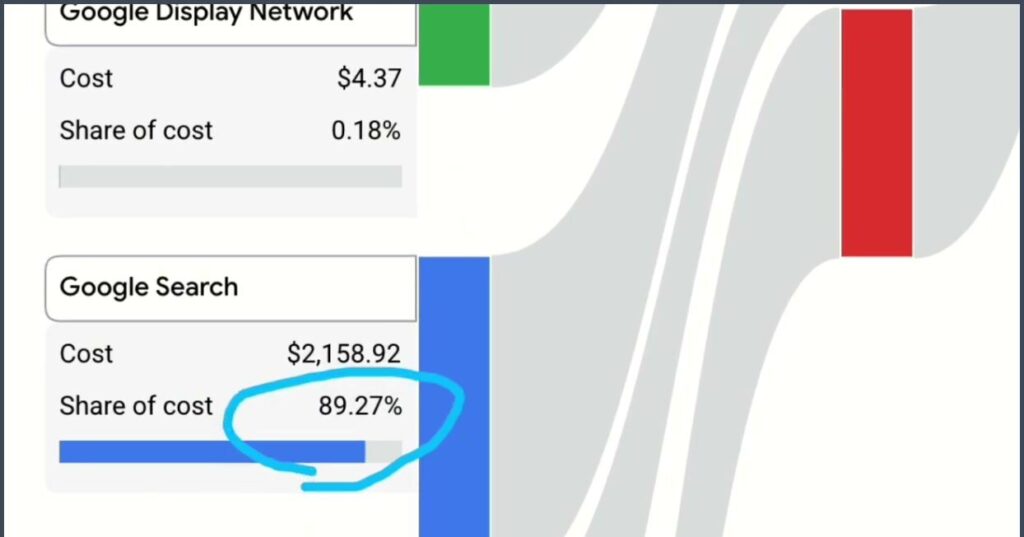
This account does not need more reach on other channels. It needs tighter control over Search.
Keep one point in mind here. Google advises you to judge results at the campaign level first, because channels can support each other. A person may see a YouTube ad and search for you a week later. So use this report to find ideas, not to write off a channel.
Clean up the search terms report
Next, open the search terms report. It lists the real searches that triggered your ads. Sort every term into one of three groups:
- New idea: You have no ad group for this term, so mark it for a new one.
- Duplicate: You already have a Search ad group for this term, so exclude it here.
- Junk: The term has nothing to do with your service, so exclude it here.
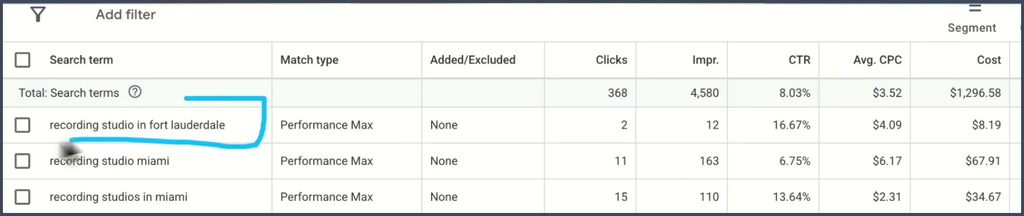
In this account, “recording studio in Fort Lauderdale” brought in clicks, but the Search campaign has no ad group for it. That term goes on the list for a new ad group.
Duplicates need a different fix. When your Performance Max campaign enters the same auctions as your Search campaign, you lose control over which ad and landing page people see. Add those terms as negative keywords in the campaign.
Google gives exact match Search keywords priority over Performance Max when a search matches the keyword. Google also says search themes carry the same priority as phrase and broad match keywords, so those terms can still overlap. Negatives help you close that gap.
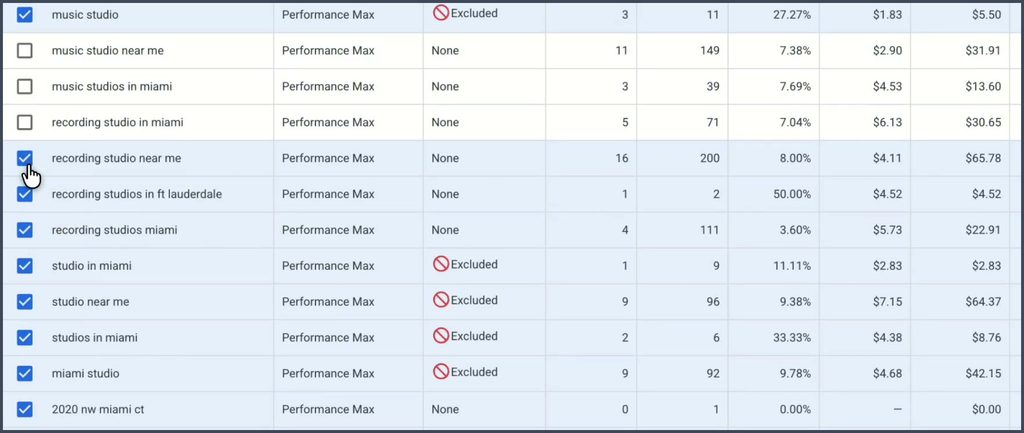
Here is a fast way to handle junk terms:
- Set the table to show 100 rows.
- Check the box at the top to select all 100.
- Uncheck the few terms you want to keep.
- Add the rest as negative keywords.
- Move to the next page and repeat.
This account had 806 search terms, and most of them had zero conversions. You can clear that list in one sitting.
Mine search terms insights for new ad groups
Next, click Insights in the left menu, set the date range to the last 28 days, and scroll down to search terms insights. This section groups searches into themes, so you can spot patterns that a long list hides.
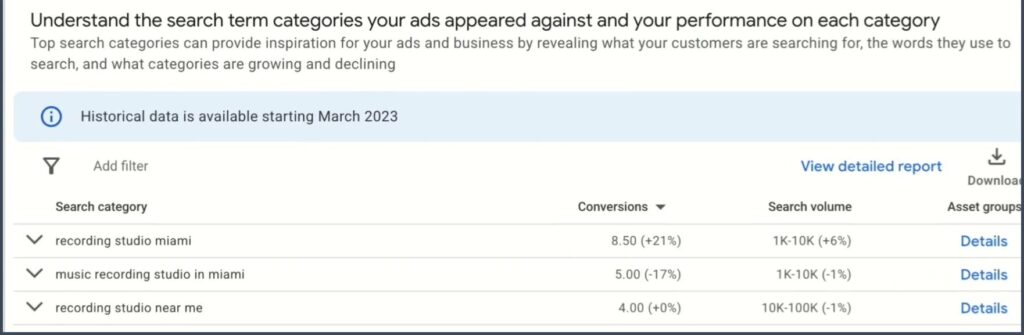
The table shows conversions and search volume for each theme.
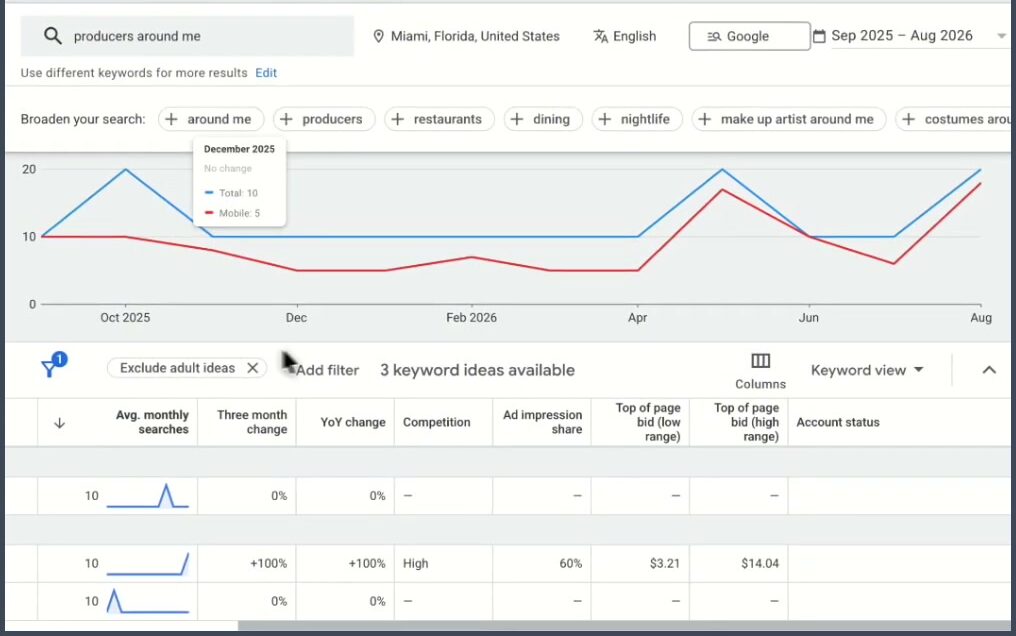
Treat each theme based on what you already run:
- You already have it: “Recording studio Miami” brought in 8.5 conversions, and the account already has a Search ad group for it. Exclude those terms so Performance Max does not take the credit.
- You do not have it: “Recording studio Fort Lauderdale” brought in 2 conversions. Click the theme to see its terms, then build a new ad group from them.
- You have not tested it: “Music producers in Miami” has no conversions yet, but it could become a new offer with its own landing page.
For new ad groups, set most keywords to exact match and one keyword to phrase match. Google’s keyword match type guide explains how each type works.
Some themes show up as “other search terms” and give you little detail. In that case, open Keyword Planner, type in the idea, and check what comes back.
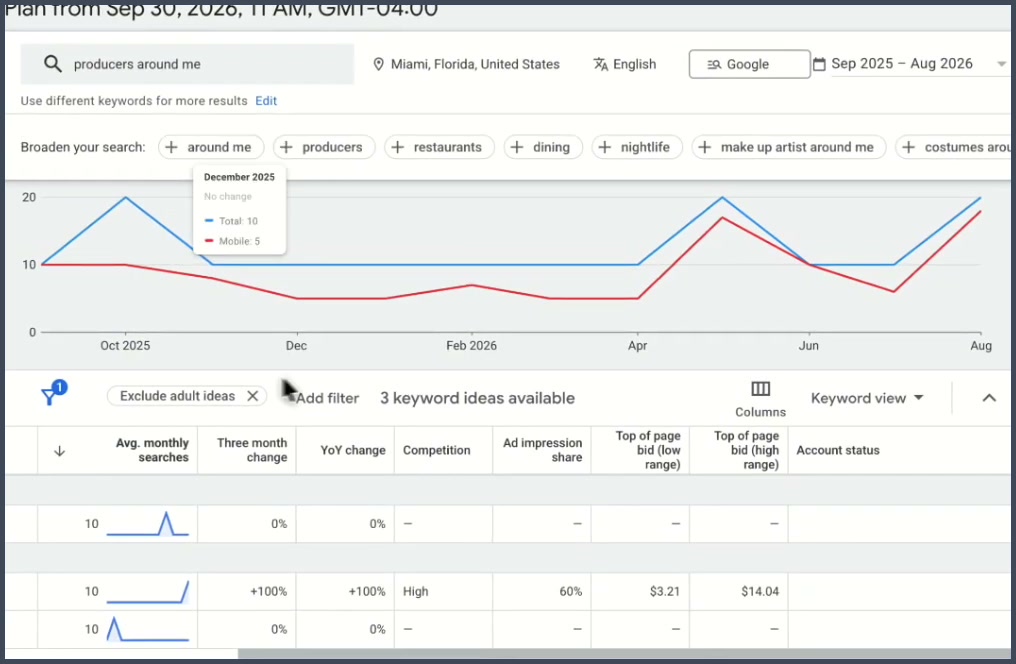
Then decide whether the idea deserves its own ad group and landing page. Each new group gives you another pocket of traffic that you control.
Step 2: Exclude brand terms and build a brand campaign
Brand searches come from people who already know you. Those people often convert easily, so they make your campaign look stronger than it is. You want to see how many new customers Performance Max really finds.
Turn on brand exclusions
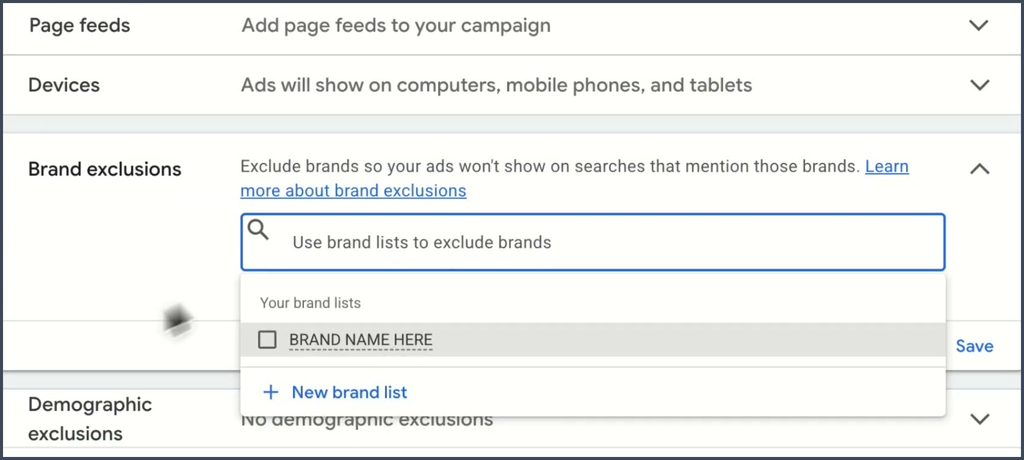
Brand exclusions stop your ads from showing on searches that mention the brands on your list. Negative keywords do part of this job, but they miss close variations. Brand exclusions can also block clear misspellings of your name.
To set them up:
- Click Campaign settings and scroll to the bottom.
- Click Brand exclusions.
- Click New brand list and name the list.
- Search for your brand and select it.
- Request your brand if Google does not list it.
- Save your changes.
Build a branded search campaign
Once you exclude your brand, you need another campaign to catch those searches. Otherwise, a competitor can pick them up. Create a new Search campaign with these settings:
- Keywords: Use three to five brand terms.
- Match type: Use exact match only.
- Goal: Aim for a click through rate of 60% or higher.
Skip phrase match here. Phrase match looks for related searches, so it can pull in junk that has nothing to do with your name. That 60% figure works as a rule of thumb, not a Google standard. If your click through rate falls well below it, check your search terms first.
Step 3: Test more asset groups
Many advertisers set up their asset groups once and never touch them again. That is a missed chance, because each group gives you a new way to test an audience.
Compare your asset groups
Open your campaign, click Asset groups, and switch to the table view. Set the date range to the last 30 or 90 days so you can see a clear trend. Then scroll to the right.
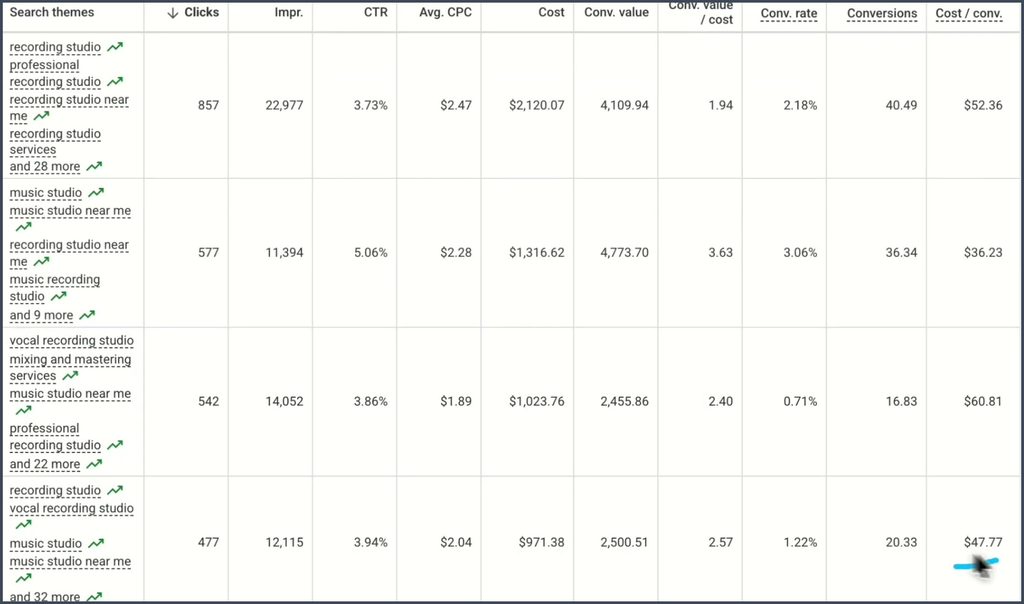
This account shows these results over about 90 days:
| Asset group | Clicks | Conversions | Conversion rate | Cost per conversion |
|---|---|---|---|---|
| Recording studio | 857 | 40.49 | 2.18% | $52.36 |
| Music studio | 577 | 36.34 | 3.06% | $36.23 |
| In market test | 542 | 16.83 | 0.71% | $60.81 |
| Past site visitors | 477 | 20.33 | 1.22% | $47.77 |
The first two groups overlap, yet the music studio group costs about $16 less per conversion. Results like these show why small changes are worth testing.
If one group lags for months, you can pause it so the budget moves to your top groups. Move with care, though. Google says that groups with a higher cost per conversion can still help the campaign, and it does not recommend removing them on that data alone. Check your lead quality before you cut anything.
Find new in market segments
The Insights tab gives you ideas for new groups. Scroll to the bottom until you see the audience insight table. It shows which audiences make up your clicks and gives each one an index score.
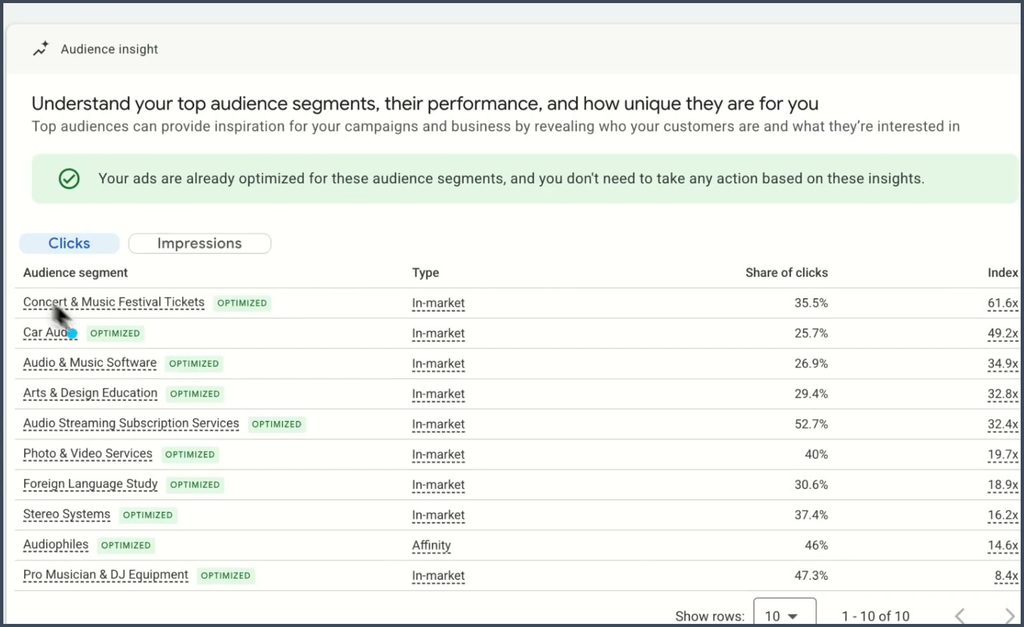
Google may tell you that your ads already target these segments and that you do not need to act. You can still test them. In this account, the top segment shows a 61.6x index.
Here is how to build a test:
- Create a new asset group in the same campaign.
- Open Audience signals.
- Keep your search themes the same.
- Remove the other audience data.
- Click Edit next to additional signals.
- Search for the one segment you want to test and save it.
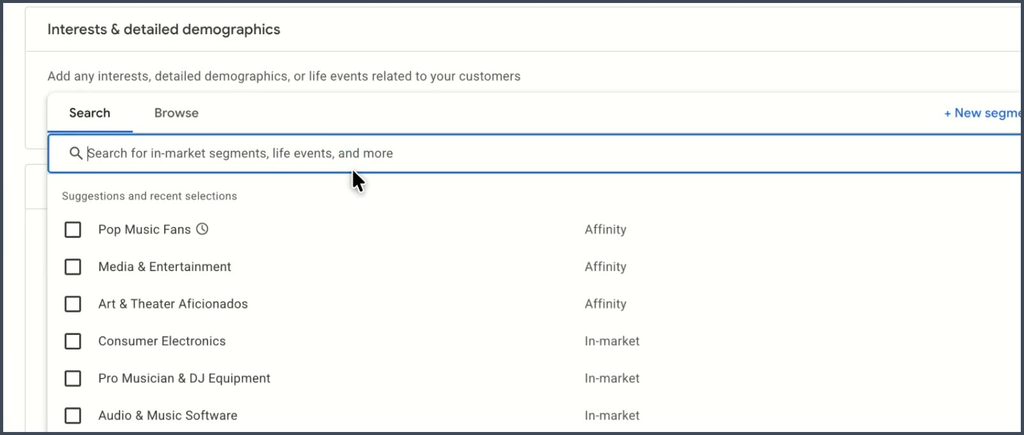
Change only the segment, so you know what caused any shift in results. Audience signals act as hints, not hard targets, and Performance Max can still reach people outside them. Google says these signals can take up to two weeks to fully work, so give each test time before you compare it.
Bonus: Swap out weak headlines with the asset report
The asset report shows how each headline, description, and image performs. Open an asset group, filter by asset type, and scroll right.
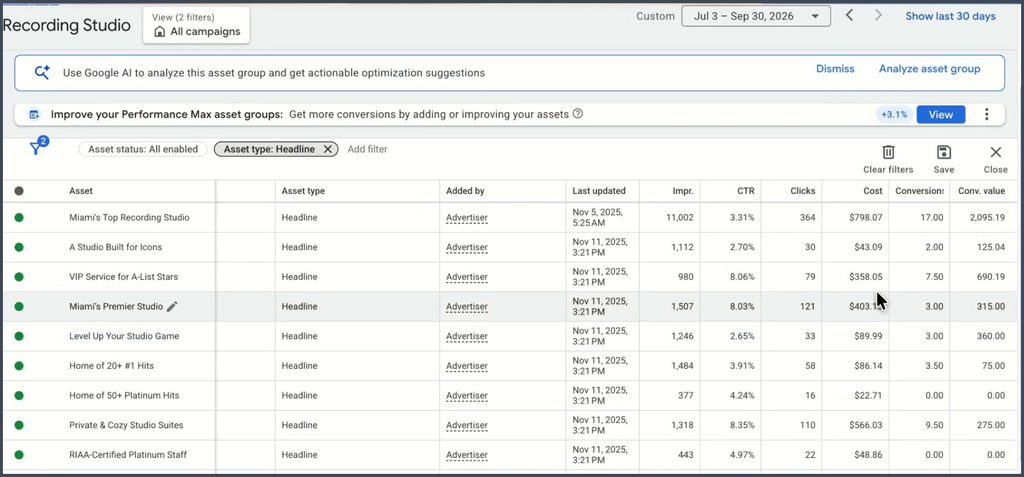
Remember that Google serves headlines in combination. Google gives each asset in an ad credit for the same conversion, so asset totals will not match your campaign totals. Use this data to compare assets, not to count leads.
Start by sorting on click through rate. Then look for two patterns:
- Winners: “Private & Cozy Studio Suites” earned an 8.35% click through rate. Plain headlines like this can beat clever ones.
- Losers: “5 Star Boutique Studio” earned a 1.70% click through rate after about 3,700 impressions. That gives it plenty of time to prove itself, and people still ignore it.
Replace the losers with new headlines modeled on your winners. Follow the same process for images, long headlines, and descriptions.
What should you check in each account review?
You should check your channels, search terms, brand settings, audience tests, and headlines in each account review. Use this list:
- Check how conversions and cost split across channels.
- Mark new search terms for new ad groups.
- Add duplicate and junk terms as negative keywords.
- Review search term themes from the last 28 days.
- Confirm that your brand exclusions are on.
- Keep your brand campaign on exact match.
- Test one new audience segment at a time.
- Replace headlines with low click through rates.
Start with one step this week
You can optimize Performance Max for service businesses without a big budget or a new tool. Google Ads already gives you these reports. You just need to read them and act on them.
Start with the channel performance report, since it tells you where your money goes. Then work through your search terms and set up your brand exclusions. Add your first asset group test once you finish those steps.
More Amazon PPC resources from Ecomclips
For more Amazon advertising tutorials and updates, visit these Ecomclips resources:
- Watch new videos on the Ecomclips YouTube channel.
- Browse articles on the Ecomclips blog.
- Follow updates on the Ecomclips Facebook page.
- Connect with Ecomclips on LinkedIn.
Questions about an account review or a free audit can be sent to info@ecomclips.com.