

Amazon variation listings are a powerful tool to showcase multiple versions of a product, such as different colors, sizes, or styles, all under a single listing. This not only enhances the customer shopping experience but also improves visibility and sales potential. If you’ve ever wondered how to create a variation listing on Amazon, you’re in the right place. In this blog, we’ll provide a detailed walkthrough on creating variation listings using manual methods, flat files, and the Amazon Variation Wizard.
What Are Amazon Variation Listings?
Before diving into the creation process, it’s important to understand variation listings.
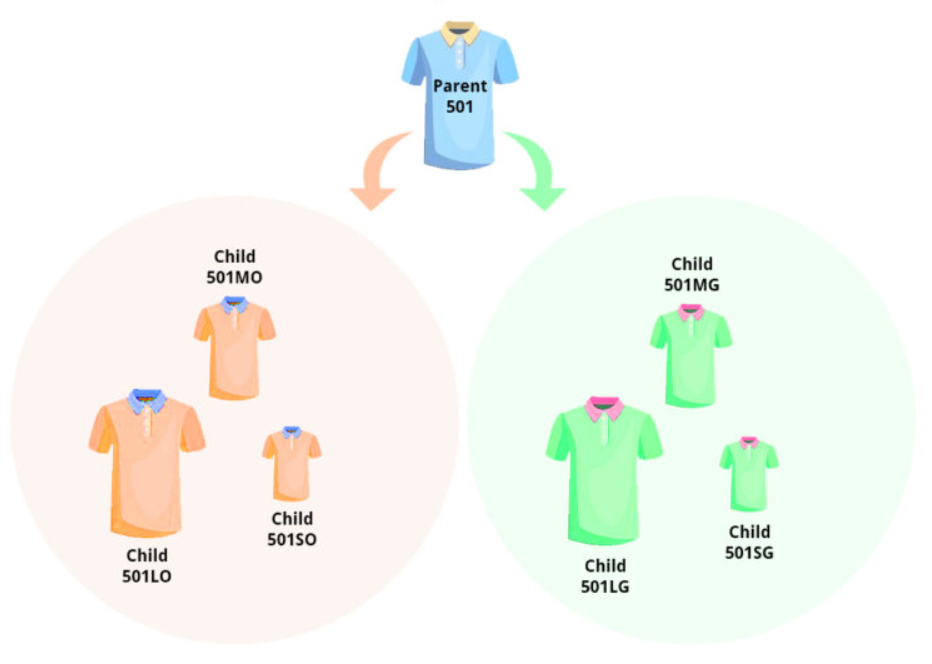
- Parent Listing: The main product that ties all the variations together. It’s not a physical product and is not for sale.
- Child Listing: Each variation (e.g., a specific size, color, or style) under the parent listing. These are the individual products customers can buy.
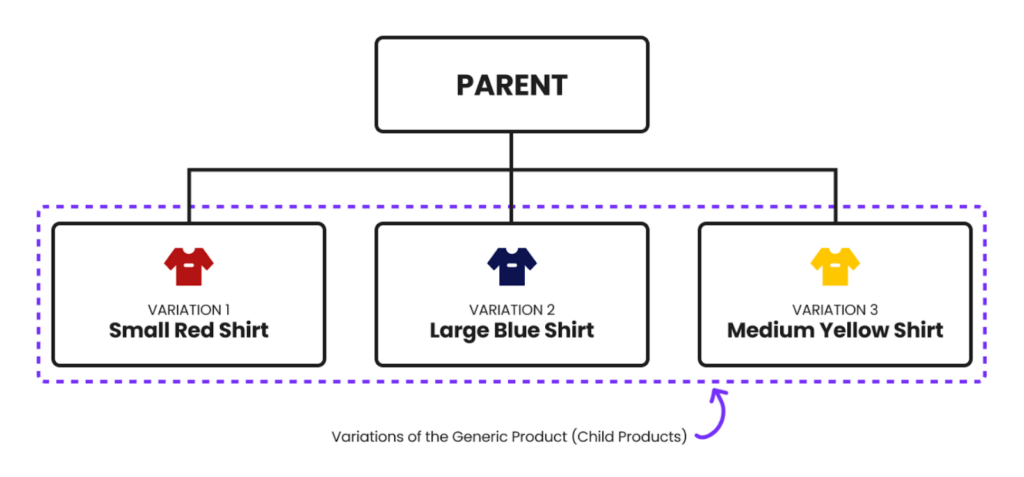
Why Use Variation Listings?
- Boosts visibility by consolidating reviews for all variations under one listing.
- Simplifies product navigation for customers.
- Enhances inventory and sales tracking.
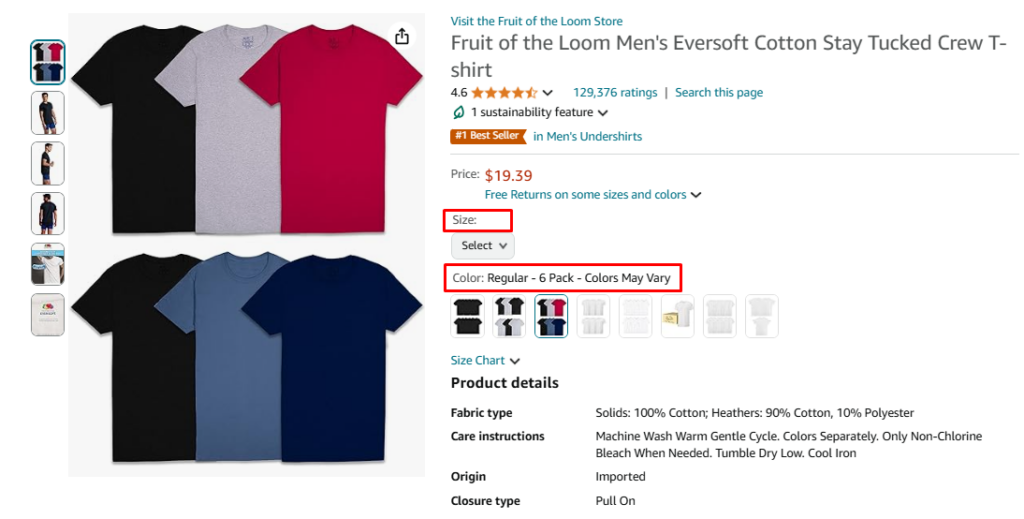
Methods to Create Amazon Variation Listings
There are three main ways to create variation listings:
- Manually through Seller Central.
- Using a Flat File.
- Leveraging the Amazon Variation Wizard.
Let’s break down each method step by step.
1. How to Add Variation on Amazon Listing Manually
Step 1: Navigate to Seller Central
1. Log in to your Seller Central account.
2. Go to the Catalog menu and select Add Product.
Step 2: Create a Parent Listing
1. Enter the product title and click Submit.
2. Select the product type (e.g., Home, Electronics).
3. Fill in the brand name.
4. Skip entering the UPC code for the parent listing by selecting the appropriate checkbox.
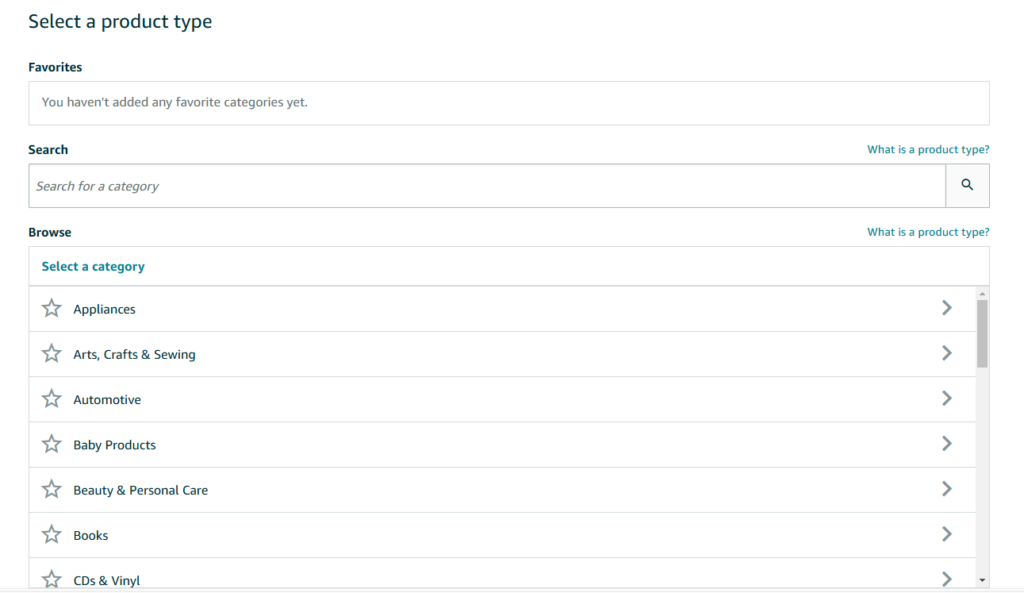
Step 3: Select Variation Attributes
Choose relevant attributes for your product, such as color, size, or style.
If certain attributes cannot be combined (e.g., size and style), use one as a placeholder. For instance, use size to represent style categories like “Gloss” or “Matte.”
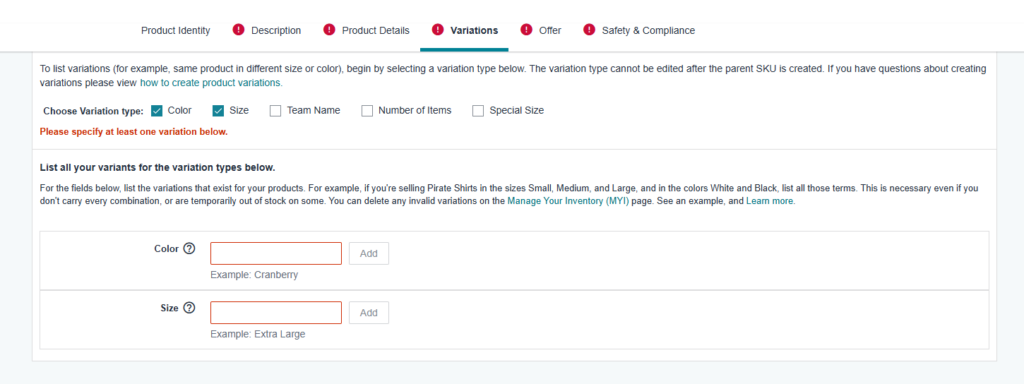
Step 4: Add Product Details
Include essential details, such as:
Bullet points (aim for five concise, informative points).
Product description.
Main product image.
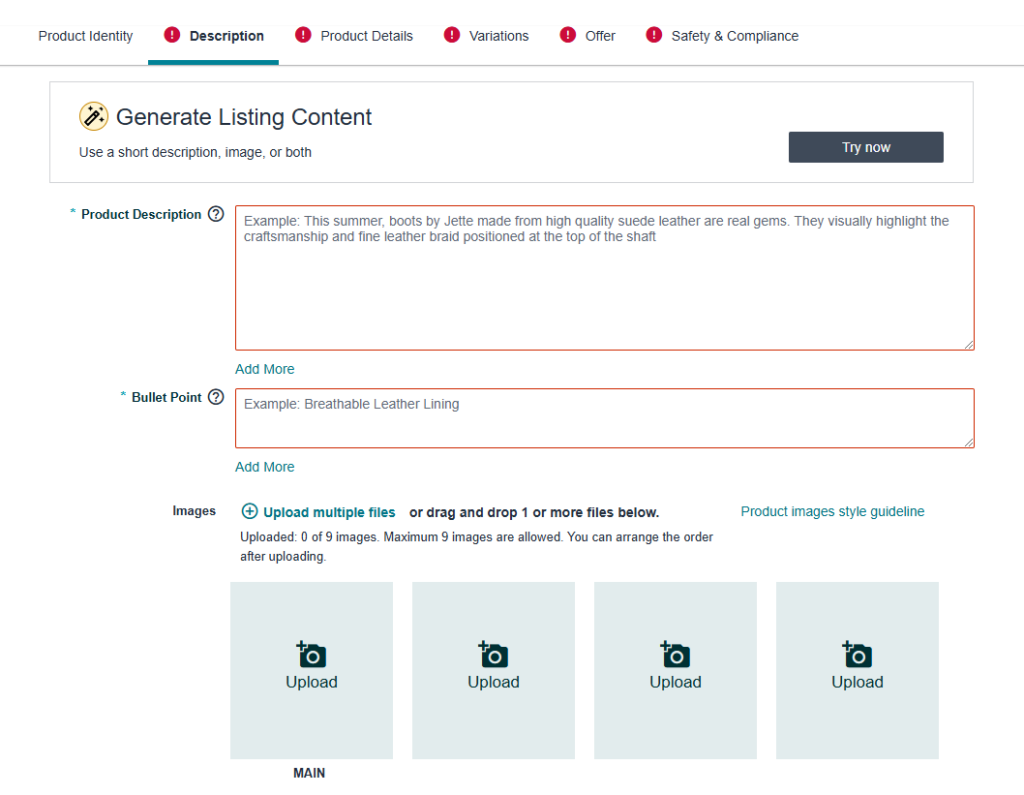
Step 5: Input Variations
1. On the Variation page, specify the variations (e.g., Black Gloss, Blue Matte).
2. Enter details for each variation:
SKU
External ID (e.g., UPC or EAN)
Price
Quantity
Images
Step 6: Submit the Listing
Once you’ve completed all required fields, click Submit to create your variation listing.
2. How to Create a Variation Listing on Amazon Using a Flat File
Flat files are ideal for managing large catalogs with multiple variations.
Step 1: Download the Template
1. Navigate to Catalog > Add Product via Upload.
2. Select Download a Template.
3. Choose your store and product category. Use competitor listings as a reference if unsure about the correct category.
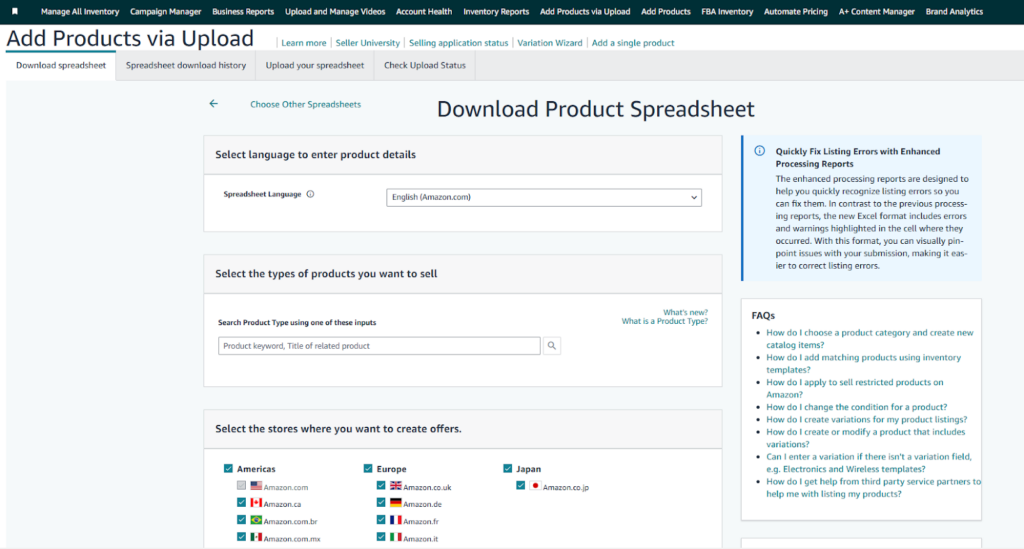
Step 2: Fill Out the Flat File
1. Open the downloaded spreadsheet in Excel.
2. Fill in the following key fields:
Product Type: Indicate the type of product.
Seller SKU: Unique identifiers for parent and child items.
Brand Name: Enter your brand name.
Product ID: Use a valid UPC, EAN, or other ID for child listings. Leave this blank for the parent.
Variation Theme: Specify the theme, such as size, color, or both.
Step 3: Add Attributes for Variations
Fill in details like price, images, and stock quantity for each child variation.
Ensure the parent row is marked correctly, leaving fields like price and quantity blank.
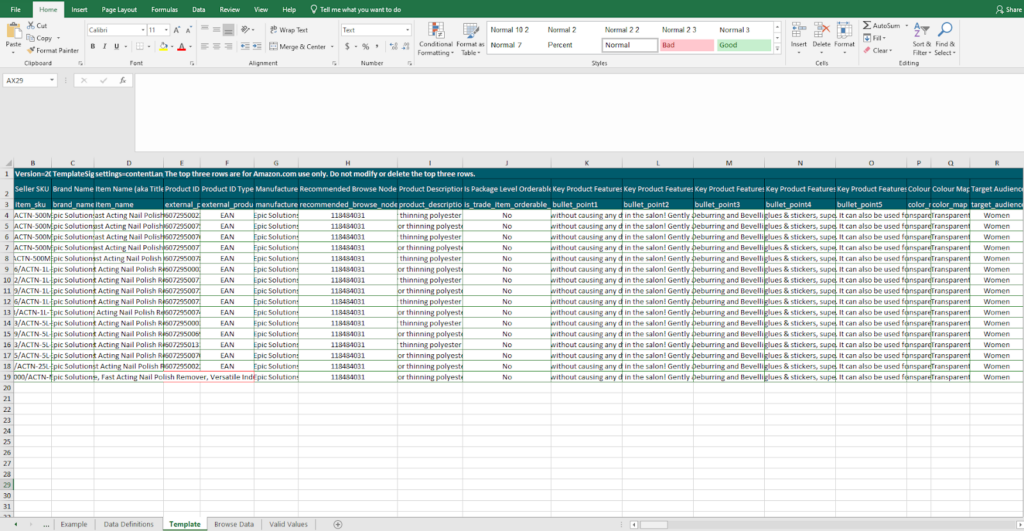
Step 4: Upload the File
1. Return to Add Product via Upload and select Upload Spreadsheet.
2. Choose your completed flat file and click Submit.
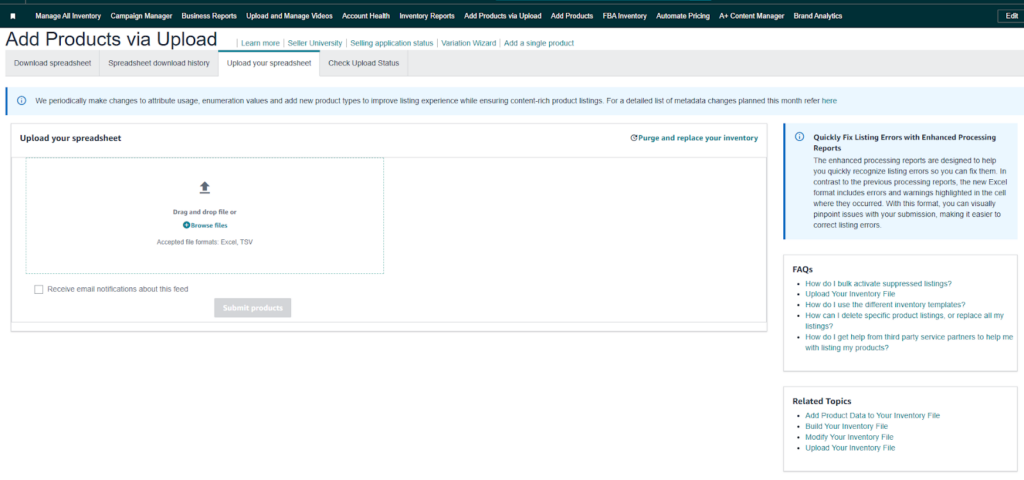
Step 5: Verify Your Listing
After uploading, check the listing in Manage Inventory to ensure the variations appear as expected.
3. How to Use Amazon Variation Wizard
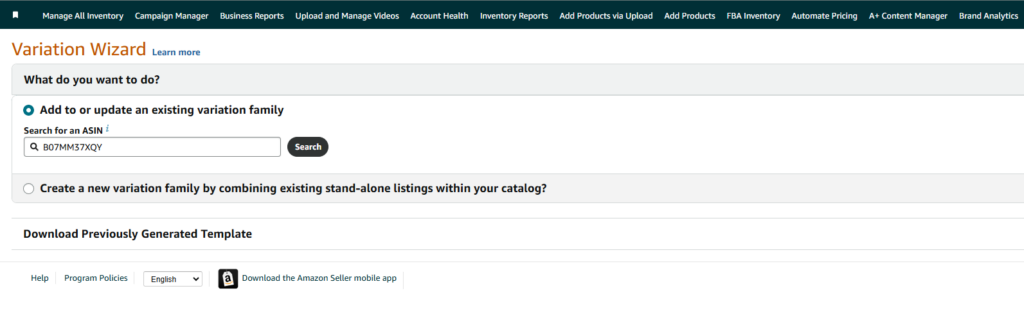
The Amazon Variation Wizard simplifies the process of adding variations to an existing product listing.
Step 1: Access the Wizard
1. Go to Catalog > Add Product.
2. Select Create Variation Using Variation Wizard.
Step 2: Select the Existing Product
1. Search for the product by ASIN or SKU.
2. Choose the listing to which you want to add variations.
Step 3: Add New Variations
1. Enter details for the new variation:
SKU
Product name
ID type (e.g., UPC)
Attributes like color, size, or style
Condition, price, and quantity

2. If adding a new color (e.g., pink), input it as part of the variation theme.
Step 4: Submit the Changes
Once all fields are completed, click Submit to update the listing.
Pro Tip: For larger updates, you can generate a flat file from the wizard, modify it offline, and re-upload it.
Best Practices for Variation Listings
1. Use Descriptive Titles
Include key attributes like size, color, or style in product titles for clarity and SEO benefits.
2. Optimize Images
Ensure each variation has unique, high-quality images showcasing the specific features.
3. Leverage Backend Keywords
Incorporate keywords like Amazon Variation Wizard, how to add variation to Amazon listing, and how to create a variation listing on Amazon in your backend fields for better discoverability.
4. Monitor Performance
Use Amazon reports to analyze the performance of variations and adjust pricing, inventory, or attributes as needed.
Benefits of Amazon Variation Listings
- Enhanced Customer Experience: Buyers can easily compare variations without navigating multiple listings.
- Improved Sales: Consolidated reviews and higher visibility often lead to better conversion rates.
- Streamlined Management: Easier tracking of inventory and sales data across variations.
For additional insights into boosting your Amazon sales, explore resources like Driving External Traffic to Amazon Listings or Amazon Black Friday & Cyber Monday Strategies for Sellers.
Conclusion
Mastering how to add variation to Amazon listing is a crucial skill for sellers aiming to maximize their product’s visibility and customer appeal. Whether you choose the manual method, flat file uploads, or the Amazon Variation Wizard, each approach offers unique advantages based on your needs.
By following the steps and best practices outlined here, you’ll create professional variation listings that attract more buyers, boost sales, and elevate your Amazon store’s performance. For personalized support, reach out to Ecomclips for expert assistance in managing Amazon listings and strategies.
Start implementing these tips today and watch your Amazon business thrive!