

Introduction
Your Shopify store design is more than just visuals—it’s the first impression your customers have of your brand. A well-structured, professional-looking theme builds trust, improves navigation, and can dramatically increase conversions. In today’s competitive eCommerce world, customers expect smooth shopping experiences, and a poorly designed store can send them straight to your competitors.
The good news? Customizing your Shopify theme doesn’t require advanced coding knowledge. With Shopify’s built-in theme editor, you can easily adjust images, layouts, collections, and more to create a store that reflects your brand identity and enhances customer experience.
In this step-by-step guide, we’ll walk you through the entire process of customizing a Shopify theme—from login to final preview—so you can build a storefront that not only looks great but also performs well.
Step 1: Log in to Your Shopify Store
Before making any changes, log in to your Shopify account.
- Go to the Shopify login page.
- Enter your store credentials.
- Once inside, navigate to your Shopify admin dashboard, where all theme settings are located.
Pro Tip: Always keep your credentials secure and consider enabling two-factor authentication for added security.
Step 2: Select the Theme You Want to Customize
Your theme is the foundation of your store’s design. Shopify provides both free and premium themes, each customizable to match your brand.
- From your dashboard, go to Online Store → Themes.
- Locate the current theme that’s live on your store.
- If you want to switch, you can also explore other available themes from the Shopify theme store.
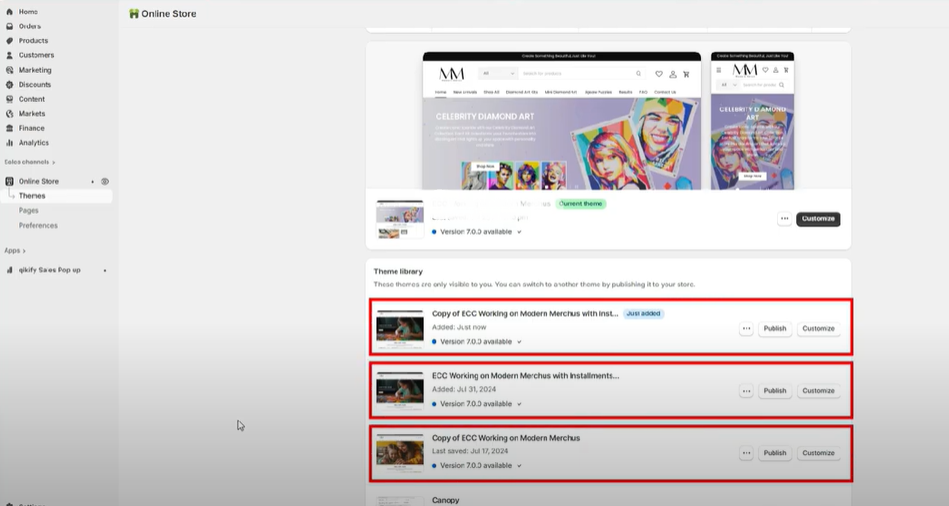
SEO Tip: A fast-loading theme isn’t just good for customers—it’s also critical for Shopify SEO rankings, since site speed affects search performance.
Step 3: Open the Theme Customization Panel
Click on the Customize button. This opens the Shopify Theme Editor, which allows you to edit and preview your store in real time.
Inside the editor, you’ll see your homepage by default, but you can also switch between product pages, collections, and custom pages. Each section can be adjusted with drag-and-drop tools, making it simple for beginners.
Step 4: Customize Your Homepage (The Heart of Your Store)
Your homepage is the most important part of your Shopify store—it’s your digital storefront and the first impression for most visitors. A well-designed homepage grabs attention, builds trust, and directs shoppers to the right products. Customizing it allows you to update images, text, and product highlights that resonate with your target audience. Since it sets the tone for your entire site, investing time in homepage design is key to improving conversions and keeping customers engaged.
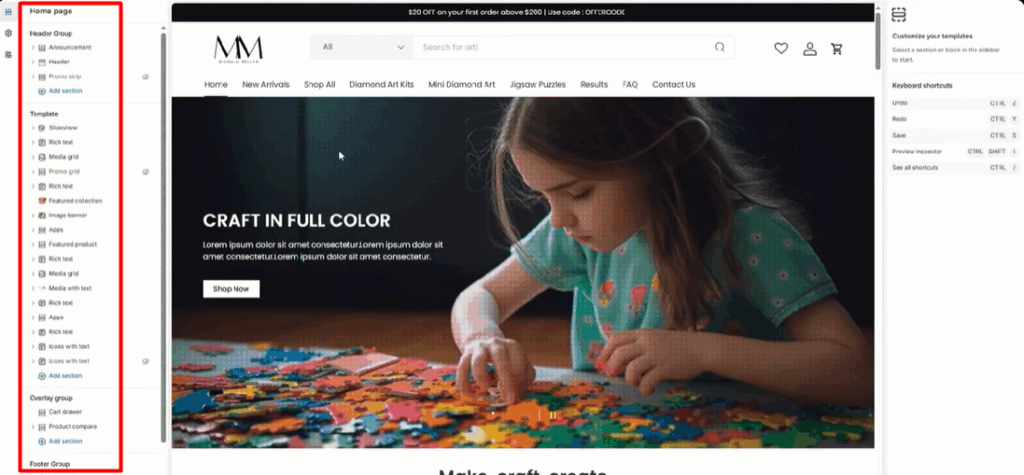
Here are the key areas to focus on:
Changing the Banner Image
- Select the banner/hero section.
- Upload high-quality images that are brand-relevant.
- Choose separate images for desktop and mobile to ensure responsiveness.
Use banners with strong CTAs (Call-to-Action) like “Shop Now” or “Discover More.”
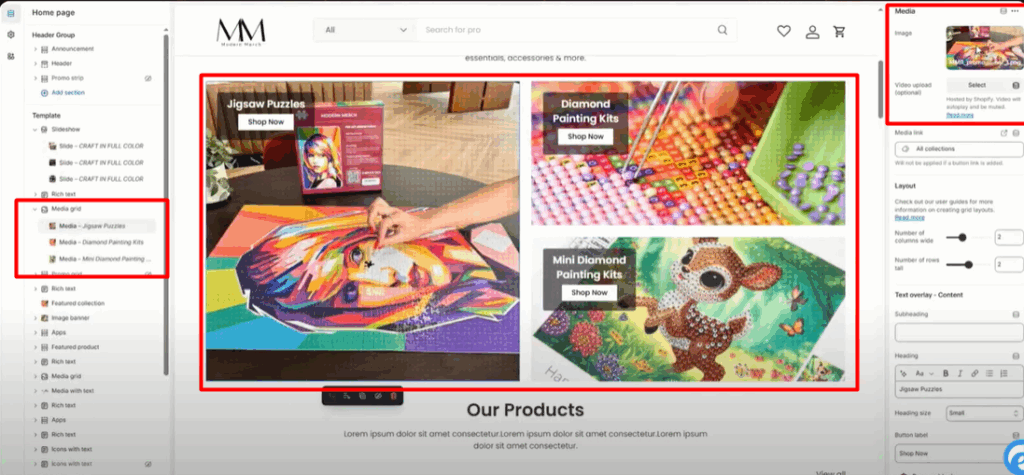
Updating Category Section Images
- Go to the category/collection section.
- Replace outdated visuals with new images that clearly represent your product categories.
👉 Well-designed visuals improve CTR (Click-Through Rate) and user engagement.
Adjusting the Product Collection
- Open the Featured Collection section.
- Choose which collection to highlight (e.g., Bestsellers, New Arrivals, Seasonal Picks).
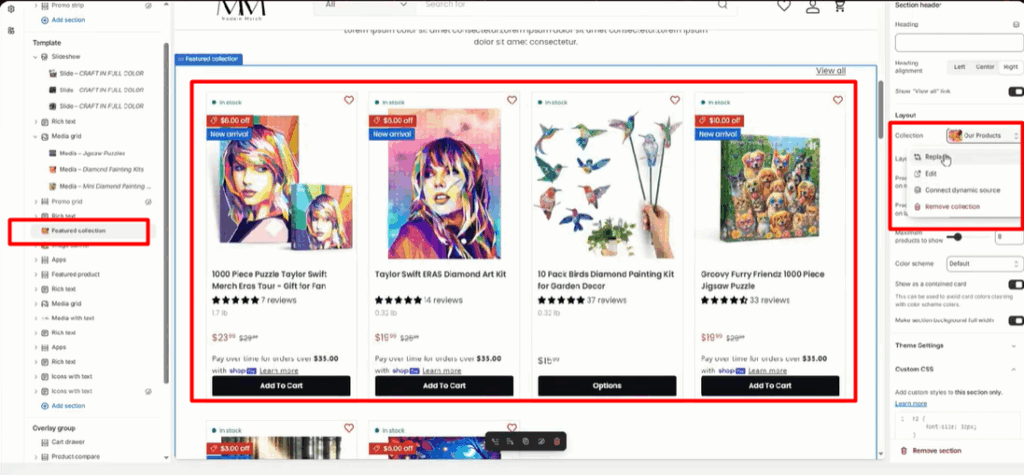
Highlighting the right collection helps customers navigate to products faster.
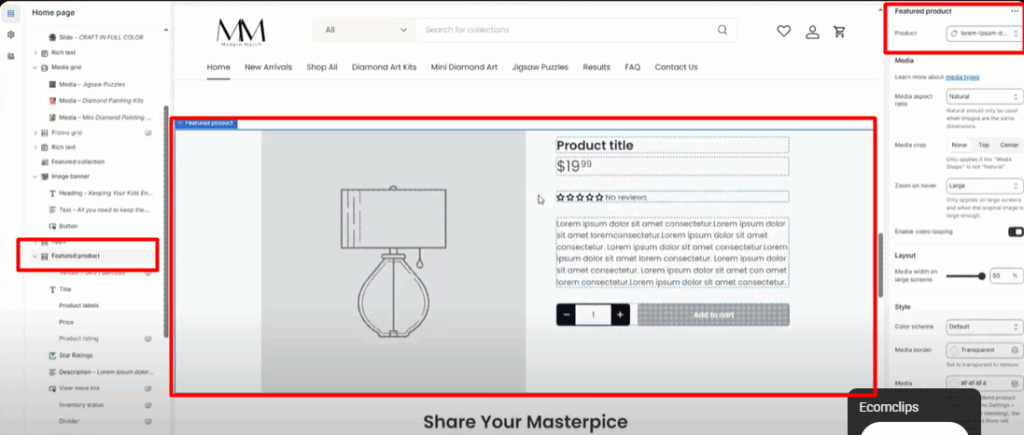
Adding or Changing a Featured Product
- Navigate to the Featured Product section.
- Select the product you want to showcase.
- Edit the product title and description for clarity and SEO optimization.
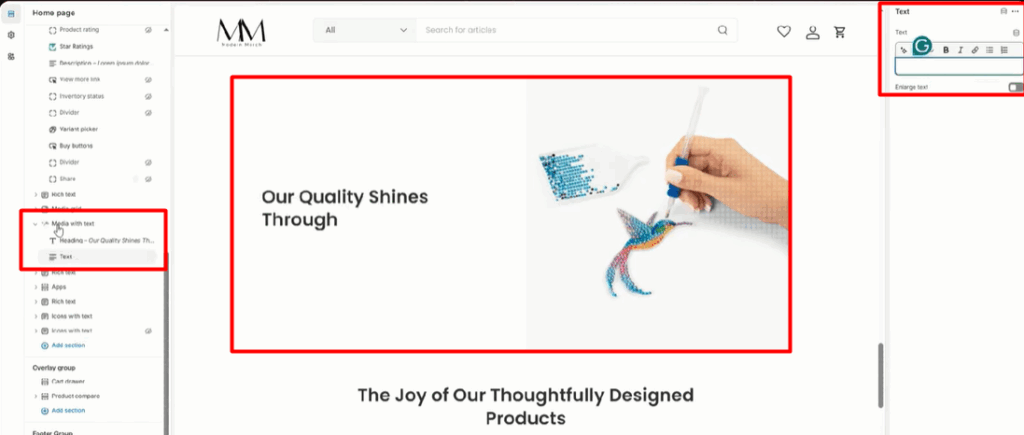
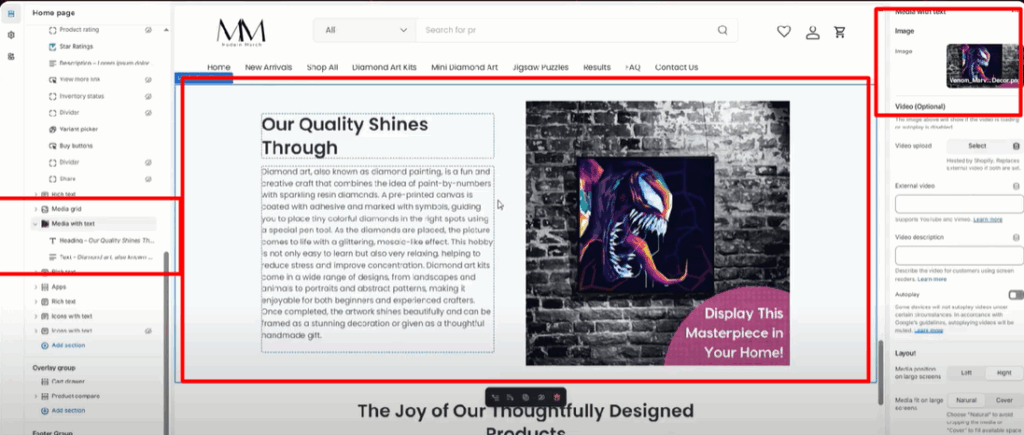
Modifying the Image with Text Section
- Select the Image with Text block.
- Update text to tell your brand story or highlight product benefits.
- Swap out images directly from your media library.
Important: After each update, click Save so your changes are applied.
Step 5: Preview Your Theme Before Publishing
After customizing, you’ll want to ensure everything looks perfect before going live. Previewing your theme allows you to see your store exactly as customers will experience it. This step is crucial for catching design flaws, formatting issues, or image mismatches. It also helps confirm that your site is mobile-friendly, since a large portion of Shopify traffic comes from smartphones. A thorough preview gives you the confidence to publish your changes without worrying about broken layouts or missing content.
Before going live, always preview your theme:
- Click Preview to view updates in real time.
- Check both desktop and mobile views for responsiveness.
- Double-check text formatting, image quality, and button functionality.
User Experience Tip: More than 70% of Shopify traffic comes from mobile devices—optimize your theme for mobile-first performance.
SEO Best Practices While Customizing Shopify Themes
A great design is only half the battle—your store also needs to be discoverable. This is where SEO best practices come in. As you customize your Shopify theme, it’s important to ensure your store remains optimized for search engines. Simple adjustments, like adding keyword-rich titles, compressing images, and structuring navigation properly, can improve your rankings. By blending customization with SEO, you create a store that’s both visually appealing and highly visible to potential customers.
Customizing your theme isn’t just about looks—it’s also about optimizing for Shopify SEO. Here are key practices:
- Optimize Images: Use compressed, high-quality images with descriptive file names.
- Keyword-Rich Titles: Add primary keywords in banners, product titles, and meta descriptions.
- Navigation Structure: Keep menus clean and logical for both customers and Google crawlers.
- Mobile Optimization: Ensure fast load times and mobile-friendly layouts.
- Alt Text: Always add alt text to images for SEO and accessibility.
Frequently Asked Questions (FAQs)
1. Do I need coding knowledge to customize a Shopify theme?
No, Shopify’s theme editor is beginner-friendly. You can adjust layouts, colors, fonts, and images without coding. For advanced design tweaks, hiring a Shopify developer can help.
2. How do I choose the best Shopify theme for my store
Pick a theme that fits your brand style, product catalog, and industry needs. Ensure it’s mobile-responsive, fast-loading, and customizable for growth.
3. Can I customize a free Shopify theme?
Yes, free themes offer full customization through the editor. You can update banners, collections, colors, and layouts just like with premium themes.
4. Will customizing my theme affect my SEO?
Yes, positively if optimized. Use keyword-rich titles, alt text, and compressed images. A clean layout and fast load speed also improve rankings.
5. How do I make sure my Shopify theme is mobile-friendly?
Preview changes in mobile view within the editor. Use responsive images, short text blocks, and simple navigation for smooth browsing on phones.
“If you have more questions, don’t hesitate to reach out to Ecomclips. We’re a leading Shopify agency, offering everything from store development to full management services.”
Conclusion
Customizing your Shopify theme doesn’t have to be overwhelming. With Shopify’s theme editor, you can easily change images, update collections, and refine product features to create a store that is visually appealing, SEO-friendly, and conversion-focused.
By following these steps, you’ll transform your Shopify store into a professional, high-performing storefront that not only attracts customers but also keeps them coming back.
Want to scale your store beyond design? Explore our guides on Shopify SEO, conversion optimization, and eCommerce marketing strategies to take your business to the next level.
Contact us today to see how we can help you build, scale, and optimize your e-commerce brand for long-term success!
Mail Us: info@ecomclips.com
Follow Us for more tips & case studies:
Explore More from Ecomclips