
Every Amazon listing tells a story through data. A keyword reveals what shoppers want. A click shows what captures attention. A purchase shows what builds confidence. But without the right analytics, these signals remain hidden.
Amazon success is no longer just about adding keywords and waiting for rankings to improve. A product can gain impressions but lose clicks, attract visitors but fail to convert, or rank well without generating meaningful sales.
The reason is simple: visibility alone does not guarantee growth. Listing quality, pricing, reviews, images, delivery, competition, and customer experience all influence buying decisions.

Amazon SEO tools and analytics help sellers uncover these hidden performance gaps. They reveal valuable search terms, track ranking changes, analyse shopper behaviour, and show where optimization can create the biggest impact.
This guide explores the most useful Amazon SEO tools and analytics platforms sellers can use in 2026. More importantly, it shows how to turn keyword, ranking, traffic, advertising, and conversion data into smarter decisions that support stronger organic growth.
What Are Amazon SEO Tools?
Think of Amazon SEO tools as decision-making partners. They help sellers understand what is happening behind their product listings and why certain products are gaining or losing visibility.
Some tools reveal what customers search for. Others track organic rankings, analyse competitors, audit listing content, monitor traffic, or show how shoppers move from impressions to purchases.
A keyword research tool may estimate that thousands of shoppers search for a phrase. However, it may not tell you whether those shoppers click your product or buy it.
A rank tracker may show that your ASIN moved from position 30 to position 12. That sounds encouraging, but it does not explain whether the improvement produced more qualified traffic, sales, or profit.
Amazon’s first-party dashboards show activity taking place inside the marketplace. Third-party platforms add competitor intelligence, estimated demand, historical rankings, browser-based research, listing analysis, and automated monitoring.
Why Amazon Sellers Need Analytics, Not Just Keywords
Many sellers assume that weak performance means their listing needs more keywords. They rewrite the title, expand the visible content, fill backend search terms, and repeat different versions of the same phrase.
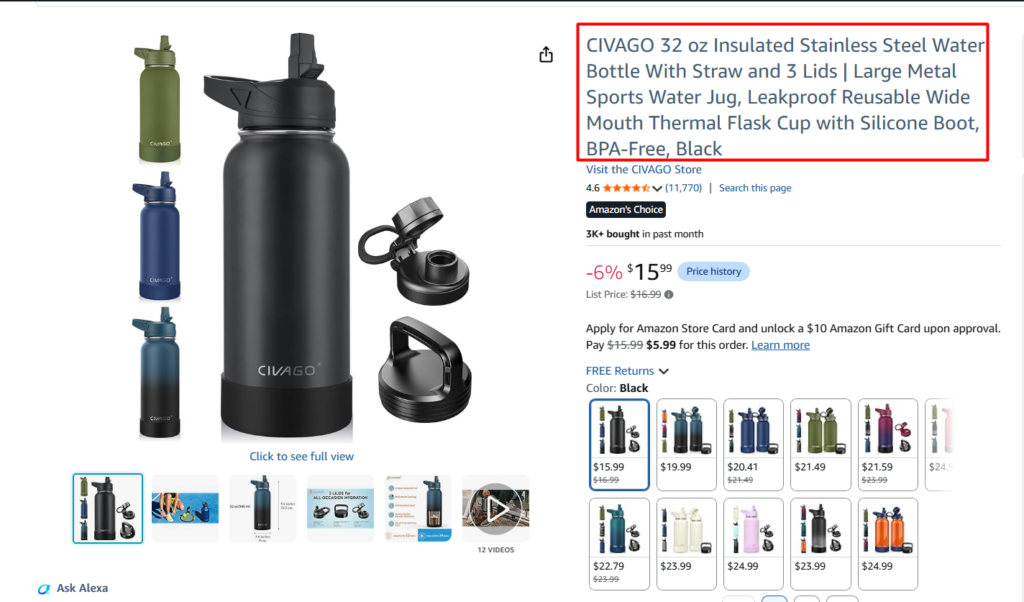
Consider a water bottle listing containing terms such as 32 oz insulated water bottle, stainless steel water bottle, water bottle with straw, sports water jug, and leakproof water bottle. From a keyword perspective, the listing already covers several relevant customer searches.
However, keyword coverage alone cannot answer the questions that matter most. Is Amazon showing the product often enough? Are shoppers clicking it? Are visitors adding it to their carts? Are they completing the purchase? Is the product winning enough attention compared with competing listings?
This is where analytics becomes essential.
Using Amazon Search Query Performance, sellers can see what happens after their product appears in search results. The dashboard shows whether specific queries generate impressions, clicks, cart adds, and purchases.
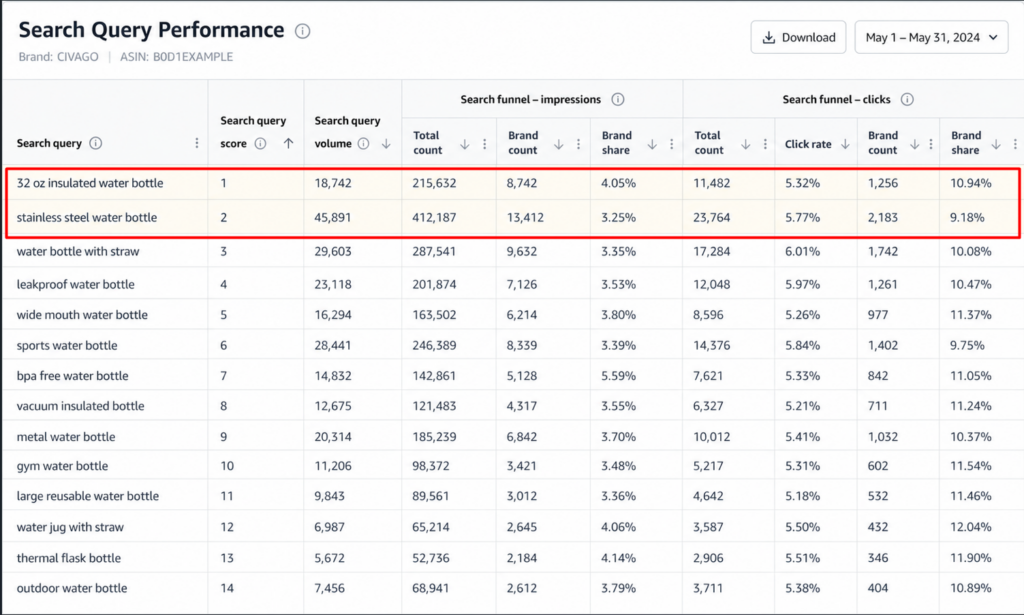
Suppose the product receives thousands of impressions for 32 oz insulated water bottle but captures only a small percentage of clicks. Amazon is already showing the product for a relevant search.
Adding more keywords is unlikely to solve that problem. The seller should investigate the main image, title clarity, price, rating, review count, delivery promise, coupon, and displayed variation.
If the product earns plenty of clicks but few purchases, the weakness may be inside the product page or the overall offer rather than search visibility.
Amazon First Party SEO and Analytics Tools
Amazon provides several dashboards and reports through Seller Central, Brand Analytics, Amazon Ads, and other seller programmes. These tools are valuable because they reflect activity taking place inside Amazon rather than relying entirely on external estimates.

1. Brand Analytics
Amazon Brand Analytics is a collection of dashboards inside Seller Central that helps eligible brand owners understand how customers search, compare, and purchase products.

Unlike third-party tools that estimate search demand or competitor activity, Brand Analytics provides insights from actual customer behavior inside Amazon. Sellers can understand which searches create visibility, where shoppers drop off during the buying journey, which products customers purchase together, and how their brand performs compared with competitors.
Depending on marketplace availability and account eligibility, Brand Analytics may include Search Query Performance, Search Catalog Performance, Top Search Terms, Market Basket Analysis, Repeat Purchase Behaviour, Demographics, and customer loyalty insights.
How to Access Brand Analytics
Before reviewing any specific report, set up the workspace correctly so the data matches the brand, marketplace, and period you want to study.
- Log in to Amazon Seller Central using the account connected to your registered brand.
- Go to Brands → Brand Analytics from the main navigation menu.
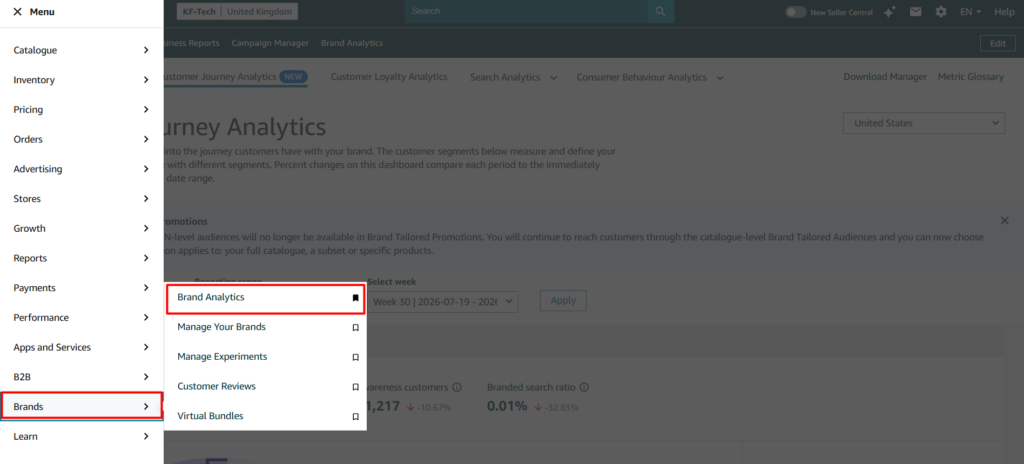
- Select the relevant marketplace and brand, then choose the right dashboard for your goal, such as Search Query Performance, Search Catalog Performance, Top Search Terms, or customer behaviour reports.
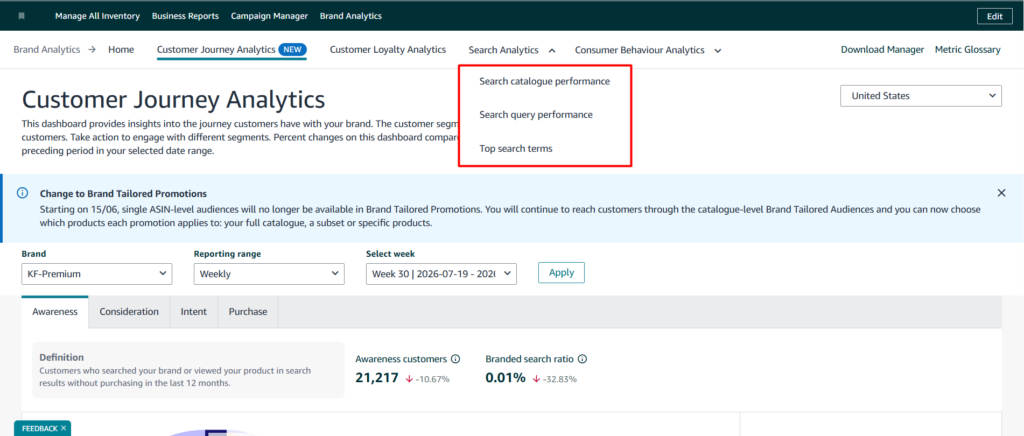
- Select the reporting period. Use weekly data to monitor recent changes and monthly or quarterly data to identify broader trends.
Once the correct report is selected, sellers can move from assumptions to actual customer behaviour data.
2. Search Query Performance
Search Query Performance is one of the most useful dashboards within Brand Analytics because it connects customer searches with the complete buying journey.
Instead of only showing what shoppers search for, it shows how those searches perform through different stages, including impressions, clicks, cart adds, purchases, and brand share. This helps sellers understand whether a problem comes from search visibility, shopper interest, product-page performance, or the final purchase decision.
How to Use Search Query Performance
Start by selecting the correct product and reporting period. This keeps the analysis focused and prevents unrelated data from influencing the conclusion.
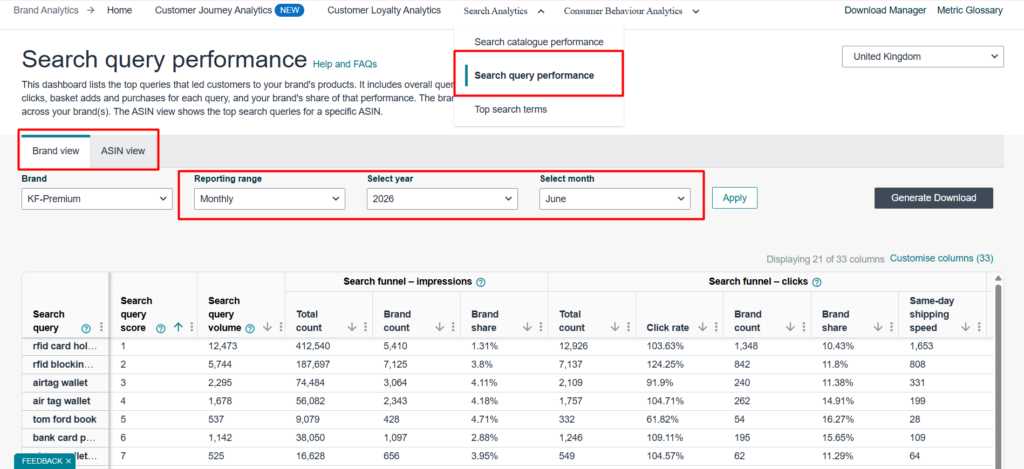
- Log in to Amazon Seller Central and go to: Brands → Brand Analytics → Search Analytics → Search Query Performance
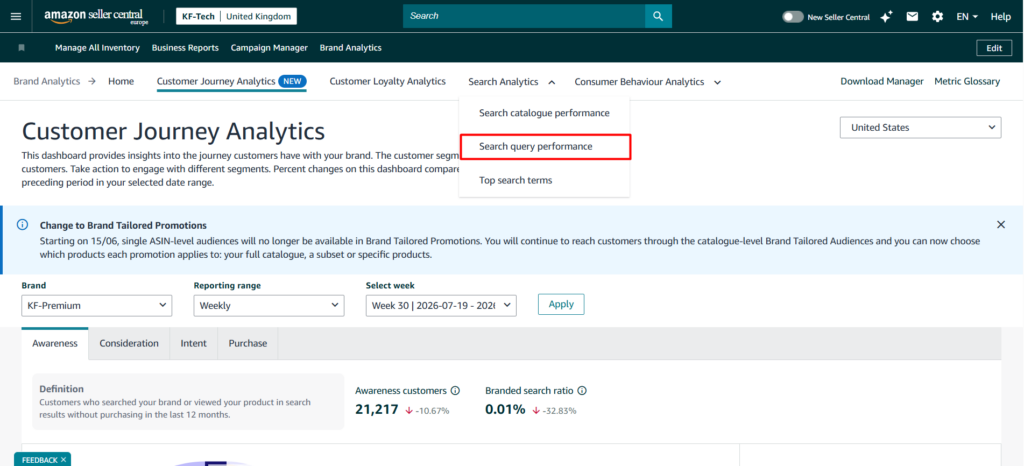
- Select the marketplace and brand you want to analyse. Choose Brand View to review overall brand performance or ASIN View to focus on one product.
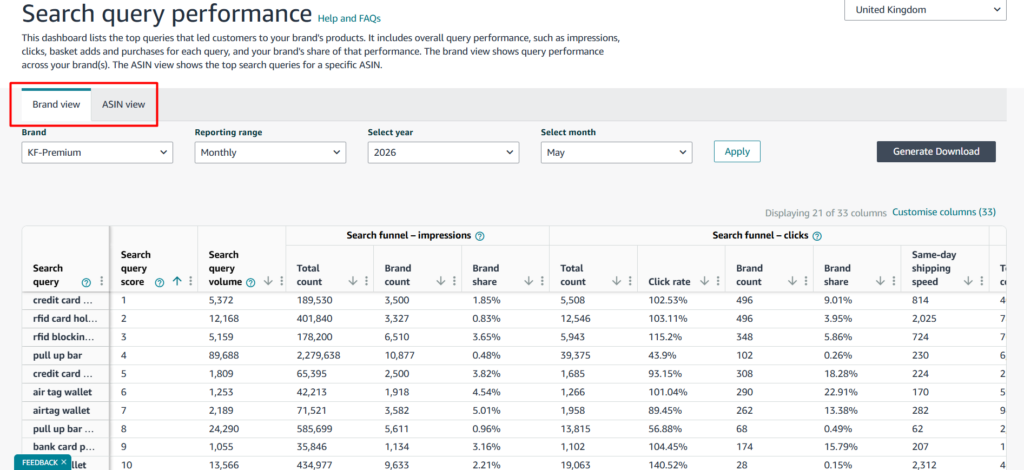
- Set the reporting period according to your goal. Use a weekly period to monitor recent changes or listing updates. Choose a monthly or quarterly period to identify broader trends, seasonal shifts, and consistent keyword opportunities.
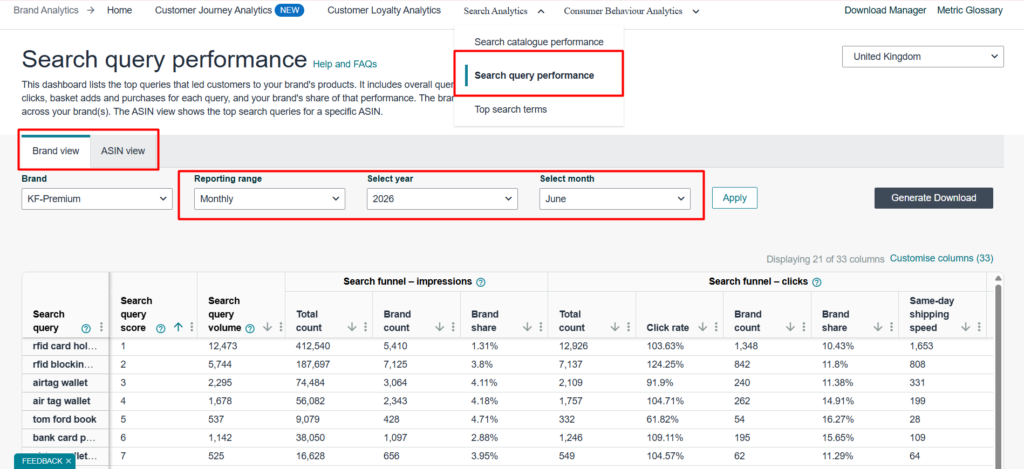
5. Review the customer queries connected with your products and analyze how shoppers move through the funnel.
Interpreting Performance Patterns
Once the metrics are clear, group the queries according to the way shoppers respond. Each pattern points towards a different next step.
- High impressions and high purchases: The query is already performing well. Maintain listing relevance, protect inventory, monitor organic rank, and avoid unnecessary changes.
- High impressions and low clicks: Amazon is showing the product, but shoppers are choosing other results. Review the main image, title, price, ratings, reviews, coupon, delivery promise, and displayed variation.
- High clicks and low cart adds: The search result attracts attention, but the detail page is not creating enough confidence. Improve secondary images, product benefits, dimensions, compatibility, materials, package contents, and use-case clarity.
- High cart adds and low purchases: The product creates interest, but the final offer may be causing friction. Check final price, delivery speed, inventory, reviews, Featured Offer status, variations, and promotions.
- Low volume and high conversion: This may be a valuable long-tail opportunity. Keep the relevant listing language, monitor its ranking, and test related terms through PPC.
Search Query Performance should help sellers prioritise. It should not encourage them to insert every visible query into the listing.
3. Search Catalog Performance
Search Catalog Performance focuses on ASIN-level performance rather than individual search queries.
Search Catalog Performance helps answer: “Which products are gaining or losing customer attention?” This makes it especially useful for sellers managing multiple ASINs because different products may fail at different stages of the buying journey.
How to Use Search Catalog Performance
Start by reviewing products side by side. The goal is to identify where each ASIN loses shoppers rather than applying one generic optimisation plan across the catalogue.
- Go to Seller Central → Brands → Brand Analytics → Search Analytics → Search Catalog Performance
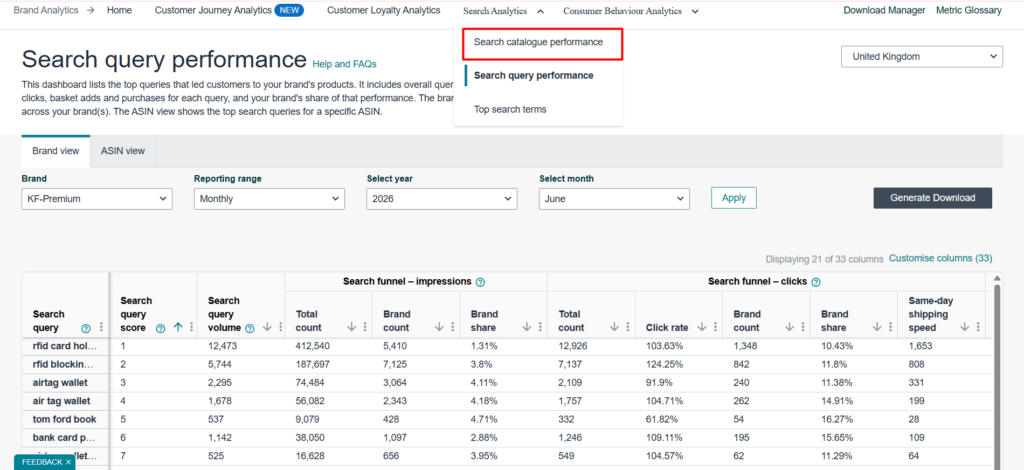
- Select the relevant marketplace and reporting period to review your product performance data.
- Review product-level metrics such as impressions, clicks, cart adds, purchases, and conversion performance to understand how shoppers interact with your products.
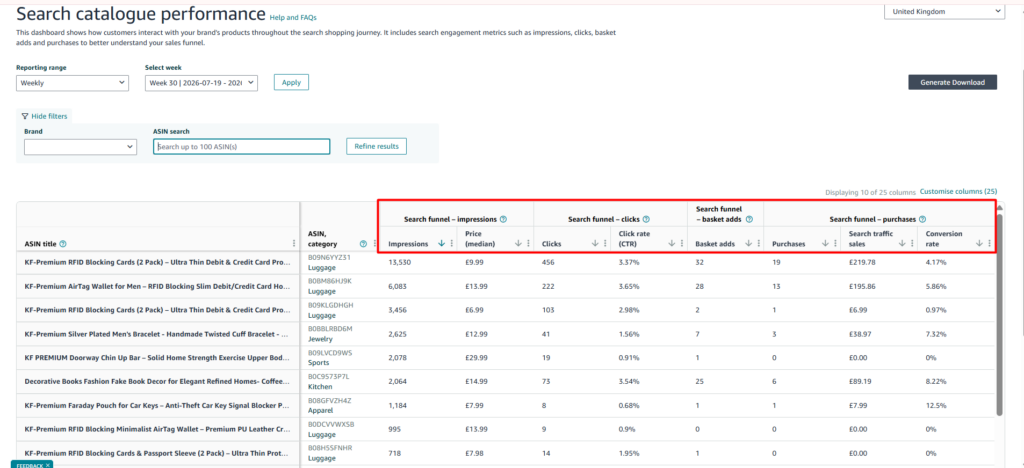
- Identify where customers drop off in the buying journey. For example, strong impressions but weak clicks may indicate a search-result problem, while strong clicks but weak purchases may suggest issues with the listing or offer.
- Group products based on their performance challenges and create specific optimisation actions instead of applying the same strategy across the entire catalogue.
Imagine 4 products. Product A receives many impressions but few clicks. Product B receives clicks but few cart adds. Product C receives cart adds but few purchases. Product D converts well but receives limited exposure.
Product A may need a stronger main image or clearer title. Product B may need better product-page content. Product C may have price, delivery, review, or variation issues. Product D may deserve more advertising, inventory, and ranking support.
Catalog-level analysis helps sellers invest time where it can create the most value.
4. Top Search Terms
Top Search Terms gives sellers a broader view of customer search activity across Amazon.
It helps sellers explore popular queries and understand which products, brands, and categories receive the most attention. Top Search Terms allows the seller to step outside their own performance and study the wider market.
This makes it useful for discovering customer language, identifying competitors, researching demand, and comparing product positioning.
Use Amazon Top Search Terms to Discover Keyword Opportunities
Begin with a broad but relevant product idea, then narrow the results according to customer intent and competitive fit.
- Go to Seller Central → Brands → Brand Analytics → Top Search Terms
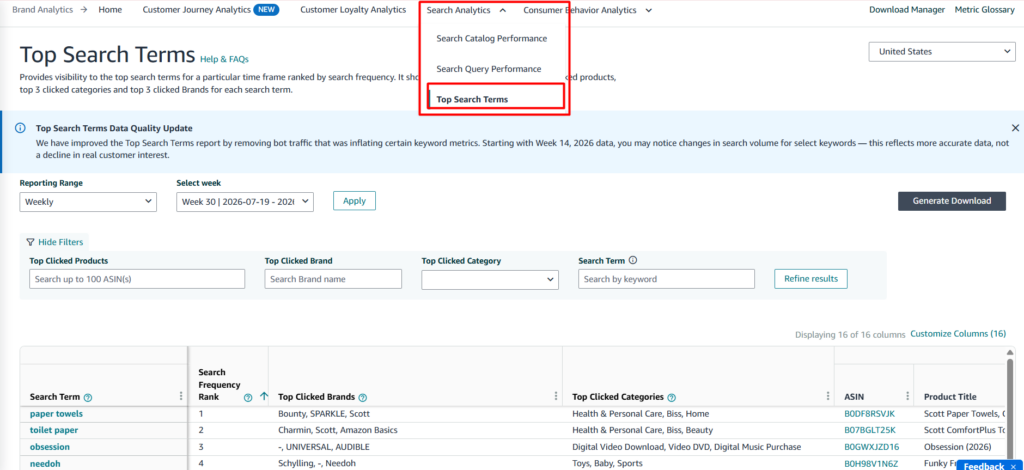
- Select the marketplace and reporting period.
- Enter a product type, category, feature, material, audience, or use case.
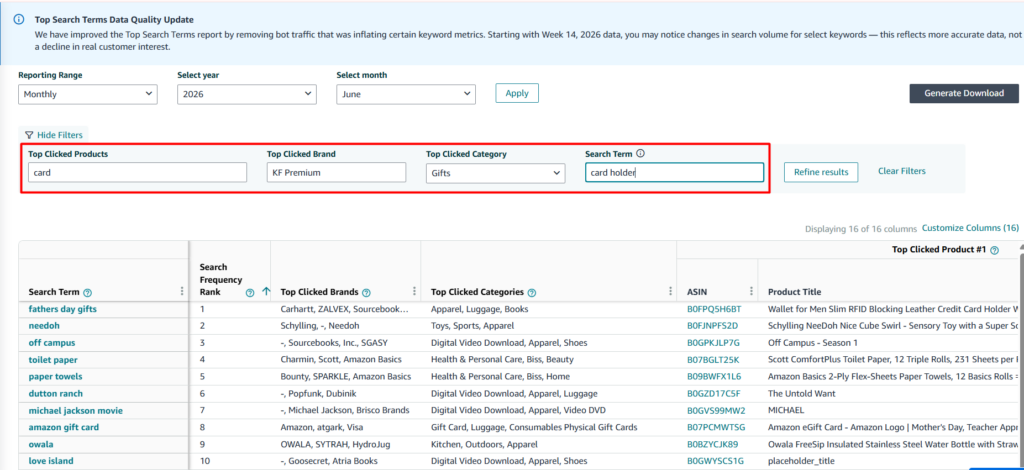
- Review Search Frequency Rank, click share, conversion share, and the leading products or brands associated with the term.
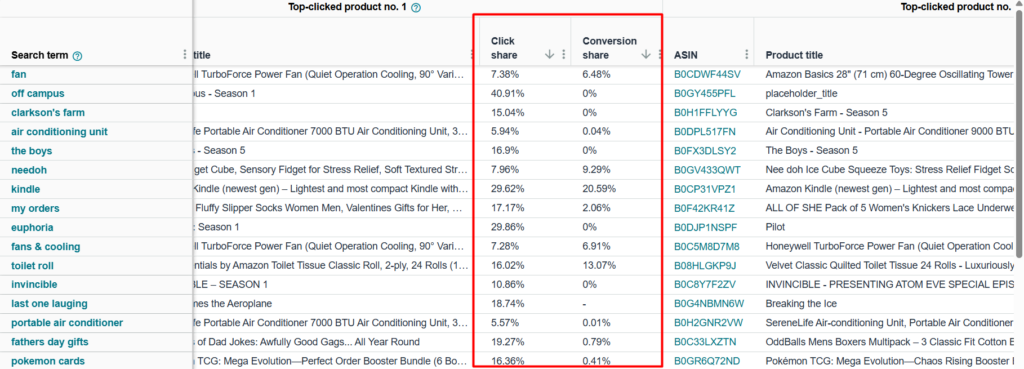
- Look for relevant queries where your brand is visible but not capturing enough clicks or purchases. Compare the leading products with your own listing to understand differences in features, positioning, price, reviews, images, delivery, and overall value.
- Do not copy every popular term into the listing. First confirm that the query genuinely matches the product and the likely customer need.
High search activity does not always equal a profitable opportunity. A smaller and more specific phrase may be much more valuable when it closely matches the product and converts better.
Using Brand Analytics for Better SEO
Brand Analytics becomes most valuable when sellers use it to answer a specific question rather than browsing every report without a plan.
1. Identify Which Search Queries Drive Customer Activity
Start by identifying the search queries that bring meaningful customer activity to your brand.
Steps:
- Go to Brands → Brand Analytics → Search Analytics → Search Query Performance.
- Choose the brand-level or ASIN-level view, select the reporting period, and review the customer queries connected with your product.
- Pay attention to query volume, impressions, clicks, cart adds, purchases, and your brand share at each stage. Begin with queries that receive meaningful impressions, because these are searches where Amazon is already giving the product visibility.
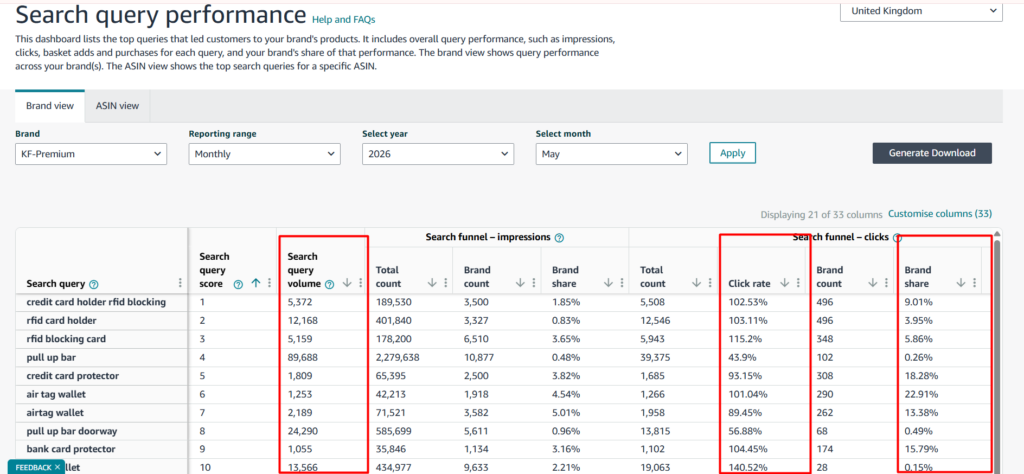
5. Save the queries that closely match the product and move shoppers closer to purchase.
2. Locate Where Shoppers Lose Interest
Once you find the important queries, follow the shopper journey to identify where performance begins to weaken.
Steps:
- Open Search Query Performance or Search Catalog Performance.
- Compare the main funnel stages: Impressions → Clicks → Cart Adds → Purchases
- Look for the stage showing the biggest drop.
- Match the problem with the correct action.
- Make one focused improvement and monitor the results.
If impressions are strong but clicks are weak, shoppers may be choosing competing listings because of the main image, title, price, rating, review count, coupon, delivery promise, or displayed variation.
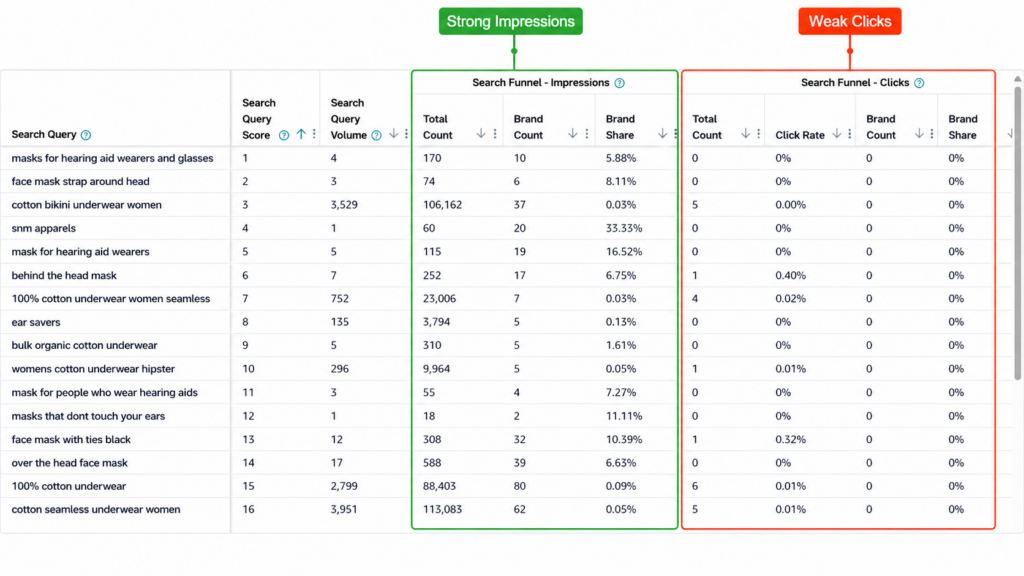
High clicks with low cart adds may mean the product page needs clearer benefits, images, specifications, or answers to customer concerns. Strong cart adds with weak purchases may point to pricing, delivery, inventory, reviews, or offer competitiveness.
3. Explore Wider Product Opportunities
Brand Analytics can also reveal opportunities beyond the keywords already connected to your listings.
Steps:
- Open Top Search Terms to explore wider customer demand and identify products receiving the highest click and conversion shares. Go to Seller Central → Brands → Brand Analytics → Top Search Terms
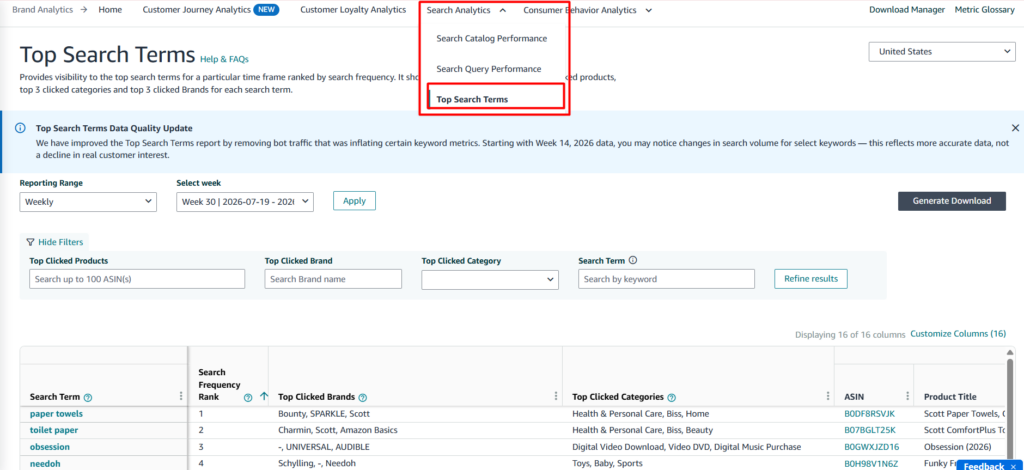
- Choose the reporting period, then search for a category term, product type, material, feature, use case, audience, brand, or ASIN related to your products.
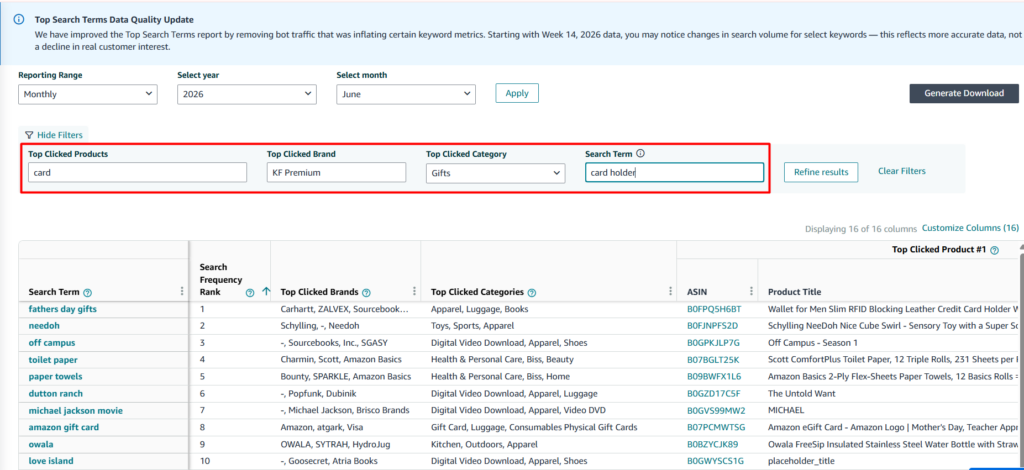
- Review Search Frequency Rank, click share, conversion share, and the products or brands receiving the most customer attention.
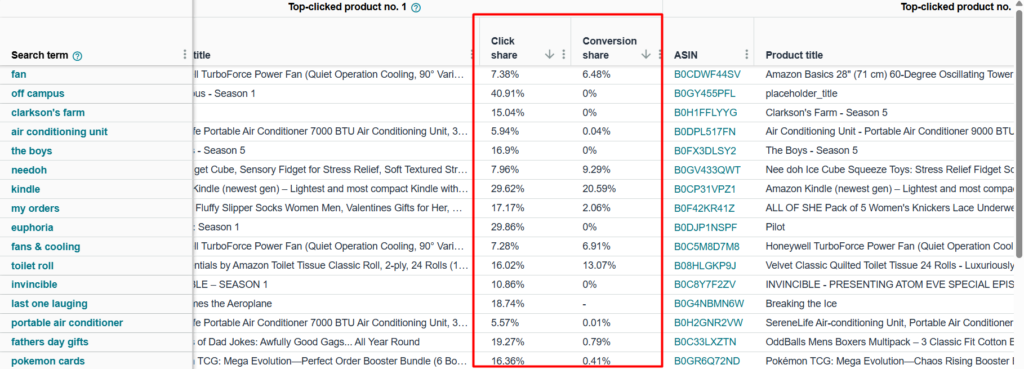
- Look for relevant searches where your brand appears but captures a low share of clicks or purchases. Compare the leading products with your listing to understand differences in features, positioning, price, reviews, images, delivery, and overall value.
- Save the strongest opportunities and use them to improve listing content, product positioning, or PPC targeting.
These reports help you understand not only how shoppers find a product, but also what else they buy and which products create long-term customer value.
Use Market Basket Analysis to Find Related Products
- Open Brand Analytics → Consumer Behaviour Analytics → Market Basket Analysis.
- Select the brand and reporting period, then review the products customers frequently purchase alongside your items.
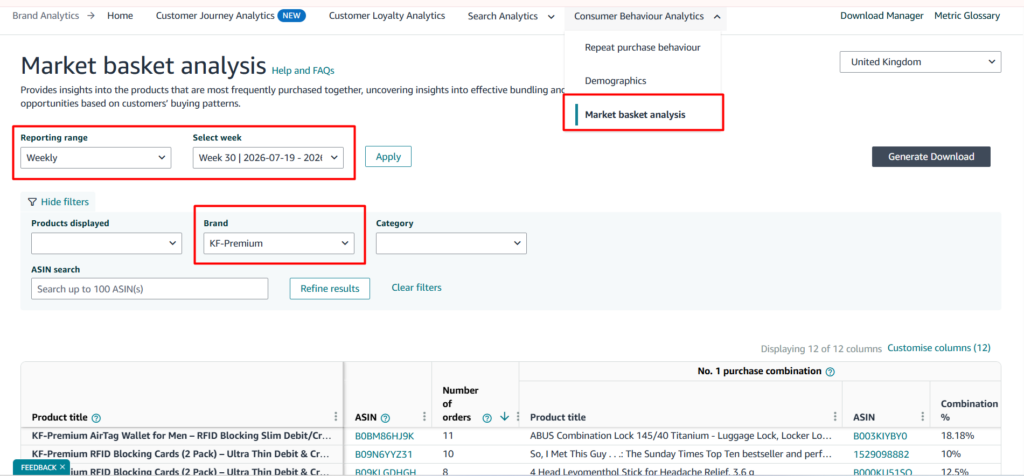
- Look for repeated product combinations that reveal related needs, accessories, or complementary products. A reusable water bottle, for example, may be purchased with cleaning brushes, replacement straws, compatible lids, or carrying sleeves.
- Use these insights to create Virtual Bundles, improve cross-selling, expand your Brand Store, plan advertising campaigns, or explore future product ideas.
5. Business Reports
Seller Central Business Reports connect product traffic with conversion and sales performance. Depending on the account and available reports, sellers may be able to review sessions, page views, ordered units, ordered product sales, Unit Session Percentage, Featured Offer percentage, and ASIN-level trends.
Business Reports show whether that visibility is producing useful commercial results.
A product may improve for several keywords but generate no meaningful increase in sessions, units, sales, or profit. Business Reports help sellers avoid celebrating vanity metrics while ignoring real business performance.
Use Amazon Business Reports to Connect Traffic, Conversion, and Sales
Choose an ASIN level report where possible and compare equivalent periods. This helps separate meaningful trends from normal daily movement.
- Log in to Amazon Seller Central and go to Reports → Business Reports or open the available sales and traffic dashboard.
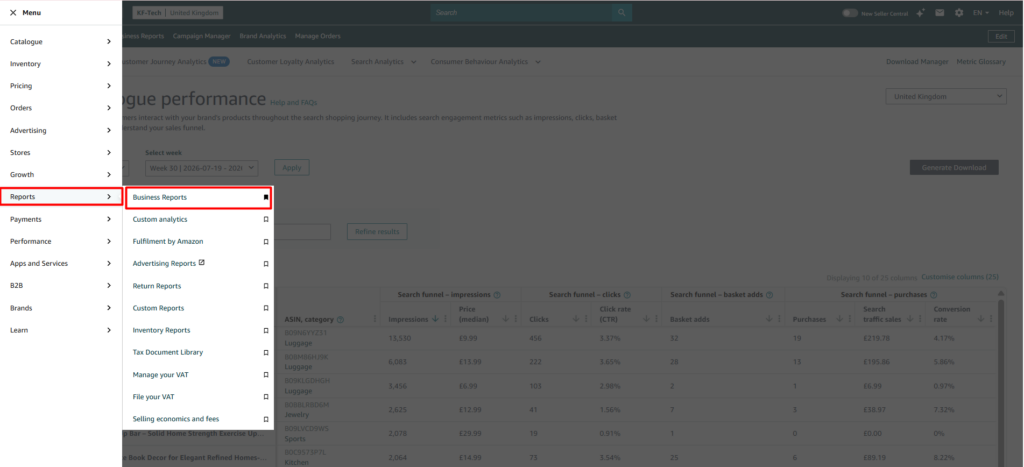
- Choose an ASIN-level report where possible, then select the product you want to analyse.
- Set the reporting period and compare it with an equivalent previous period, such as this month versus last month or the same seasonal period from the previous year.
- Review sessions, page views, Unit Session Percentage, ordered units, sales, and Featured Offer percentage together.
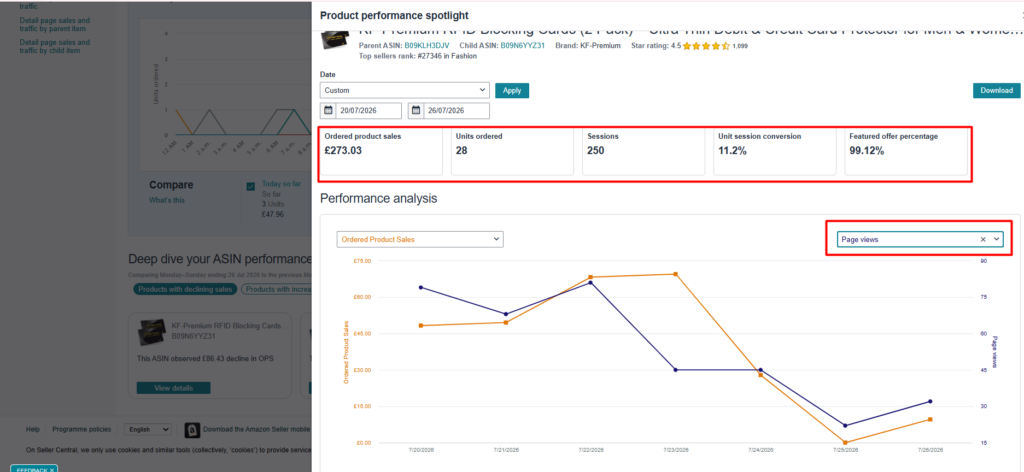
Use the results to understand what is happening:
- Higher visibility but flat sessions: Rankings may have improved for low-demand or weakly relevant keywords.
- More sessions but weak conversion: Review the listing content, price, reviews, delivery, and overall offer.
- Strong conversion but limited sessions: The product may need greater organic visibility or advertising support.
- Lower Featured Offer percentage: Sales may be affected by pricing, stock, fulfilment, or competing sellers.
- Higher sessions, conversion, and sales: The SEO changes are likely contributing to meaningful grow
6. Sponsored Products Search Term Report
The Sponsored Products Search Term Report connects advertising activity with the actual customer searches associated with ad clicks. A keyword is the target added to a campaign. A search term is the real customer query linked with the interaction.

For example:
Campaign keyword: water bottle
Customer search term: insulated water bottle with straw for school
The customer search term gives the seller a clearer picture of what the shopper actually wanted.
PPC data can reveal buyer language that traditional keyword research may miss. It can uncover converting long-tail phrases, irrelevant traffic, profitable searches, and customer needs worth supporting organically.
Use Sponsored Products Search Term Reports to Discover Converting Keywords
Start with a reporting period long enough to produce useful click and order data. Very short periods may create misleading conclusions.
- Open the Amazon Ads console or go to Advertising → Campaign Manager in Seller Central.
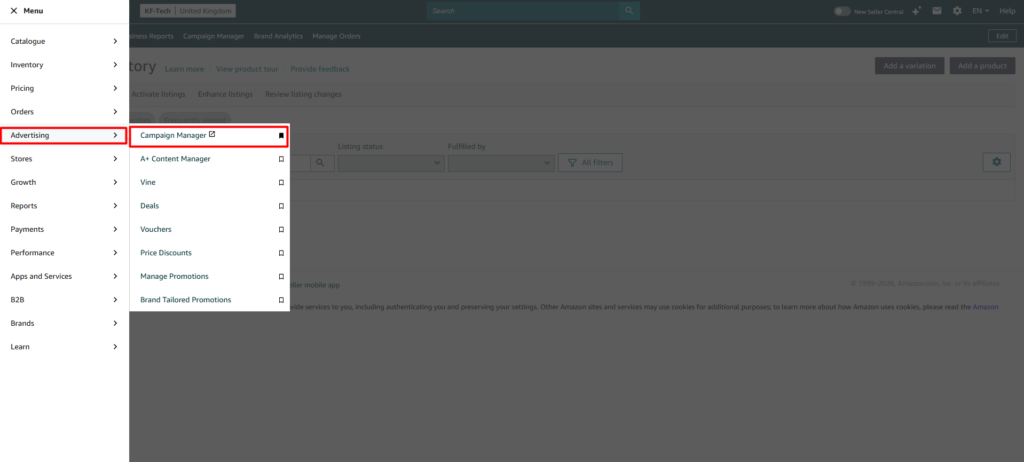
- Open the Reports section and create a Sponsored Products Search Term Report.
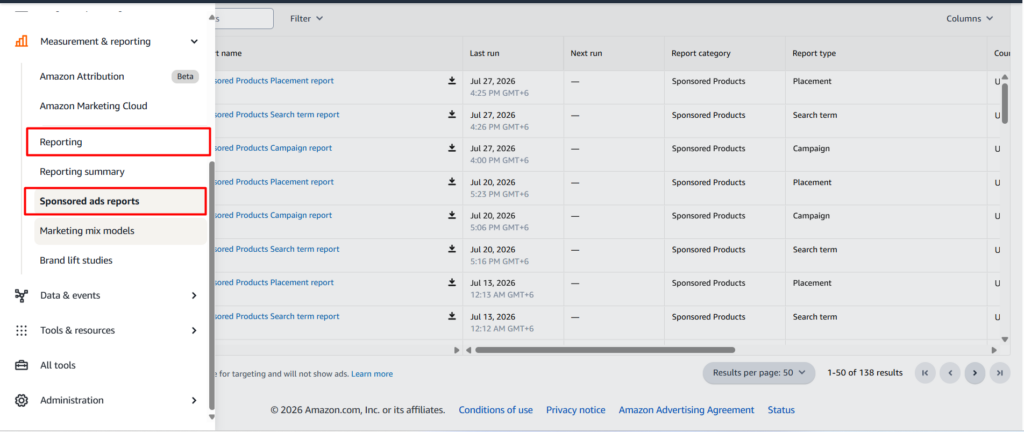
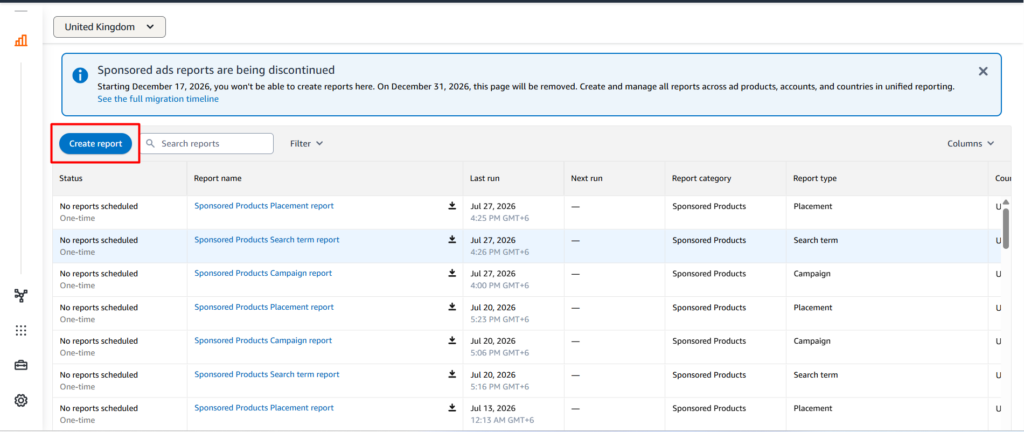
- Choose a reporting period long enough to produce meaningful click and order data. Very short periods can lead to misleading conclusions.
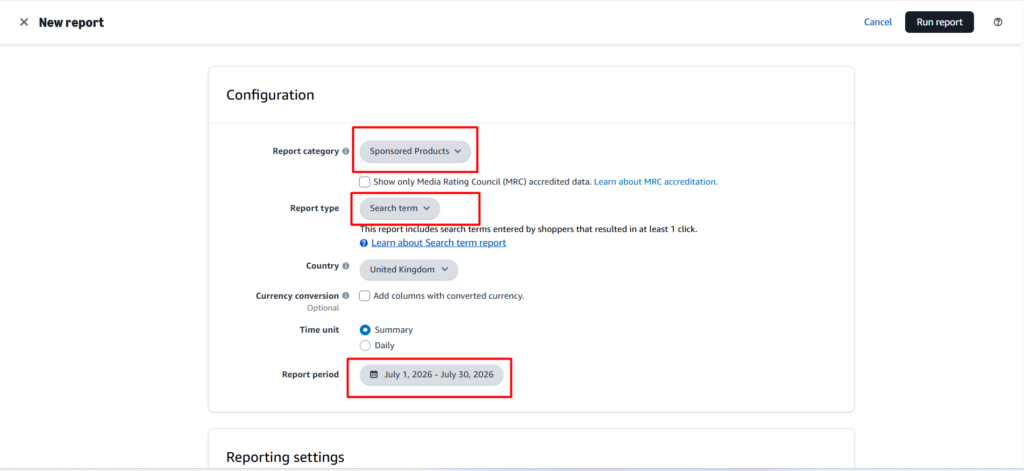
- Select the relevant campaigns and products, then review each search term alongside clicks, spend, orders, sales, conversion rate, ACoS, and ROAS.
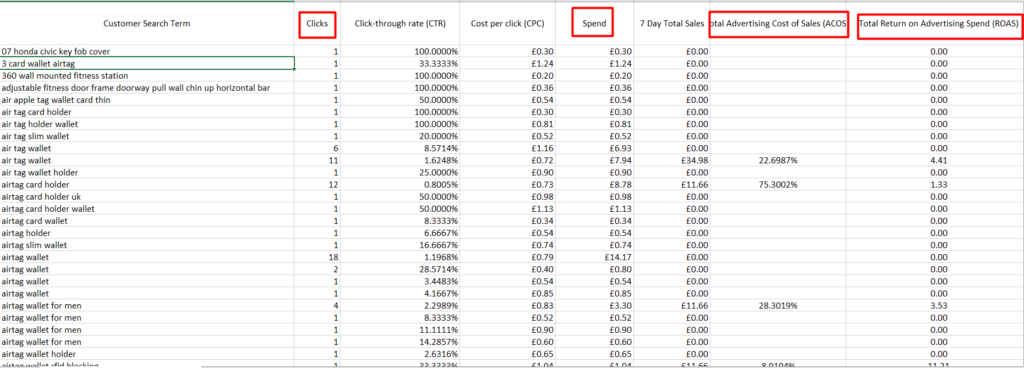
- Save relevant queries that consistently generate clicks and orders. Check whether these searches are organically indexed and naturally supported across the title, Item Highlights, attributes, description, and backend search terms.
- Identify terms with high spend but few or no orders. Reduce bids, adjust targeting, or add negative keywords where appropriate to prevent unnecessary advertising spend.
PPC performance does not prove that adding a phrase to the title will improve organic rank. It provides evidence that the search may have commercial value.
7. Product Opportunity Explorer
Product Opportunity Explorer helps sellers study customer demand, competition, pricing, reviews, purchasing behaviour, return patterns, and unmet needs.
Although it is mainly a product research tool, it can also support Amazon SEO by revealing the language, features, problems, and expectations customers care about.
Exploring Product and Customer Opportunities
Begin with a product type or customer need, then explore the niche data for patterns that appear repeatedly.
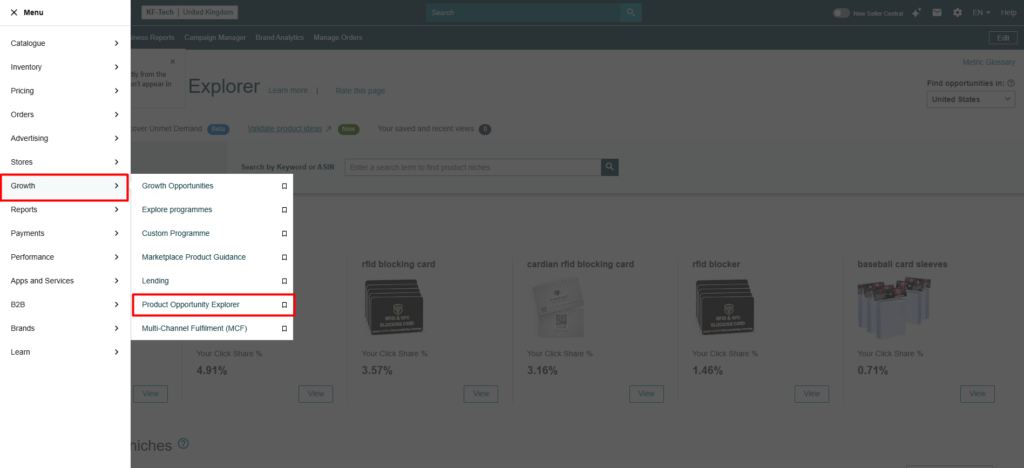
- Log in to Amazon Seller Central and open Product Opportunity Explorer from the Growth menu or the available Seller Central tools.
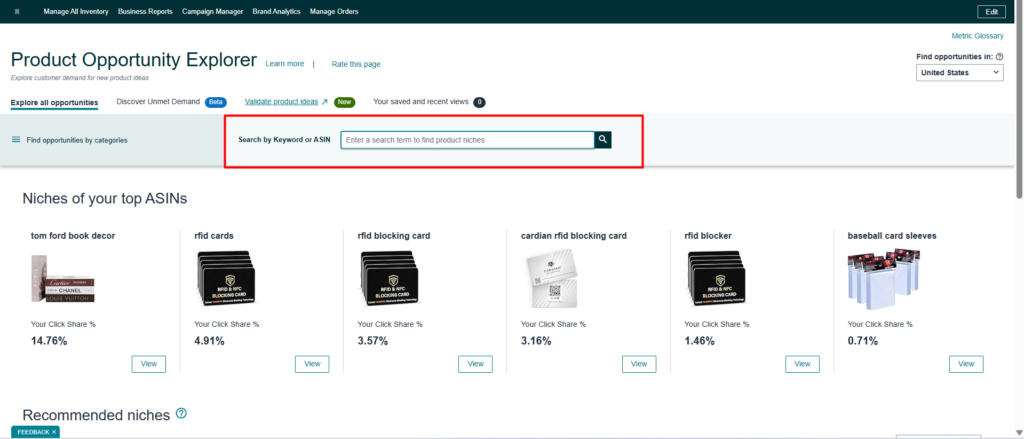
- Search for a product type, category, feature, use case, or customer need related to your niche.
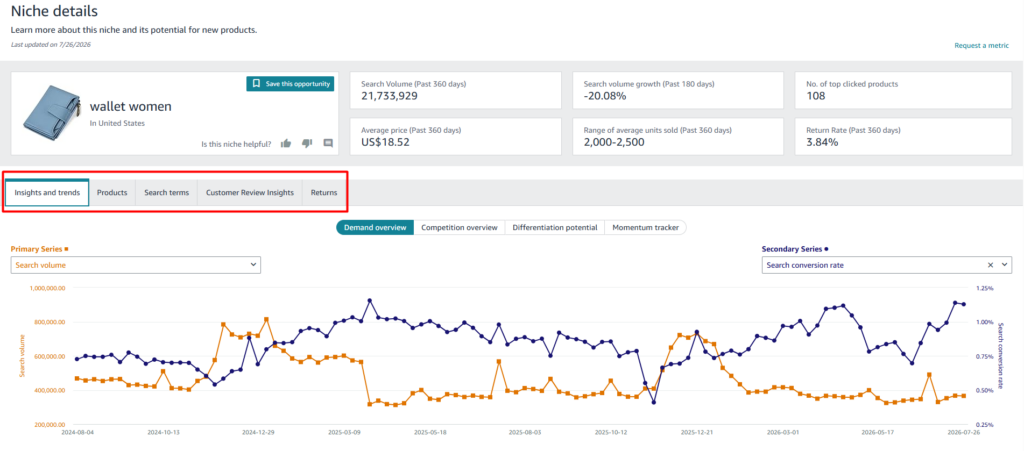
- Open a relevant niche and review search terms, product count, pricing, reviews, purchase behaviour, demand trends, and return patterns.
- Look for repeated customer needs, common complaints, underserved features, and gaps that existing products do not address well.
- Compare these findings with your product’s features, attributes, images, listing content, pricing, and positioning.
For example, water bottle research may reveal repeated interest in easy cleaning, leak resistance, cup-holder compatibility, or replacement-lid availability.
These findings can influence product development, attributes, image content, listing copy, advertising, and customer-question coverage.
8. Manage Your Experiments
Manage Your Experiments allows eligible sellers to compare different versions of product-detail-page content. Depending on product and marketplace eligibility, sellers may be able to test titles, images, bullet points, descriptions, A+ Content, and Brand Story content.
Analytics can reveal a possible weakness, but they cannot always prove which change will solve it. Manage Your Experiments helps sellers test a clear hypothesis rather than changing several elements and hoping for improvement.
Building and Running a Test
Before creating an experiment, identify one specific problem and one reasonable solution. A vague test usually produces a vague conclusion.
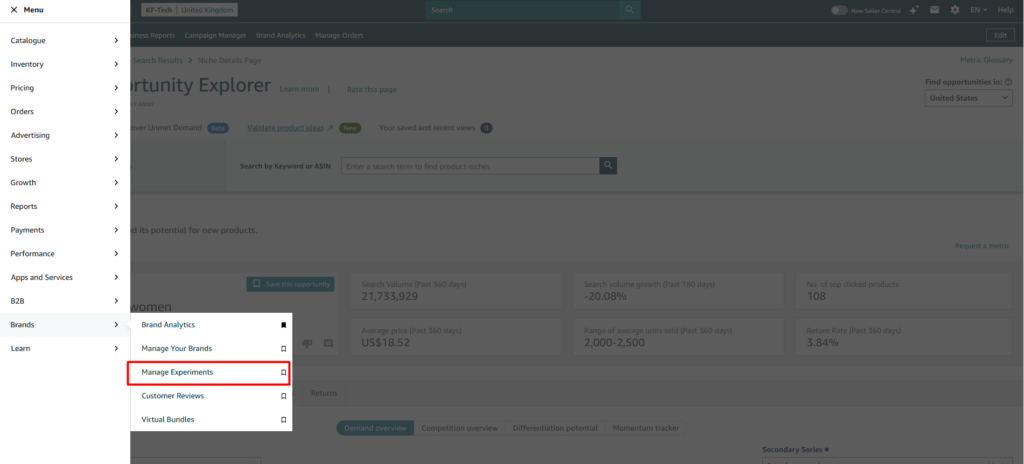
- Log in to Amazon Seller Central and go to Brands → Manage Your Experiments.
- Select an eligible ASIN and choose the experiment type, such as the title, main image, Item Highlights, description, or A+ Content.
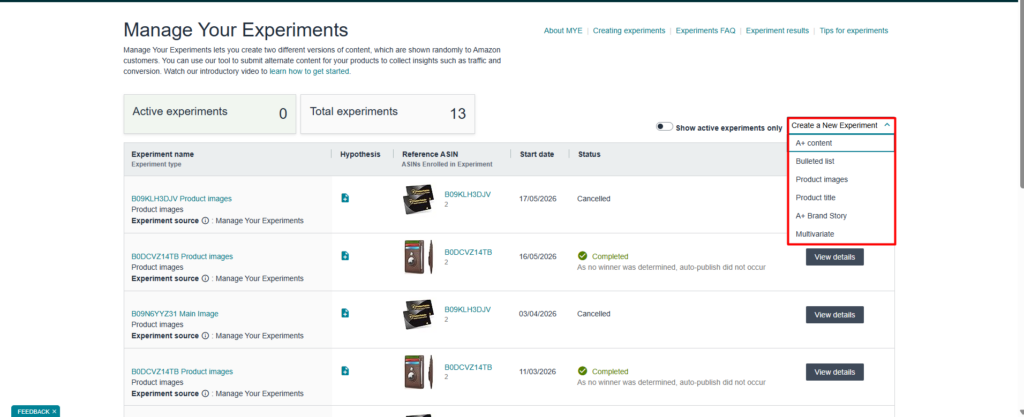
- Create an alternative version based on a clear hypothesis. For example, test whether a clearer main image can improve conversion.
- Set the experiment duration and launch the test. Allow enough time and traffic to produce meaningful results.
- Compare the available metrics, such as conversion, sales, units sold, and units sold per unique visitor.
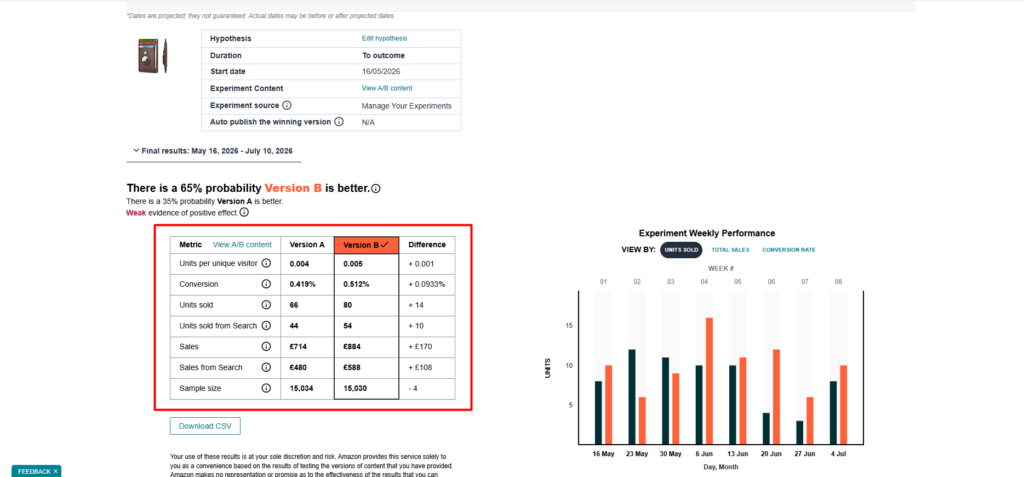
- Apply the stronger version when the results show a clear and convincing improvement.
Third Party Amazon SEO Platforms
Amazon’s own dashboards show what is happening around your products and customers. Third-party platforms help sellers investigate the wider marketplace.
They are useful for competitor keyword research, estimated demand, organic ranking history, listing audits, browser-based product research, historical monitoring, and automated reporting.
1. Helium 10
Helium 10 is a broad Amazon seller platform covering product research, keyword research, listing analysis, rank tracking, competitor research, advertising, and operations.
For Amazon SEO, the most useful tools include Cerebro, Magnet, Listing Analyzer, Keyword Tracker, Xray, and the Helium 10 Chrome Extension.
Finding Competitor Keywords with Cerebro
Start with closely matched competitors. Using unrelated ASINs may produce a large but misleading keyword list.
- Open Helium 10 and select Cerebro.
- Enter one competitor ASIN or several closely related ASINs, then select the correct Amazon marketplace.
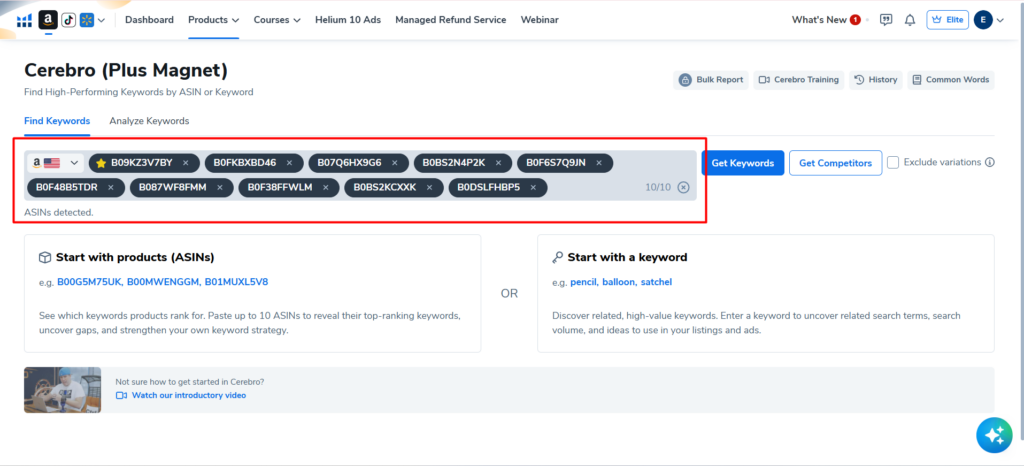
- Run the search and review the keywords associated with those products.
- Filter the results by organic rank, sponsored rank, estimated search demand, competition, and product relevance.
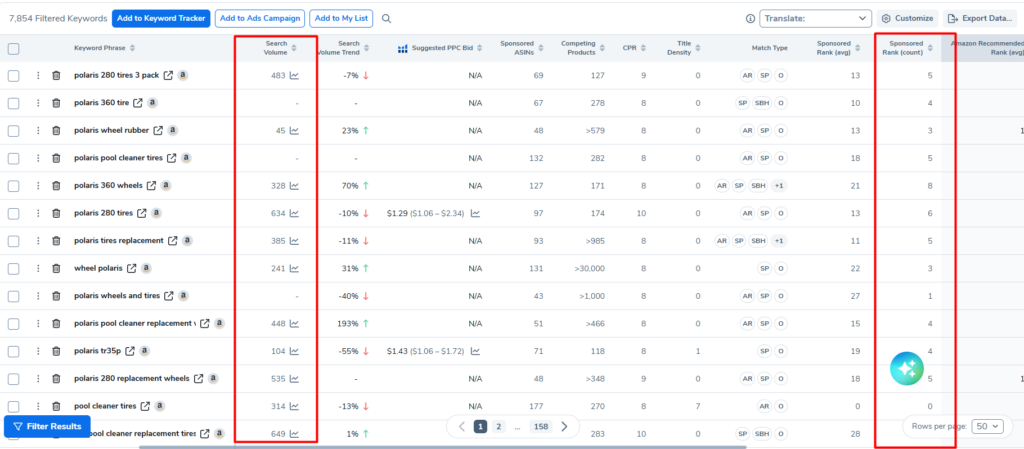
- Remove keywords that do not accurately describe your product or match the intended customer.
- Group the remaining terms into primary, supporting, long-tail, PPC, and experimental keywords.
- Validate the strongest keywords using Amazon Brand Analytics, advertising search term reports, and actual sales data.
Cerebro is valuable for discovering competitor keyword gaps and understanding the search territory around successful products.
Expanding Seed Keywords with Magnet
Magnet is most useful when you already have a relevant seed phrase and want to explore the wider language around it.
- Open Helium 10 → Magnet.
- Enter a relevant seed keyword that clearly describes the product, then select the correct Amazon marketplace.
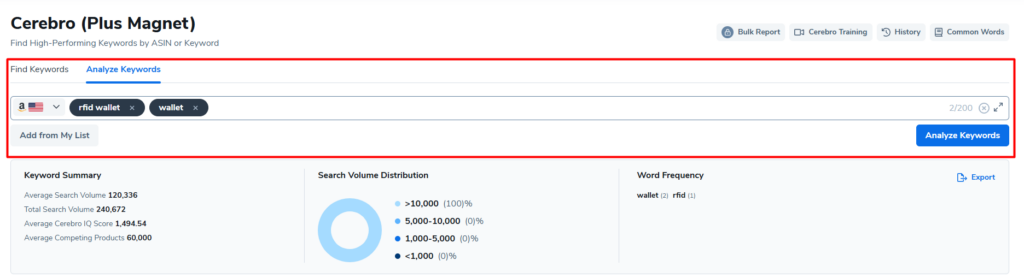
- Run the search and review related keywords, long-tail queries, and estimated search demand.
- Filter the results by product relevance, competition, search volume, and customer intent.
- Remove broad or unrelated searches that do not accurately describe the product.
- Save the strongest terms for listing optimisation, PPC campaigns, and further validation through Amazon Brand Analytics or advertising reports.
Magnet helps sellers move beyond obvious keywords and explore related features, audiences, materials, or use cases.
Comparing Listings with Listing Analyzer
Choose competitors with a similar product type, size, price range, and audience. The comparison becomes less useful when the products are not genuinely alike.
- Open Listing Analyzer.
- Enter your product ASIN.
- Add several closely matched competitor ASINs.
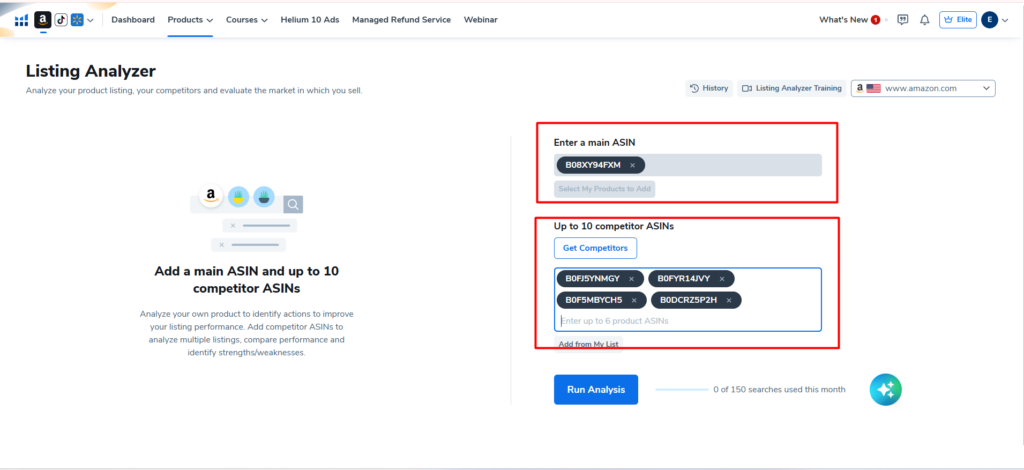
- Review content, keywords, ratings, reviews, pricing, and listing comparisons.
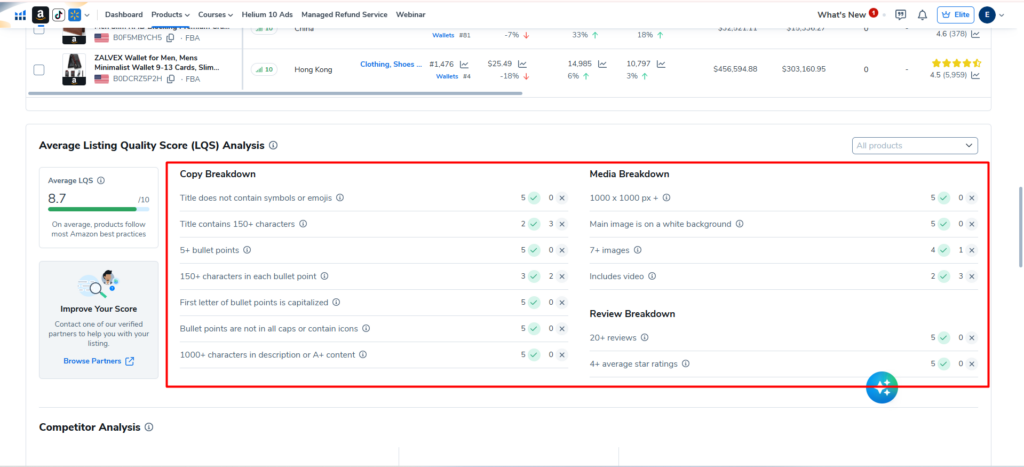
- Identify meaningful gaps in features, keyword coverage, images, reviews, or offer presentation.
- Confirm that every suggested improvement matches the real product.
Listing Analyzer helps organise competitor comparisons and identify possible weaknesses quickly.
Its score should not be treated as a ranking guarantee.
Monitoring Rankings with Keyword Tracker
Track only keywords that matter to the product and business. Monitoring hundreds of irrelevant phrases creates noise rather than insight.
- Open Helium 10 → Keyword Tracker.
- Add the ASIN you want to monitor and select the correct Amazon marketplace.
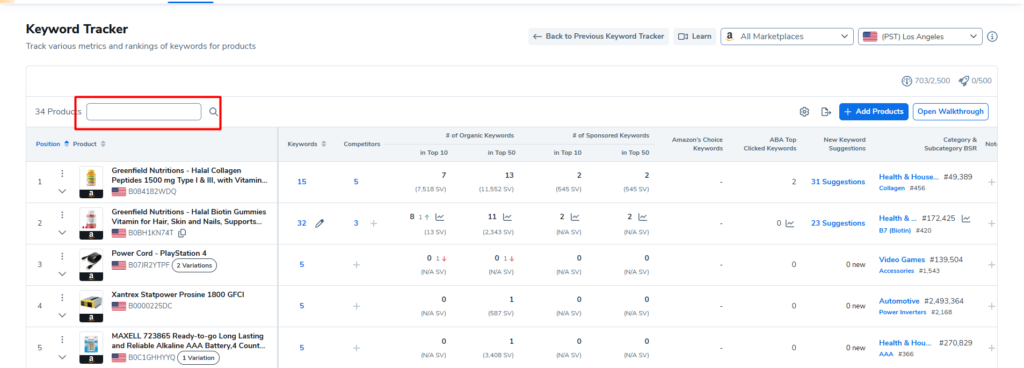
- Enter your priority, supporting, branded, long-tail, and experimental keywords.
- Monitor organic and sponsored ranking movement over time rather than reacting to daily fluctuations.
- Add notes whenever you change the listing content, PPC campaigns, price, promotions, or inventory.
- Compare ranking changes with impressions, sessions, conversion, and sales to determine whether improved visibility is producing real results.
Use Keyword Tracker to monitor direction over time rather than reacting to one position.
Researching Products with Xray
Xray works best as a quick market-screening tool. It helps sellers identify products worth investigating more deeply.
- Install the official Helium 10 Chrome Extension.
- Open a relevant Amazon search results page for your product type or target keyword.
- Launch Xray from the Chrome Extension and allow it to load the products shown on the page.
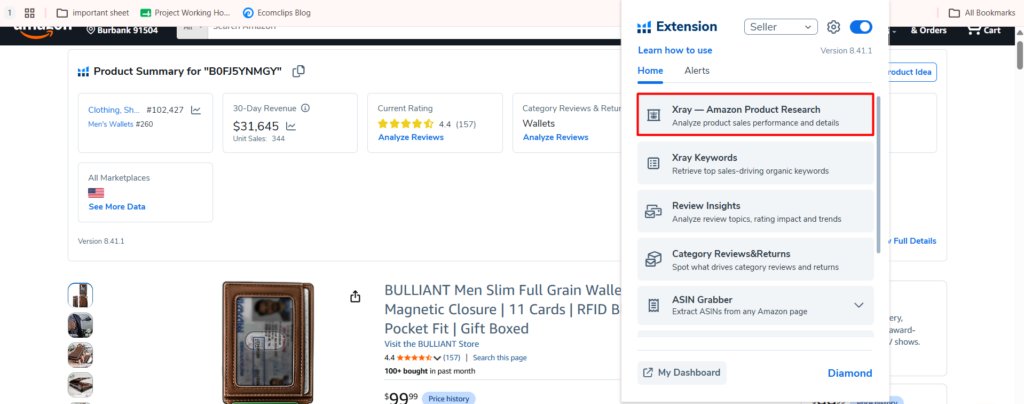
- Compare estimated sales, price, ratings, review count, fulfilment method, revenue, and competition levels.
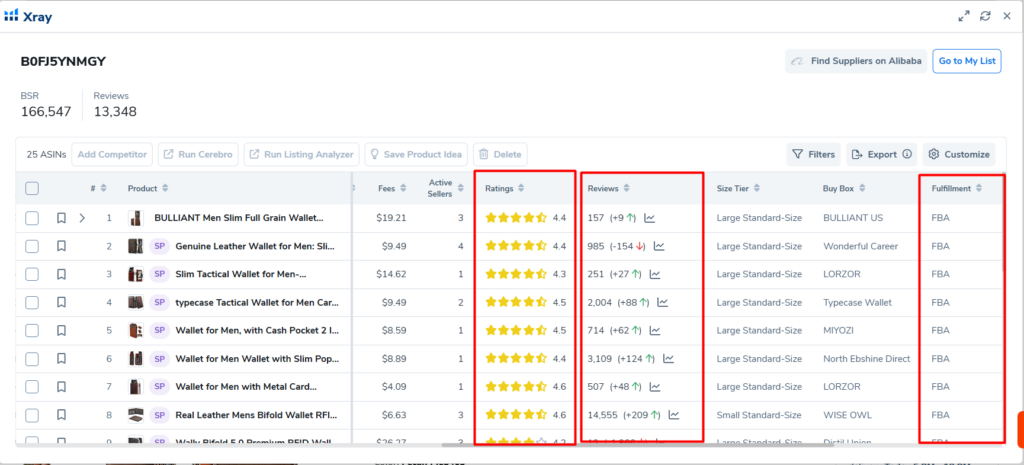
- Look for products that closely match your own in features, price range, audience, size, and use case.
Xray is especially useful for selecting realistic competitors and studying a market while browsing Amazon.
2. Jungle Scout
Jungle Scout combines product research, keyword discovery, listing development, rank monitoring, competitor analysis, and business-management tools.
Its most relevant SEO features include Keyword Scout, Listing Builder, Rank Tracker, Opportunity Finder, Product Database, Product Tracker, and the Jungle Scout Extension..
Discovering Searches with Keyword Scout
Use a seed term or competitor ASIN that closely matches the product. The quality of the starting point shapes the quality of the results.
- Open Keyword Scout.
- Enter a seed term or competitor ASIN.
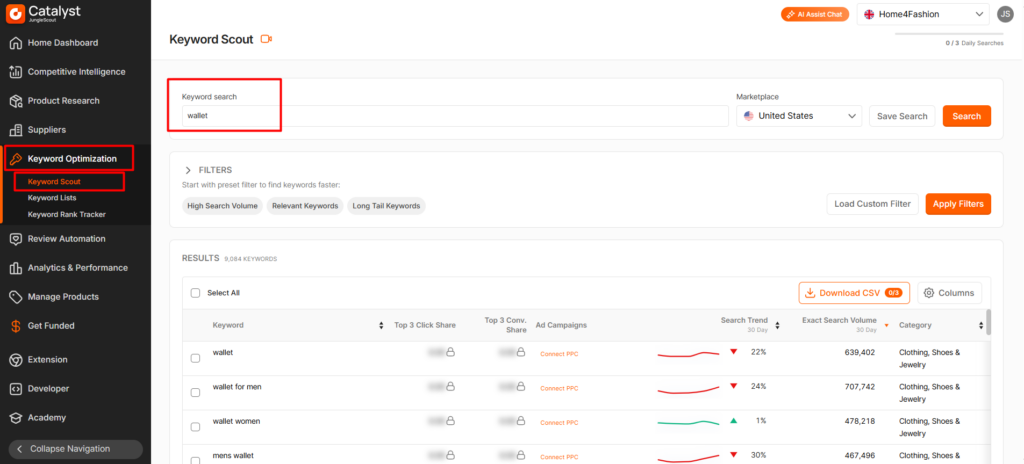
- Select the marketplace.
- Review related searches, estimated demand, trends, and available PPC insights.
- Remove irrelevant terms.
- Save searches based on relevance and purchase intent.
- Move the selected terms into a keyword list or Listing Builder.
Keyword Scout helps sellers discover and compare search opportunities. Treat volume and advertising figures as estimates rather than guaranteed numbers.
Organizing Content with Listing Builder
Bring only approved and relevant keywords into the listing project. The goal is to support readability, not force every phrase into the content.
- Open Listing Builder.
- Create a new project or import an existing ASIN.
- Add the keywords saved through Keyword Scout.
- Organise terms by priority and relevance.
- Draft or review the title and other eligible listing fields.
- Check whether important terms appear naturally.
- Remove repetition and awkward wording.
- Confirm that every statement matches the actual product.
Listing Builder can help sellers organise keyword placement, but readability and product accuracy should always come first.
Following Ranking Movement
Ranking data becomes more useful when it is connected with actual listing, PPC, pricing, and inventory changes.
- Add your ASIN and selected keywords to Rank Tracker.
- Add close competitor ASINs where useful.
- Monitor organic ranking history.
- Review page-one gains, losses, and persistent changes.
- Record listing edits, PPC changes, promotions, and stock issues.
- Compare ranking movement with traffic and sales.
Use Rank Tracker to study direction over time rather than reacting to small daily fluctuations.
Exploring Niches with Opportunity Finder
Opportunity Finder is most useful during product and niche research, before the seller commits heavily to inventory or positioning.
- Open Opportunity Finder.
- Enter a keyword or apply category, demand, and competition filters.
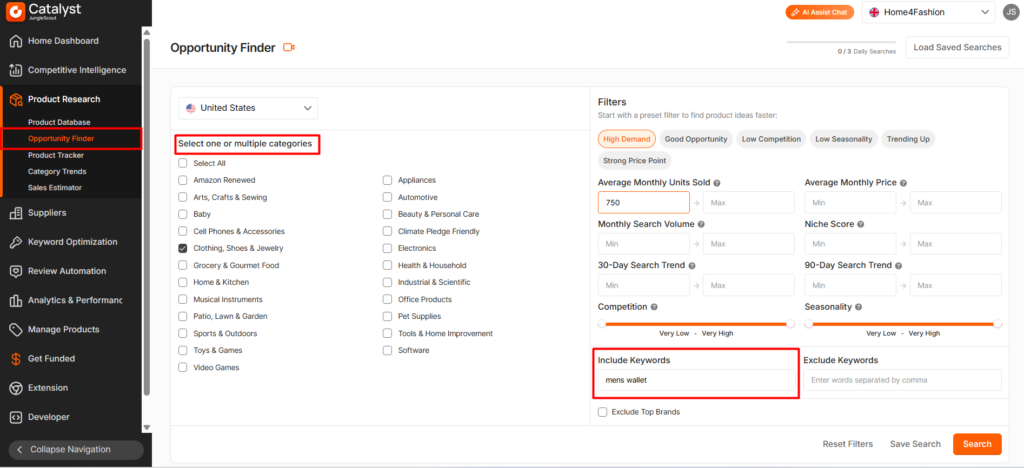
- Review niche demand, trends, pricing, reviews, and seasonality.
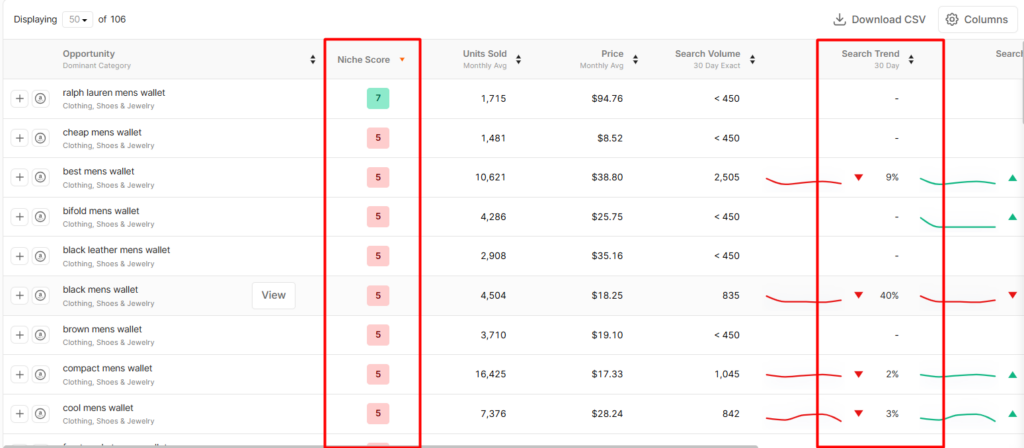
- Open promising niches for deeper analysis.
- Compare the findings with Amazon Product Opportunity Explorer.
- Use the information to support product development and positioning.
Opportunity Finder can reveal customer language and unmet demand, but the findings should still be validated before major investment.
Using the Jungle Scout Extension
The extension helps sellers review a market directly from Amazon search results without constantly switching between platforms.
- Install the official browser extension.
- Open an Amazon search-results page.
- Launch the extension.
- Review estimated sales, revenue, reviews, price, rank, and competition.
- Save suitable products to Product Tracker.
- Use the results to choose realistic competitors and investigate demand.
The extension is valuable for quick market research, but estimates should be validated before making major inventory decisions.
3. AMZScout
AMZScout provides product research, keyword discovery, reverse ASIN analysis, listing support, rank tracking, and browser-based tools.
Relevant features include the PRO AI Extension, Product Database, Keyword Search, Reverse ASIN Lookup, Keyword Tracker, AI Listing Builder, and Sales Estimator.
Evaluating Products with the PRO AI Extension
Use the extension to build an initial view of the market before moving into deeper competitor and keyword research.
- Install the official AMZScout extension.
- Open a relevant Amazon search or product page.
- Launch the extension.
- Compare estimated sales, revenue, reviews, pricing, fulfilment, rank, and competition.
- Apply filters to narrow the market.
- Save suitable products for deeper research.
- Use only closely matched competitors in later keyword analysis.
The extension is most useful for quick product screening and competitor selection.
Finding Keywords and Competitor Terms
Start with one strong seed term or a relevant ASIN. This keeps the research focused on realistic customer intent.
- Open Keyword Search or Reverse ASIN Lookup.
- Enter a seed term or competitor ASIN.
- Select the marketplace.
- Review estimated demand and related searches.
- Filter by relevance and customer intent.
- Save terms that accurately match the product.
- Validate the strongest terms through Amazon first-party or PPC data.
The final keyword list should reflect the product, not simply the largest available search volumes.
Tracking Keyword Movement
Add context to every ranking change. A movement without a timeline can easily be misinterpreted.
- Add the ASIN to Keyword Tracker.
- Enter priority and supporting searches.
- Monitor organic movement over time.
- Record listing changes, price changes, promotions, inventory problems, and PPC activity.
- Compare rankings with traffic and sales.
Ranking data becomes more meaningful when sellers can connect movement with actual changes.
Building Listing Content
Treat AI-generated content as a starting draft rather than a finished listing.
- Import or enter the product information in the listing tool.
- Add an approved keyword group.
- Generate or review the suggested content.
- Check every claim for accuracy.
- Remove repetition, unsupported statements, and unnatural language.
- Rewrite the final version for clarity and conversion.
AI tools can speed up drafting, but the seller remains responsible for accuracy, readability, and compliance.
4. Keepa
Keepa helps sellers study historical price changes, sales-rank movement, Buy Box history, and offer counts. Its browser extension adds detailed charts directly to Amazon product pages, making it useful for competitor research, pricing decisions, and demand analysis.
- Install the official Keepa browser extension or open the Keepa website, then select the correct Amazon marketplace.
- Open your product or a closely matched competitor ASIN. The Keepa chart should appear on the Amazon product page.
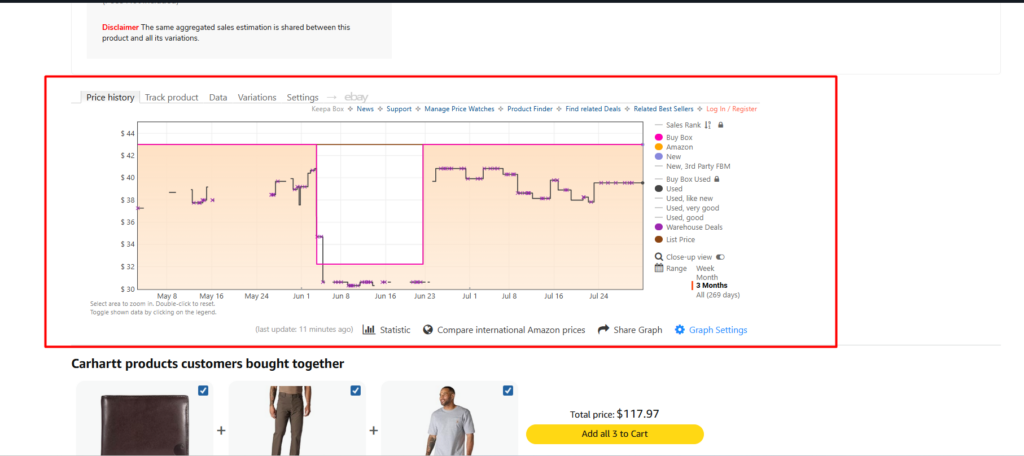
- Choose a suitable period, such as 3 months, 1 year, or the product’s full history.
- Review Amazon price, new offer price, Buy Box history, sales rank, and offer count to identify pricing changes and competitive movement.
- Look for repeated price drops, seasonal patterns, rank changes, stock gaps, and increases in seller competition.
- Compare several similar products before adjusting your price, planning promotions, forecasting inventory, or changing product positioning.
Use Keepa to understand historical market patterns, but validate major decisions with Seller Central traffic, conversion, advertising, and sales data.
Free vs Paid Amazon SEO Tools
Sellers do not need every subscription available. The right combination depends on account access, catalogue size, budget, and the questions the business needs answered.
Prices, usage limits, trials, and plan features can change, so always check the provider’s current offer before subscribing.
Amazon First Party Tools
Amazon’s own tools are the best starting point because they provide direct marketplace and account data. These tools do not require a separate third party SEO subscription, although selling-plan, Brand Registry, advertising, or eligibility requirements may apply:
- Amazon Brand Analytics
- Search Query Performance
- Search Catalog Performance
- Top Search Terms
- Seller Central Business Reports
- Sponsored Products Search Term Report
- Product Opportunity Explorer
- Manage Your Experiments
- Amazon Attribution
These tools are strongest for actual search-funnel activity, customer behaviour, sales, advertising search terms, product opportunities, experiments, and external campaign measurement.
Paid Amazon SEO Platforms
Paid platforms become more useful when sellers need competitor intelligence, historical monitoring, or larger-scale workflows.
Major paid platforms include:
- Helium 10
- Jungle Scout
- AMZScout
- SellerSprite
- Data Dive
- MerchantWords
SEO Tool Pricing Comparison
| Tool or Platform | Free or Limited Access | Paid Pricing |
| Amazon first party tools | No separate subscription for eligible Seller Central tools. Access may depend on Brand Registry, advertising activity, account permissions, and report eligibility. | US Professional selling plan: $39.99 per month, plus applicable selling fees. |
| Helium 10 | Limited Free plan and restricted Chrome Extension access. | Platinum: $129 monthly or $99 monthly with annual billing. Diamond: $359 monthly or $279 with annual billing. Enterprise: from $1,499 monthly with annual billing. |
| Jungle Scout | No free trial, but standard plans include a 7 day money back guarantee. | Starter: $49 monthly or $29 monthly with annual billing. Growth Accelerator: $79 or $49. Brand Owner: $149 or $129. |
| AMZScout | Free trial available for the PRO AI Extension without a credit card. | PRO AI Extension: $45.99 monthly, $269.99 annually, or $799.99 for lifetime access. |
| SellerSprite | Free trial and selected limited tools are available. | Basic: $39 monthly. Standard: $79. Advanced: $129. VIP: $189. Annual plans cost $390, $790, $1,290, and $1,890. |
| Data Dive | No permanent free plan listed. Annual billing provides 2 months free. | Starter: $39 monthly or $32 with annual billing. Standard: $149 or $124. Enterprise: $490 or $408. |
| MerchantWords | Limited public keyword previews may be available. | Silver: $35 monthly. Gold: $79. Platinum: $149. Enterprise: $749. |
Choosing the Right Tool Stack
The best tool stack changes as the business grows.
New Sellers
New sellers should begin with the essentials and learn how their product performs before investing in several overlapping platforms.
- Seller Central Business Reports
- Sponsored Products Search Term Report
- Product Opportunity Explorer
- One keyword research tool
- One simple keyword rank tracker
This setup provides enough insight to understand visibility, traffic, conversion, and customer demand without creating unnecessary complexity.
Growing Brands
Growing brands usually need a stronger combination of first-party and competitive data.
- Amazon Brand Analytics
- Search Query Performance
- Search Catalog Performance
- Helium 10, Jungle Scout, AMZScout, SellerSprite, or Data Dive
- Competitor monitoring
- Rank tracking
- Manage Your Experiments
At this stage, the focus should shift from discovering more keywords to understanding which queries, products, and funnel stages produce profitable growth.
Agencies and Large Catalogues
Large catalogues need systems that can organise data across many ASINs and marketplaces.
- Multi-ASIN tracking
- Historical data
- Automated dashboards
- Team access
- Competitor alerts
- Marketplace comparisons
- Inventory and profitability integrations
- Client-ready reporting
- Detailed change logs
The best tool stack is not the one with the most subscriptions. It is the one that answers the questions Amazon’s first-party data cannot answer on its own.
How to Diagnose Amazon SEO Problems with Data
SEO tools become useful when they help explain a specific performance problem. Before changing a listing, identify the stage where the weakness begins.
The Product Receives Few Impressions
When impressions are low, first confirm whether the product is eligible and relevant enough to appear.
- Check indexing and query relevance.
- Review organic rankings, product type, category, and product attributes.
- Check backend search terms, inventory, demand, and listing suppression.
- Confirm that the product genuinely matches the target search.
- Add keyword support naturally only after the basic issues are addressed.
The Product Receives Impressions but Few Clicks
When the product appears but shoppers do not choose it, focus on the search-result comparison.
- Review the main image and title.
- Compare price, ratings, review count, and coupons.
- Check delivery promise and the displayed variation.
- Compare the offer with closely matched competitors.
- Test a focused improvement where eligible.
The Product Receives Clicks but Few Cart Adds
When shoppers visit but do not add the item to the cart, the product page may not answer their questions.
- Review secondary images and product benefits.
- Confirm dimensions, materials, and compatibility.
- Clarify package contents and variations.
- Review videos, A+ Content, customer questions, and negative reviews.
- Address genuine concerns without exaggerating the product.
The Product Receives Cart Adds but Few Purchases
When interest is strong but orders remain weak, investigate the final offer.
- Check final price and delivery speed.
- Confirm inventory and Featured Offer eligibility.
- Review ratings, recent feedback, and variation availability.
- Compare promotions and purchase options.
- Investigate whether a competing offer is more attractive.
PPC Sales Are Strong but Organic Rank Is Weak
Paid and organic performance should be reviewed together, but they should not be treated as the same thing.
- Compare sponsored and organic positions separately.
- Confirm indexing and listing relevance.
- Review paid-sales concentration and keyword difficulty.
- Check whether the query converts outside advertising.
- Monitor organic movement over a longer period.
PPC can reveal valuable demand, but it does not guarantee organic ranking.
Common Amazon SEO Analytics Mistakes
Even good data can lead to poor decisions when it is interpreted without context. The following mistakes are common because they make sellers react quickly without diagnosing the real problem.
- Tracking rankings without tracking sales: A move from position 40 to 15 means little if it produces no useful traffic or purchases. Compare rankings with impressions, clicks, conversion, sales, and profit.
- Treating search volume as exact: Third party search volume figures are estimates. Validate them with Amazon data, PPC performance, relevance, and actual sales.
- Using only one day of data: Daily results can change because of inventory, promotions, advertising, delivery, competition, and seasonality. Use longer, comparable periods.
- Changing too many elements together: Updating the title, images, price, content, and PPC at the same time makes it difficult to identify what caused the result. Make controlled changes where possible.
- Ignoring inventory and delivery: SEO cannot overcome stock shortages, slow delivery, or loss of the Featured Offer. Retail readiness directly affects performance.
- Assuming every sales increase came from SEO: Sales may rise because of PPC, promotions, pricing, seasonality, external traffic, or competitor stockouts. Use change logs and attribution data.
- Trusting listing scores as ranking guarantees: A high listing score does not guarantee visibility or sales. Price, reviews, delivery, product value, and customer fit still matter.
Need Help Turning Amazon Data Into Growth?
Understanding Amazon data is only the first step. The real growth comes from turning search insights, ranking trends, traffic behaviour, and conversion data into effective optimisation strategies.
Ecomclips helps Amazon sellers improve their overall marketplace performance through data-driven listing optimization, keyword strategy, PPC insights, catalog management, A+ Content, images, variations, and conversion-focused improvements.
Contact us today at info@ecomclips.com or book an appointment with our e-commerce experts to receive an Amazon SEO audit and growth strategy.
Frequently Asked Questions
Q1. What Are the Best Amazon SEO Tools?
The best tools depend on your goals. Amazon’s own tools provide real marketplace data, while third party tools support keyword research, competitor analysis, and tracking.
Q2. Does Amazon Provide Free SEO Tools?
Yes. Amazon offers free tools such as Brand Analytics, Business Reports, Product Opportunity Explorer, advertising reports, and Amazon Attribution.
Q3. How Do I Track Amazon Keyword Rankings?
Use a keyword rank tracker to monitor ASIN positions over time and compare ranking changes with traffic, sales, conversions, and other performance factors.
Q4. What Is the Difference Between Search Query Performance and Search Catalog Performance?
Search Query Performance focuses on customer searches, while Search Catalog Performance focuses on product performance and ASIN level search data.
Q4. Can Amazon SEO Tools Guarantee Higher Rankings?
No. SEO tools provide insights and data, but rankings depend on factors like relevance, conversions, pricing, reviews, inventory, and customer experience.
Q5. Are Amazon Search Volume Estimates Accurate?
Third party search volume data are estimates. Use them as a comparison tool and validate demand with Amazon data and advertising performance.
Q6. Can PPC Reports Help Amazon SEO?
Yes. PPC reports help identify converting keywords, new opportunities, and irrelevant traffic, but paid results do not guarantee organic rankings.
Q7. Do Sellers Need Both Amazon and Third Party Tools?
Yes. Amazon tools provide real performance data, while third party tools add competitor insights, keyword research, and automated tracking.
Use Data to Make Better Amazon SEO Decisions
Amazon SEO success is not about collecting more data. It is about understanding what the data is telling you and taking the right action. Rankings, keywords, traffic, and conversions are connected, and each metric helps reveal a different part of the customer journey.
Amazon’s first party tools provide real marketplace insights, while third party platforms add valuable competitor research, keyword discovery, and tracking capabilities. When used together, they help sellers identify opportunities, fix performance issues, and make smarter optimisation decisions.
The best sellers do not optimise based on assumptions. They analyse shopper behaviour, test improvements, monitor results, and continuously refine their strategy. In 2026, winning on Amazon requires combining accurate data with thoughtful decision making to improve visibility, conversions, and long term growth.