
Back in 2023, one of our clients kept asking why their ads were burning through budget by noon, with barely any conversions to show for it. It wasn’t the product. It wasn’t the bids. The missing piece? Amazon PPC Dayparting.
Fast forward to 2025, and if you’re still running ads 24/7 without a strategy, you might be leaving serious money on the table. Amazon PPC Dayparting is the process of scheduling your ads to run during specific hours of the day when your target audience is most active and ready to convert. Instead of showing ads during low-converting hours (like 2 AM), you focus your budget during peak shopping windows—maximizing sales and improving ROAS.
In this blog, we’ll break down how dayparting works inside Seller Central, how to extract hourly performance data, and how to analyze and act on that data for smarter ad scheduling. Whether you’re overspending or underperforming, this guide will help you harness the power of Amazon PPC Dayparting and make every advertising dollar count. Let’s see how Amazon PPC Ads Dayparting is gonna help you to boost sales and increase ROAS.
1. Getting Started with Budget Rules
Here, here on my screen, you can see I am already in the Campaign Manager tab. Now, if I just open a random campaign from here; let’s open this one you can see there is an option called budget rules. If I click on this, here you can see I can add a new budget rule. Let’s click on this one. So, here you will find all the process of adding a new budget rule.
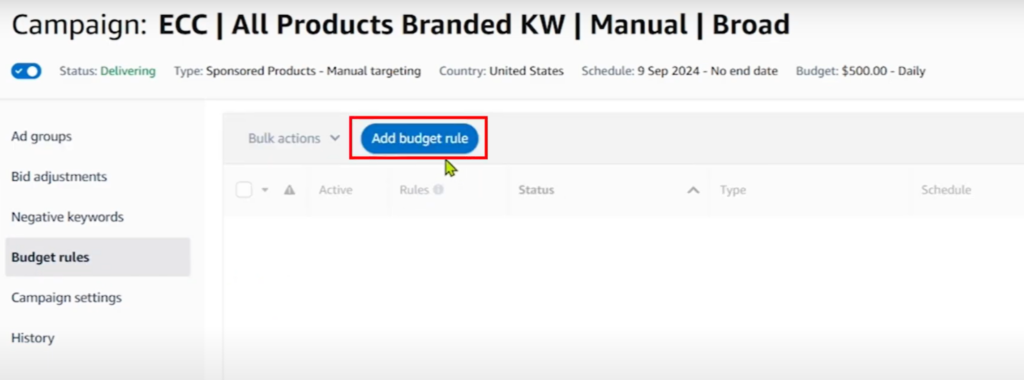
First of all, you need to put the rule name, which is not super important, but you need to put a name. For example, you can put any upcoming events or whatever you want. For me, let’s select, uh, like “Test 01.” However, there are some important factors you need to keep in mind.
For example, the budget increasement. You can only increase the budget here. So, you need to remember that while adding any budget rule or bidding rule, you won’t be able to decrease anything; you can only increase the budget or bid. So, in that case, what you can do, for example, is put a lower budget at your campaign level, which will work the whole day, and for a specific time range, you can put the budget rule which will increase your budget.
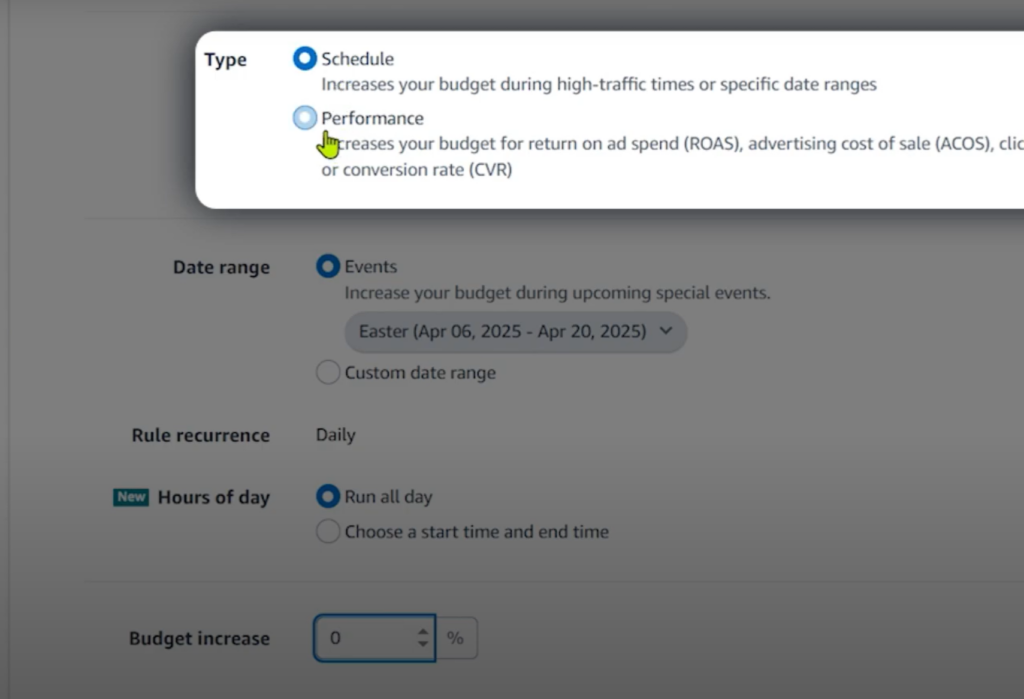
So now, you can see there are two types: one is schedule and another one is performance. If you select schedule, then you will be able to select a particular date range or even a particular hour of the day. So, now, if you see, let’s select schedule. For the date range, you can see there are two options: events and the custom date range. For the events, it means any upcoming events, or you can see here we have already an ongoing event, which is like, uh, Easter started on April 6 and it will continue till April 20.
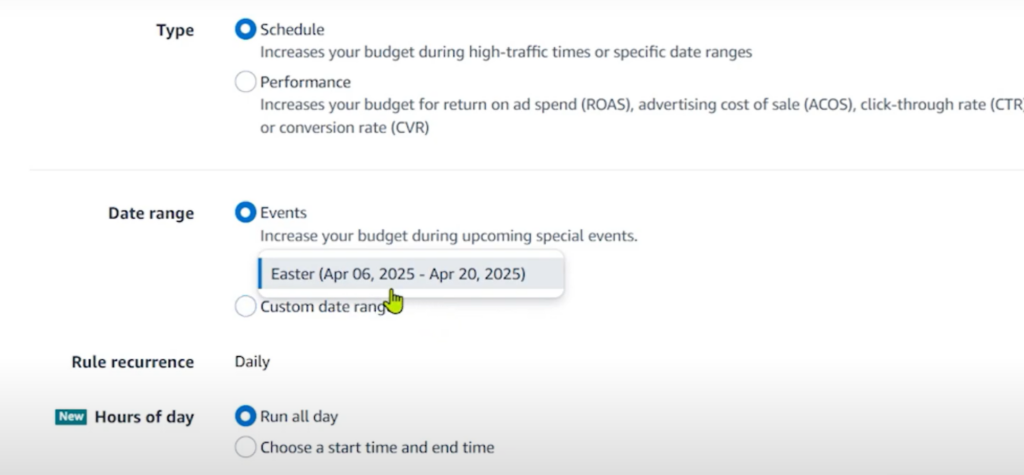
Also, if there are any other upcoming events in the near future, you will see them here. For the custom date range, let’s select the start date as today, and for the end date, you can keep it blank or, if you want, you can also put the end date.
Next is the rule recurrence, which you can set to daily or weekly. For us, we will definitely put daily. Now, the final option is hours of the day. Do you want to put these rules for the whole day long, or do you want to put them only for a specific time? Definitely, you will choose a specific time. So, in that case, you need to choose this option and select the start time and end time.
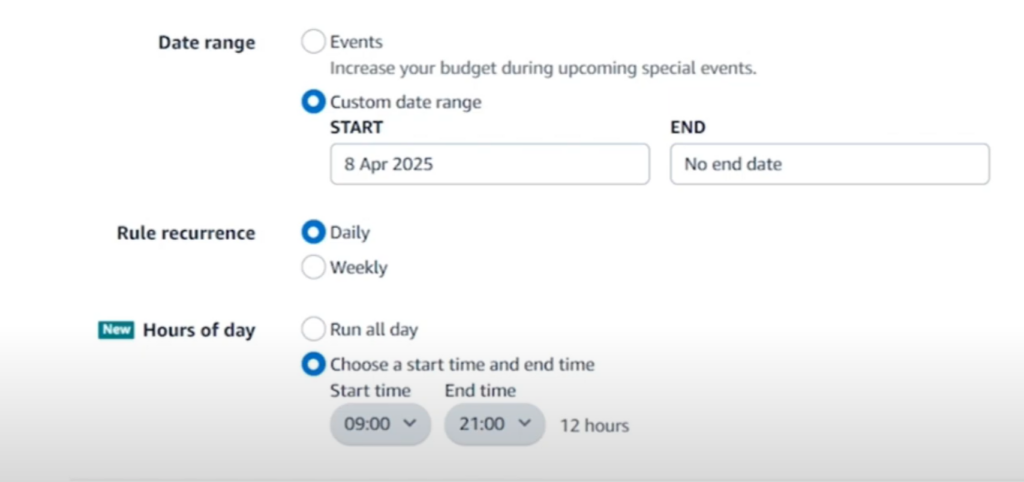
For example, let’s select, uh, 9:00 a.m. and it will end at 9:00 p.m. at night. So, it will work for 12 hours. Then, you need to put the increasement of budget. You can put whatever you want. For example, let’s say you want to increase the budget by 100% during this time. After adding the budget rule by clicking here, you will be able to apply this budget rule. So, this is all about adding a budget rule.
2. Exploring Dayparting Reports
Now, let’s see what reports Amazon provides us. If I go to the Campaign Manager tab again, and on the left-hand side, you will see measurement and reporting, and you need to click on the sponsored ads report. From here, let’s click on create report, and I need to select the report type for the sponsored product. Let’s select the campaign, and then you will see the time count, and we need to select hourly. For the reporting period, you will be able to take a maximum of the last 14 days. So, we will take this and let’s click on run report. However, I have already downloaded this report before as it takes some time. So, let me open that report.
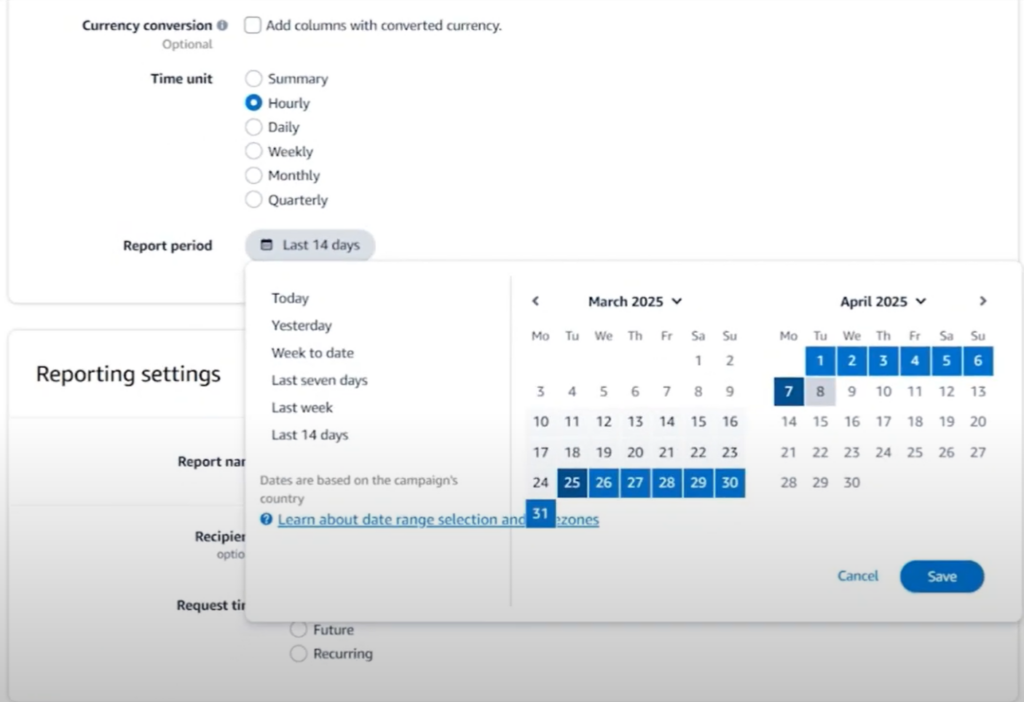
This is the hourly report that Amazon provides us. However, it seems messy and tough to understand the scenario. For that reason, we have organized this report on our own and made it easier to optimize the campaigns. Let me show you. This is the report that we have organized using the hourly report that Amazon provides us. Also, you can see we have segmented the time frame. For example, 12:00 a.m. at night to 6:00 a.m. in the morning, and then from 7:00 a.m. in the morning to 9:00 p.m. at night, and then there is another segment from 10:00 p.m. to 11:00 p.m. Let me show you why.
If you check the performance, you can see from 12:00 a.m. at night to 6:00 a.m., I mean during the night time, we have spent within 14 days around $700, and in return, the PPC sales were around $4,000, and also the organic sales were around $5,600. So, in total, we got almost $10,000 in sales with 17% ACOS and the TACOS was 7%.
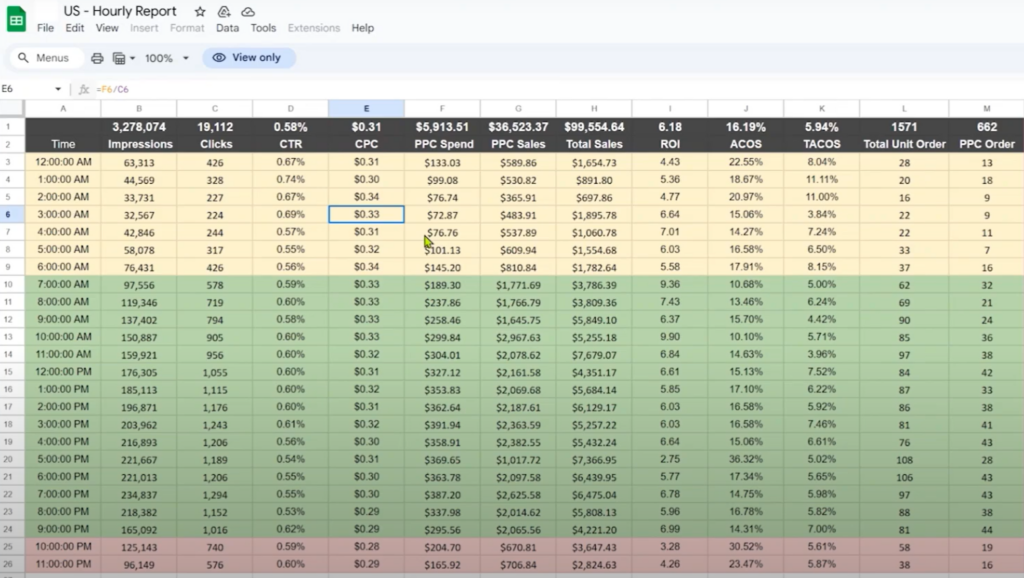
Then, the next segment from 7:00 a.m. in the morning to 9:00 p.m. at night, during this time, we spent the maximum, around almost $5,000 from PPC, and the sales were more than $30,000, and we also had more than $50,000 in organic sales. So, in total, it was more than $80,000 with 15% ACOS and 5% TACOS. The next slot, from 10:00 p.m. to 11:00 p.m., we spent around $370, and in return, we got $1,300 in sales, and the organic sales were $5,000. So, in total, it was $6,400 with 27% ACOS and 5% TACOS. Although the TACOS was good, the PPC ACOS was not good at all during this time, that’s why we kept it separate.
3. Budget and Bidding Optimization
Now, what will be our decision? Our decision is that this was the peak time; we got the highest sales with the best results. So, what we need to do is keep the budget higher to ensure that our campaigns will not run out of budget during this period. This is the first step. The second step is that we can add a bidding rule, similar to the budget rule, where we can increase the bids during this time so that there is a high chance we will get maximum visibility during this time period.
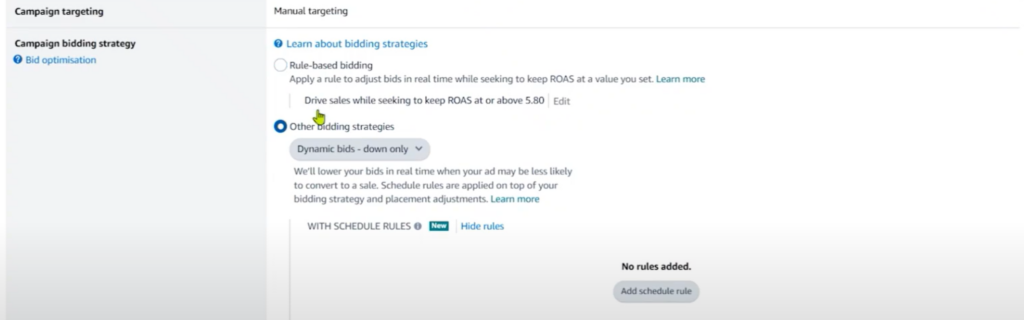
So, now, let me show you how we can add this bidding rule. Again, if I go to the Campaign Manager tab for this campaign, let’s go to the campaign settings, and you can see the campaign bidding strategy. Under this strategy, you will see different options, like, as you know, there are three different bidding strategies: dynamic bids up and down, dynamic bids down only, and fixed bids. Other than that, there are other options also, like rule-based bidding. This will be based on performance. So, you can edit from here. Here, you can put the optimization rules, like you can set a limit for your target ACOS so that Amazon will automatically increase or adjust the bids based on that ACOS.
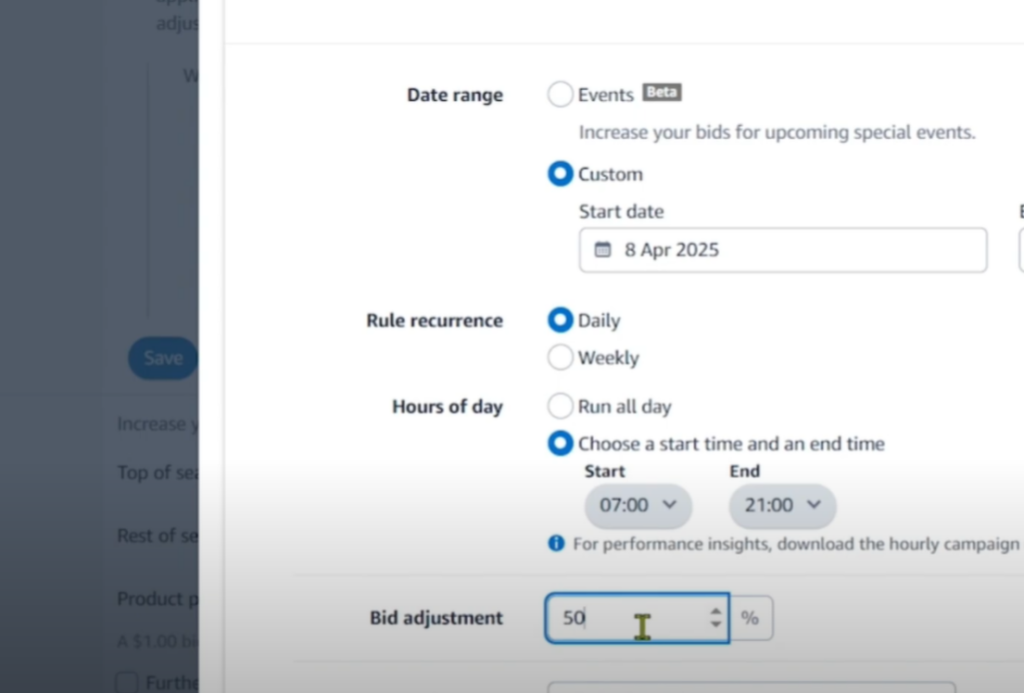
However, the main option is here: you can see the schedule rules. So, if you click on show rules and then click on add schedule rule, now you can set bidding rules for a particular time. Again, it’s similar to budget rules. You can see date range options like events and custom. For us, we need to select custom, and then rule recurrence will be daily. For hours of the day, it will not run all day; we will choose a specific time. So, let’s click on this and select a start time. As we showed you, we will select 7:00 a.m. in the morning till 9:00 p.m. at night.
So, now you can see we have added the start and end time. Now, we need to put the bid adjustment: how much we will actually increase the bids during this time period. For example, let’s put 50% bid increasement. So, during this time period, the bids will be increased by 50% automatically, which will help us gain more traffic. The final step is the rule name; you can put any rule name that you want and just click on add rule.
4. Key Takeaways: Amazon Budget Rules & Dayparting Optimization
Amazon’s Budget Rules and Dayparting Reports offer powerful tools for maximizing your PPC performance. By strategically increasing budgets and bids during high-performing hours and analyzing hourly data, you can fine-tune your campaigns for better efficiency, visibility, and return on ad spend. Below is a detailed takeaway table summarizing the essential insights from setting up Budget Rules, exploring Dayparting Reports, and applying Bidding Optimization strategies.
| Section | Key Insight | Action Step |
| Getting Started with Budget Rules | You can only increase (not decrease) budget using rules. | Set a lower base campaign budget, then use rules to increase during peak hours. |
| Types of Rules | Two types: Schedule-based and Performance-based rules. | Use Schedule-based for known peak times (e.g., events or hourly performance data). |
| Date Range Options | Choose between event-based (e.g., Easter) or custom dates. | Use custom date ranges for tailored dayparting strategies. |
| Rule Recurrence | Can be set to daily or weekly. | Set to daily for consistent performance-based adjustments. |
| Hour Selection | Allows defining exact start and end hours for the budget increase. | For example, set from 9:00 AM to 9:00 PM for optimal exposure. |
| Budget Increasement | You can specify % increase during scheduled hours. | Example: Increase budget by 100% during peak hours. |
| Hourly Report Setup | Amazon provides Sponsored Ads Hourly Reports for last 14 days. | Go to: Campaign Manager > Measurement & Reporting > Sponsored Ads Report > Select “Hourly”. |
| Hourly Data Insights | Performance varies by time segment—midday performs best, late-night performs worst (high ACOS). | Segment the day (e.g., 12 AM–6 AM, 7 AM–9 PM, 10 PM–11 PM) to identify profitable windows. |
| Best Performing Slot | 7 AM to 9 PM: High PPC & organic sales with low TACOS and ACOS. | Focus budget & bids during this window to boost ROI. |
| Poor Performing Slot | 10 PM to 11 PM: High ACOS despite decent sales. | Reduce budget or exclude this time from dayparting rules. |
| Adding Bidding Rules | Use rule-based bidding to adjust bids dynamically based on time. | Set 50% bid increase from 7 AM–9 PM to enhance visibility. |
| Bidding Strategy Options | Dynamic bids (up/down, down only, fixed) + Rule-based bidding. | Choose Rule-based bidding with custom schedule and ACOS targets. |
| Naming Rules | Rule names are required, but can be arbitrary. | Use descriptive names (e.g., “Morning Boost – 7AM-9PM – +50% Bids”). |
| Optimization Flow | Combine budget rules + bidding rules based on hourly data insights. | Build a dayparting system that automatically scales ads during high-conversion windows. |
Conclusion!
All right, guys, this is all about Amazon dayparting through Amazon Seller Central. This is one of the most important and effective features that I have ever seen within Seller Central. Previously, you had to go for third-party tools or software to make adjustments on an hourly basis, but now it’s totally free within Amazon Seller Central. If you are not using this feature, then you should start using it because it will save a lot of your money.
By applying these strategies, supplement sellers can optimize their Amazon PPC campaigns, drive more conversions, and ultimately maximize their profits. If you’re struggling with supplement PPC on Amazon, don’t hesitate to reach out for a free consultation and an in-depth audit of your account. We’re here to help you level up your business!
Ready to see real results? Contact EcomClips today and let us help you achieve your business goals! At Ecomclips, we’ve been helping Amazon sellers grow their sales and capture market share through a combination of PPC and organic SEO strategies. If you’re looking to boost your Amazon sales or expand your brand’s presence, feel free to reach out to us at info@ecomclips.com.
We also offer free Amazon store and account audits for both PPC and SEO. If you’d like us to review your account and provide insights on how to improve performance, just contact us via email. We’re always ready to assist with personalized solutions, tailored to help you manage your PPC campaigns and enhance your profitability. For any other questions or support, don’t hesitate to drop a comment below. We’re here to help you succeed!